Manage enrollments
Use enrollments to manage agent submissions for opportunities and control how additional work is assigned. This section covers how to review, approve, or deny submissions and monitor enrollment activity.
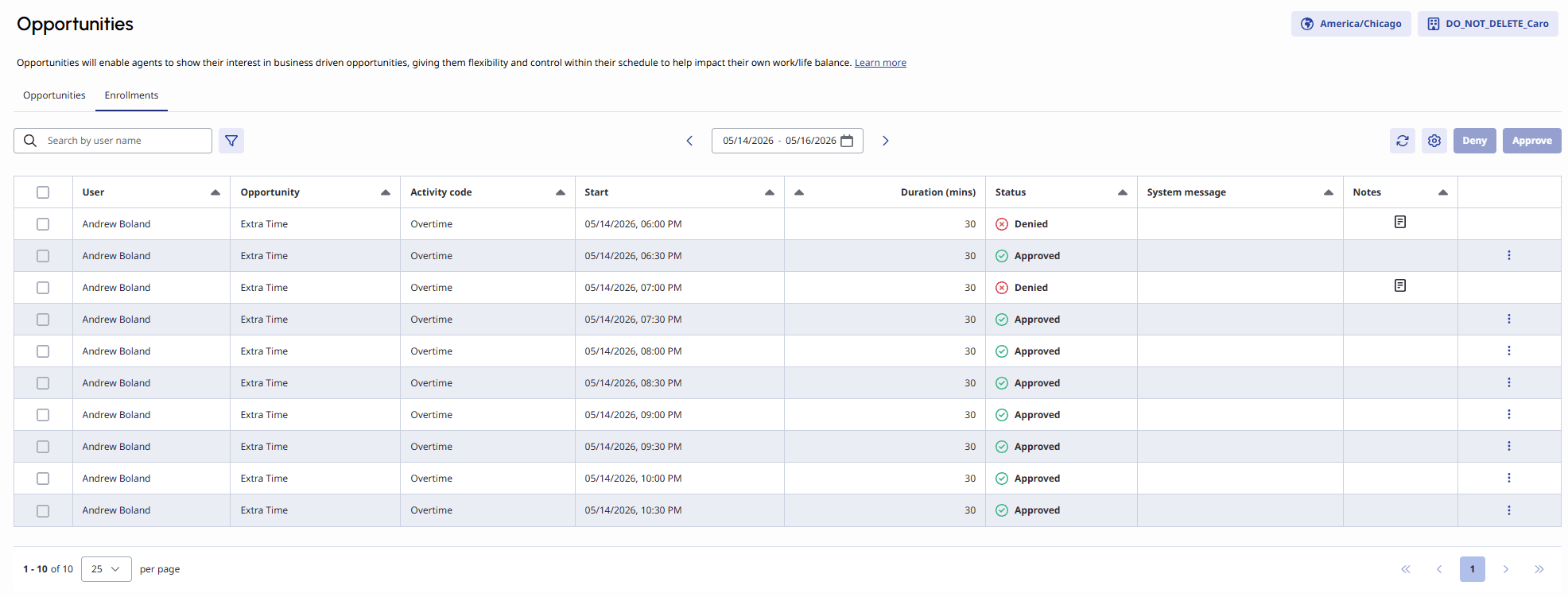
As a scheduler, you can use the Enrollments tab to monitor, approve, deny, and manage agent submissions for opportunities. Navigate to the Enrollments tab by clicking Enrollments from the Opportunities page. The Enrollments tab shows agent-level records instead of opportunity-level rows. Each row represents a single agent’s enrollment for a specific opportunity.
 Enrollments tab." class="alignnone wp-image-419548 size-full" srcset="https://help.mypurecloud.com/wp-content/uploads/2026/05/enrollmentApproveDeny.png 1972w, https://help.mypurecloud.com/wp-content/uploads/2026/05/enrollmentApproveDeny-300x114.png 300w, https://help.mypurecloud.com/wp-content/uploads/2026/05/enrollmentApproveDeny-1024x390.png 1024w, https://help.mypurecloud.com/wp-content/uploads/2026/05/enrollmentApproveDeny-768x292.png 768w, https://help.mypurecloud.com/wp-content/uploads/2026/05/enrollmentApproveDeny-1536x585.png 1536w" sizes="auto, (max-width: 1972px) 100vw, 1972px">
You can sort and filter the list to focus on specific opportunities, dates, statuses, or agents.
| Column name | Description |
|---|---|
| User | Indicates the name of the user. |
| Opportunity | Indicates the name of the opportunity that has been requested. |
| Activity Code | Indicates the activity code associated with the opportunity. |
| Start | Indicates the start date/time of the opportunity. |
| End | Indicates the end date/time of the opportunity. |
| Duration (mins) | Indicates the length of the opportunity in minutes. |
| Enrolled | Displays the date/time the Agent was enrolled. |
| Deadline | Displays the deadline date and time for the opportunity associated with this enrollment. |
| Hire date | Indicates the hire date of the user. This can be used to approve based on seniority if desired. |
| Remaining space | Displays the remaining spaces for the opportunity associated with this enrollment. |
| Status | Each enrollment record has its own status, separate from the opportunity lifecycle status. |
| System message | Indicates the last activity on the opportunity. |
| Last modified | Displays the date/time the enrollment was last modified. |
| Notes | Indicates any notes on why an enrollment succeeded, failed, or was decided automatically. |
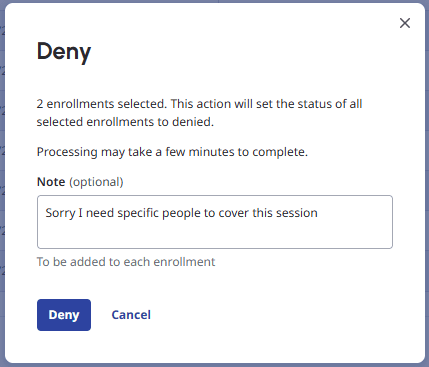
Work with requests
 Deny dialog box." class="alignnone size-full wp-image-419560" srcset="https://help.mypurecloud.com/wp-content/uploads/2026/05/enrollmentDenyNote.png 429w, https://help.mypurecloud.com/wp-content/uploads/2026/05/enrollmentDenyNote-300x257.png 300w" sizes="auto, (max-width: 429px) 100vw, 429px">
Manage over-subscriptions
If demand exceeds available spaces:
- The system approves only up to the defined number of spaces.
- Remaining requests stay Pending (manual approval) or the system denies them once capacity is reached.
High demand may indicate:
- Strong interest in the timeframe.
- An opportunity to create additional opportunities.
- A need to adjust future staffing strategies.
Close an opportunity for no further agent enrollments
A scheduler can close an opportunity before it starts if business requirements change. When a scheduler closes an opportunity:
- Approved enrollments remain in Approved status.
- The system marks all pending enrollments as Denied.
- No further enrollment actions occur.
This approach provides a controlled and transparent way to conclude enrollment activity.
Enrollment management flow
Use the Enrollments tab to manage the approval lifecycle of opportunities. A typical enrollment management flow includes the following steps:
- The Opportunity opens and the agent submits an enrollment.
- Enrollments appear as Pending (briefly, even with auto-approval).
- The scheduler monitors approvals and demand.
- The enrollment window closes, and the opportunity moves to Pending status.
- The scheduler finalizes remaining approvals.
- The opportunity starts and transitions to Closed status.
[NEXT] Was this article helpful?
Get user feedback about articles.