Create an opportunity
- Genesys Cloud CX 3, Genesys Cloud CX 4, Genesys Cloud CX 1 WEM Add-on II, Genesys Cloud CX 2 WEM Add-on I, Genesys Cloud CX 3 Digital, or Genesys Cloud EX license
- Permissions to view the opportunity names on the schedule editor:
- Workforce Management > Opportunities External Activities Query – View
- Permissions to view the opportunities page:
- Workforce Management > Opportunities Query – View
- Workforce Management > Business Unit – View
- Permissions to create opportunities via the opportunity table:
- Workforce Management > Opportunities – Add
- Permissions to edit opportunities via the opportunity table:
- Workforce Management > Opportunity – Edit and View
- Permissions to publish opportunities via the opportunity table:
- Workforce Management > Opportunities – Publish
- Permissions to copy opportunities via the opportunity table:
- Workforce Management > Opportunities – Add and View
- Permissions to delete opportunities via the opportunity table:
- Workforce Management > Opportunities – Delete
- Permissions to close opportunities via the opportunity table:
- Workforce Management > Opportunities Statuses – Edit
- Permissions to view users via the opportunity table:
- Workforce Management > Opportunity – View
- Permissions to view existing and pending enrollments:
- Workforce Management > Opportunities Enrollments Query – View
- Workforce Management > Opportunities Query – View
- Permissions to create opportunities via wizard view:
- Workforce Management > Opportunities – Add
- Permissions to edit opportunities via wizard view:
- Workforce Management > Opportunity – Edit
- Permissions to publish opportunities via wizard view:
- Workforce Management > Opportunities – Add and Publish
- Permissions to add different users via different search criteria:
- Workforce Management > Staffing Group – View
- Workforce Management > Management Unit – View
- Workforce Management > Agents – View
- Routing > Queue – View
- Groups > Work Team – View
- Directory > User – View
- Permissions to view the Open View button:
- Workforce Management > Schedule – View
- Workforce Management > Opportunities Query – View
- Workforce Management > Business Unit – View
As a scheduler, you can create opportunities to offer structured, time-based work to agents. This section explains how to define the activity, schedule timing, select eligible agents, and configure enrollment rules that control how agents view and request opportunities.
To navigate to the Opportunities page, perform the following steps:
- Click Menu > Workforce Management > Scheduling > Opportunities.
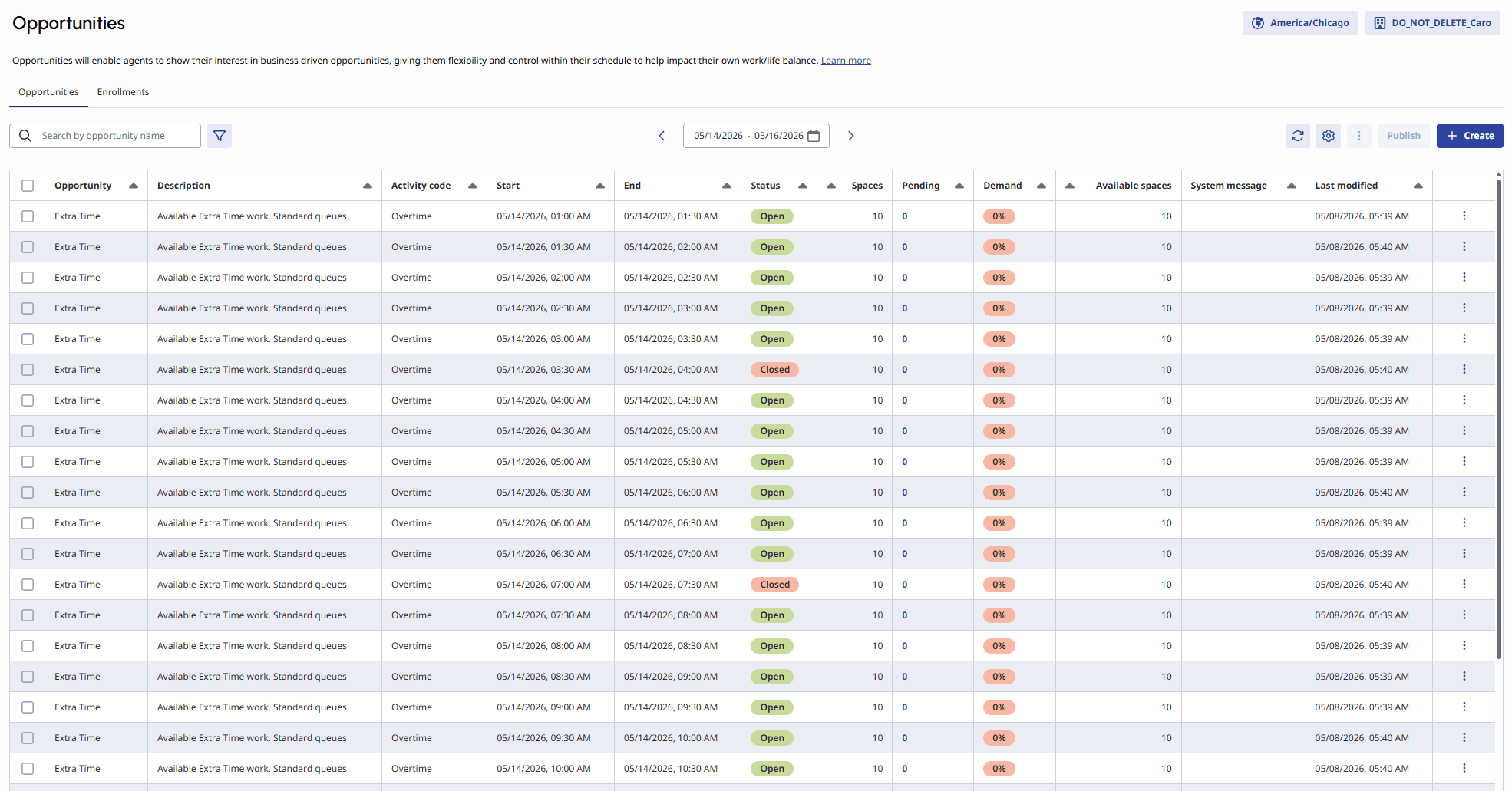
- In the Opportunities tab, click Create.
To create an opportunity, perform the following steps:
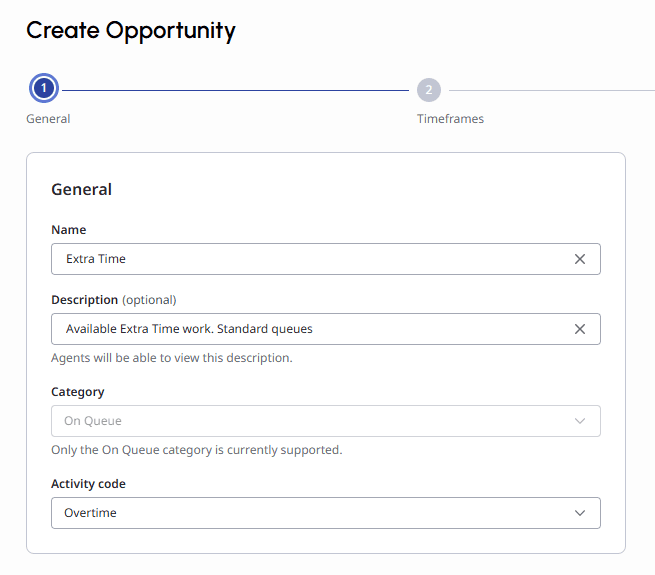
To define the opportunity, perform the following steps.
- In the Name field, enter the name of the opportunity. Agents can view this name when browsing for opportunities. For example, Overtime – Morning Coverage or Extra Time – Queue Support.
- (Optional) In the Description field, enter the additional details to help agents decide whether to request the opportunity. You can use this field to define the purpose, expectations, additional guidance, or context that is relevant to your organization. The agents can view the description and select the opportunity accordingly.
- In the Category field, the On Queue option is selected already.
- In the Activity Code field, select the activity code.
 General section of the Create Opportunities page" class="alignnone size-full wp-image-419523" srcset="https://help.mypurecloud.com/wp-content/uploads/2026/05/createGeneral.png 655w, https://help.mypurecloud.com/wp-content/uploads/2026/05/createGeneral-300x263.png 300w" sizes="auto, (max-width: 655px) 100vw, 655px">
 - Click Next.
Use this section to define when the opportunity occurs and whether it should be created as a single block or split into multiple consecutive opportunities. To define stand-alone opportunities or a series of consecutive opportunities, perform the following steps:
- In the Spaces field, enter the number of agents who can be approved per timeframe opportunity. For example, entering 10 allows up to 10 agents to be approved for each opportunity created.
- In the Date field, select the date the opportunity will occur.
- In the Start time and End time fields, define the overall time window for the opportunity. You can enter the maximum duration as 24 hours. The time window defines the full span that is used to create one or more requestable opportunities. All times in this view use the Business Unit (BU) time zone, shown in the top-right corner.
- In the Opportunity Length field, set the opportunity length. You can set the length based on the start and end times you define in the previous field. For example, if the time window is 60 minutes, the system shows one opportunity of 60 minutes. The Opportunity Length dropdown can show the following options:
- 2 opportunities of 30 minutes
- 3 opportunities of 20 minutes
- 4 opportunities of 15 minutes
The Preview section displays the preview of the selection that you made in the Timeframes configuration section as follows:
- Each opportunity that is created
- Number of spaces per opportunity
- Total number of opportunities
- Total time
- Total spaces across all opportunities
Schedulers can use the Total time value to estimate the potential cost impact, particularly for overtime scenarios, if all available opportunities are filled. Review the preview carefully to ensure the time breakdown and capacity are correct. 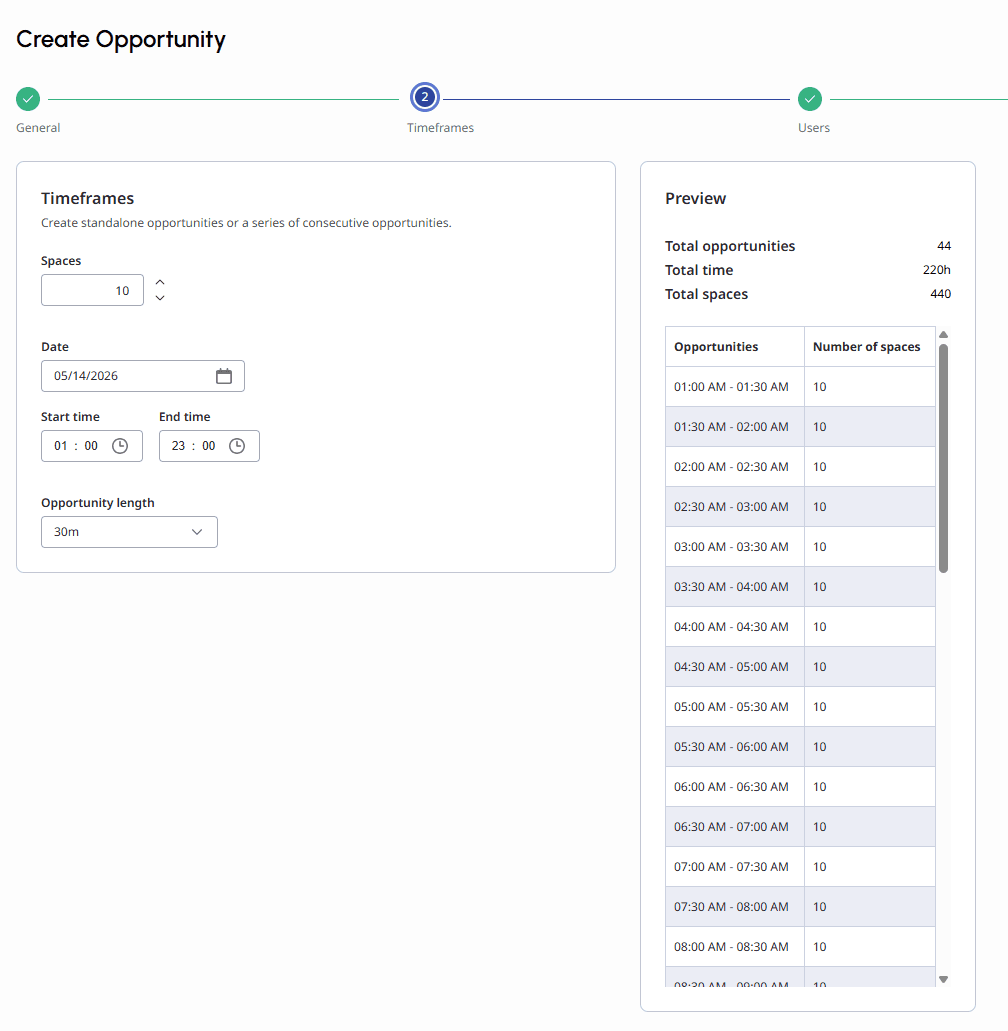 Timeframes section" class="alignnone wp-image-419531 size-full" srcset="https://help.mypurecloud.com/wp-content/uploads/2026/05/createTimeframes.png 1008w, https://help.mypurecloud.com/wp-content/uploads/2026/05/createTimeframes-293x300.png 293w, https://help.mypurecloud.com/wp-content/uploads/2026/05/createTimeframes-1001x1024.png 1001w, https://help.mypurecloud.com/wp-content/uploads/2026/05/createTimeframes-768x786.png 768w" sizes="auto, (max-width: 1008px) 100vw, 1008px">
Click Next.
Use this section to define which agents are eligible to enroll in the opportunity. This section displays the following three sections:
The Assigned Agents section displays the list of agents who are assigned to the opportunity and the Available Agents section, displays the agents who are available to be assigned to the opportunity. To assign an agent, do the following:
- Use search and/or filters to narrow the list of available agents. The filter option uses the AND criteria, which means the agents should match both the criteria in order to be listed in the available agents section. For example, if you filter by Queue1 and Skill1, the system shows only agents who have both Queue1 AND Skill1. If an agent does not have both, the system does not include them in the results.
- Add the appropriate agents from Available Agents to Assigned Agents.
- Confirm that the Assigned Agents list contains all agents who should be eligible. Note: Agents must be included in the Assigned Agents list to see and request the opportunity. An opportunity can include up to 2,000 agents. Across all opportunities in that particular creation wizard, the system supports up to 10,000 total invitations (calculated as the number of opportunities multiplied by the number of invited agents).
The page displays a count of assigned users and includes options such as Remove All if adjustments are needed.
An agent will only see an opportunity if:
- A schedule is published in their business unit.
- They are included in the Assigned Agents list.
- They do not have a scheduled shift that overlaps with the entire opportunity timeframe.
Opportunities are only visible to agents who are fully available for the defined time window. Partial overlaps are not considered eligible. If any portion of the opportunity overlaps with an existing scheduled shift, the opportunity will not be shown to that agent.
The Refine Available Agent Search panel includes the following filters:
- Queues
- Skills
- Languages
- Groups
- Work Teams
- Management Units
- Staffing Groups
You can also use the search field to locate specific agents. 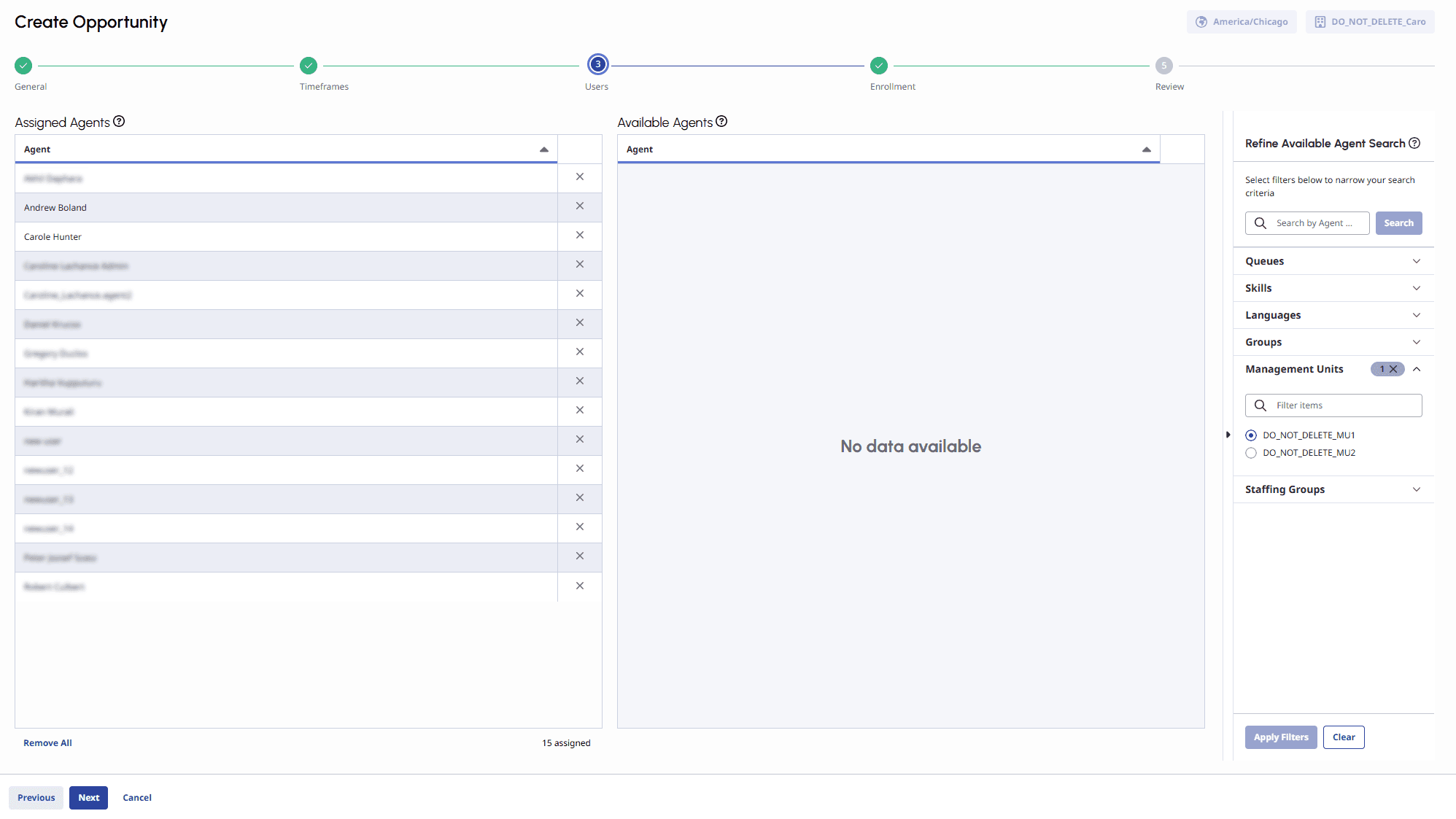
When finished, select Next.
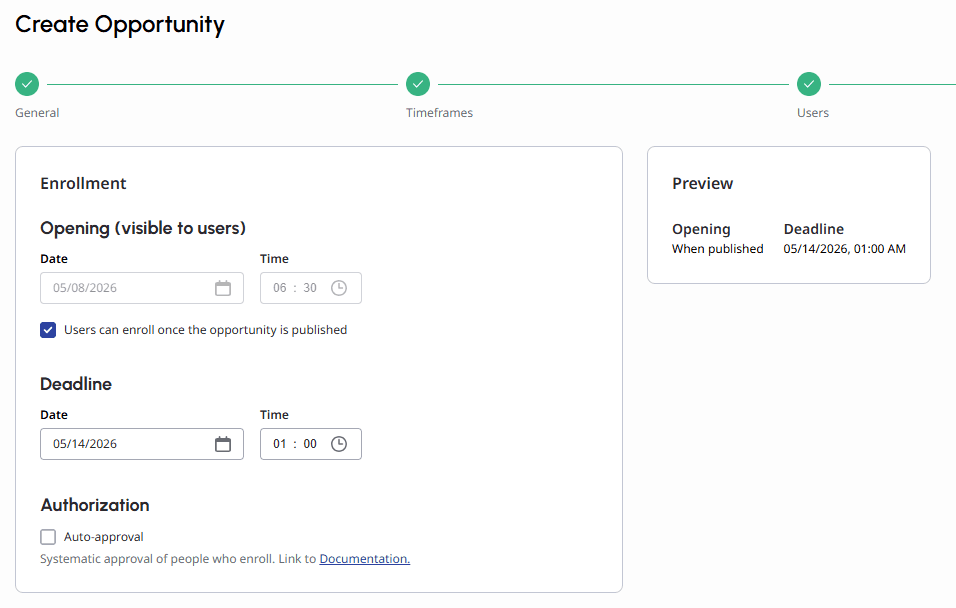
Use this section to define when agents can enroll and whether requests are automatically approved. To define when agents can enroll, perform the following steps:
- In the Opening (visible to users) field, define when the opportunity becomes available for agents to enroll.
- Select the Users can enroll once the opportunity is published checkbox to open the enrollment immediately upon publishing. If the checkbox is not checked, agents can only enroll starting at the specified opening date and time.
- In the Deadline section, define the date and time after which agents can no longer enroll. This prevents late enrollments and ensures schedule stability. Agents that have not interacted with the opportunity will no longer be able to see it once the enrollment deadline has passed.
- In the Authorization section, select the Auto-approval checkbox if you want eligible agent requests to be approved automatically until available spaces are filled. Disable Auto-approval if you want schedulers to manually review and approve or deny requests. Note: If using manual approval, set the Deadline early enough to allow time to review pending requests before the opportunity begins.
- Click Next.
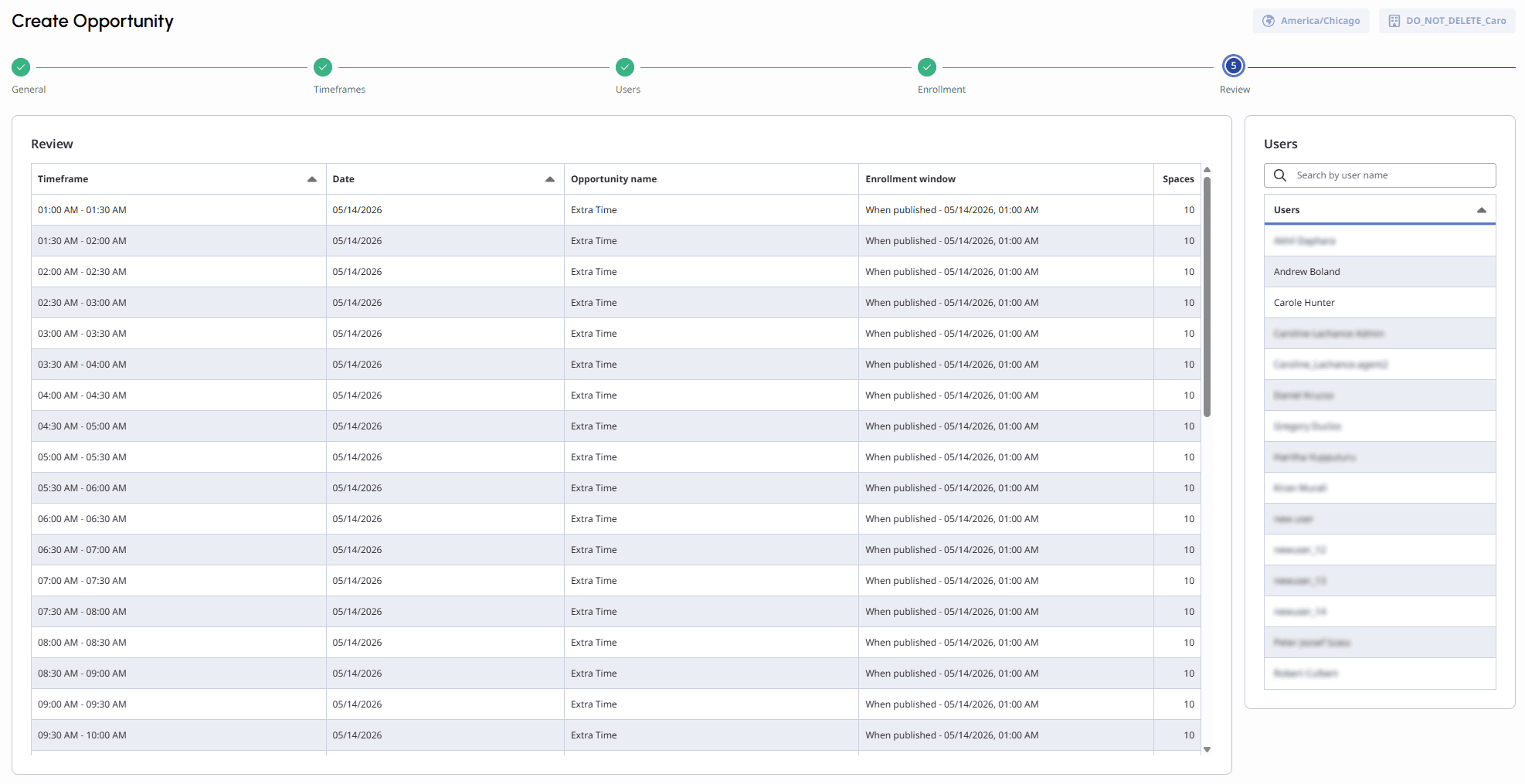
This section displays a summary of what will be created before saving or publishing. You can view the table that lists details of:
- Timeframe
- Date
- Opportunity name
- Enrollment window
- Spaces
- A Users panel on the right showing the assigned agents (with search functionality)
Review the timeframes and opportunities breakdown, number of spaces per opportunity, the enrollment window (opening and deadline), and the details of assigned users.
Click Save Draft to save the opportunity without making it available to agents.
Click Publish to make the opportunity available according to the defined enrollment settings.
- Publishing does not guarantee immediate visibility. Agents can see the opportunity when:
- Enrollment is open.
- They are assigned.
- They are fully available during the entire timeframe (no overlapping shifts).
- An opportunity is visible only when the schedule for that period is published. If the schedule is not published during the opportunity timeframe, the system does not display the opportunity to agents.
- Timing-related events such as opportunity visibility and automatic approvals are processed by the system and may not occur exactly at the configured time. Sometimes, there can be a short delay before opportunities become visible or requests are automatically approved.
- Configured times should be considered as the earliest point at which these actions occur, rather than an exact trigger time.
[NEXT] Was this article helpful?
Get user feedback about articles.