Opportunities for agents
Opportunities allow you to pick up extra work that fits your availability. You can view available opportunities, request time that suits your schedule, and track the status of your requests, all within your schedule.
Opportunities are displayed based on:
- The schedule date range that you are viewing.
- The schedule view mode selected (Day, Week, or Month).
View an opportunity
To access the Opportunities page, perform the following steps:
- Click Menu > My Activity > Schedule or Analytics > Analytics Workspace > My Schedule > Schedule.
- In the date range selection, select the desired date range.
- From the right of the Schedule page, click the Opportunities
 Opportunities panel when clicked." class="inline alignnone wp-image-419574 size-full"> icon.
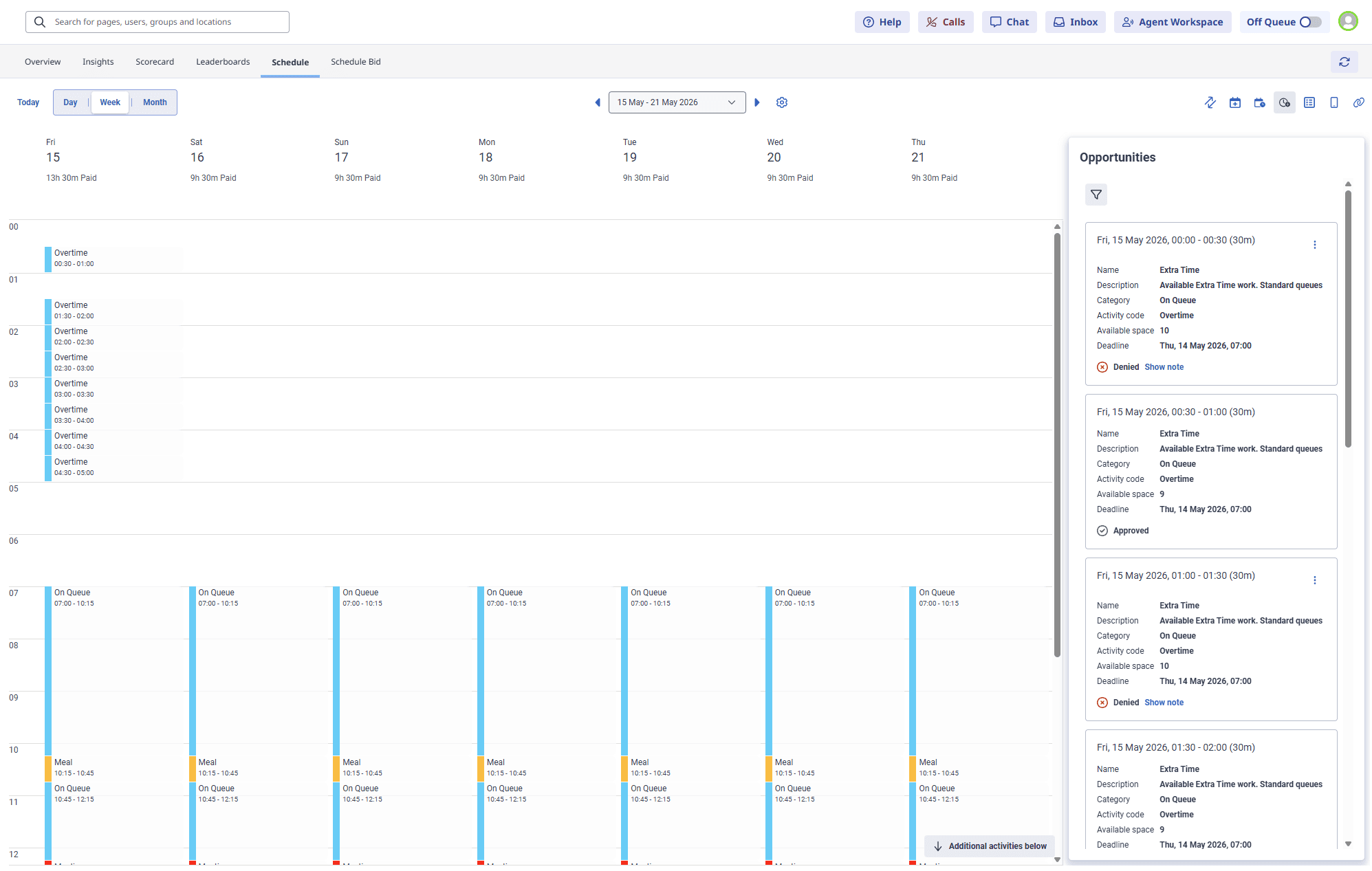
The Opportunities page panel is displayed with the available opportunities.
How date range and view mode affect visibility of opportunities
The system displays opportunities based on the selected date range and view mode.
Navigate the opportunities panel
Each opportunity appears as a tile with summary details, including:
- Opportunity name
- Date
- Timeframe
- Current enrollment status
You can also view the following details:
- Description (if provided by the scheduler)
- Enrollment deadline
- Available actions (Request or Withdraw, depending on status)
If a scheduler includes a note when denying a request, the system displays the note in this panel. You can perform the following actions from this panel. Click a collapsible for more information.
How opportunities appear on the schedule
When an opportunity is approved:
- The selected On Queue activity is added to the schedule.
- It appears as a scheduled activity block for the defined timeframe.
If a scheduler later changes an approved enrollment to denied, then the activity is automatically removed from the schedule.
Agent workflow in submitting a request
This workflow provides a clear and structured way for you to request extra work while maintaining schedule integrity. To submit a request, perform the following steps:
- In the Schedule page, click the Opportunities Opportunities panel when clicked." class="inline alignnone wp-image-419574 size-full"> icon.
- The two available opportunities for the given day are displayed. Select both the opportunities.
- Click Submit. The system sets both requests to Pending.
- The scheduler then approves one request and denies the other.
- The system adds the approved opportunity to the schedule.
- Upon refresh, the system displays a denial note for the rejected opportunity.
[NEXT] Was this article helpful?
Get user feedback about articles.