Queues Activity Detail view
The following permissions:
- Analytics > Conversation Aggregate – View
- Analytics > Conversation Detail – View
- Analytics > Queue Observation – View
- Directory > User – View (for division access)
- Routing > Queue – View
- UI > Supervisor Queue Details – View
- Routing > Queue – Edit or Routing > QueueMember – Manage (to activate and deactivate agents)
- UI > Supervisor Status Control – View (to change an agent’s status)
- OAuth > Token – Delete (to log an agent out of Genesys Cloud)
- Telephony > Station – Disassociate (to disassociate an agent from a station)
- Presence > UserPresence – Edit (for supervisors to toggle agents on and off queue)
- Conversation > Call – Assign (to assign a call to an agent manually)
- Conversation > Webchat – Assign (to assign a chat to an agent manually)
- Conversation > Message – Assign (to assign a message to an agent manually)
- Conversation > Callback – Assign (to assign a callback to an agent manually)
- Conversation > Email – Assign (to assign an email to an agent manually)
- Conversation > Call – Pull (to assign a call to yourself manually)
- Conversation > Webchat – Pull (to assign a chat to yourself manually)
- Conversation > Message – Pull (to assign a message to yourself manually)
- Conversation > Callback – Pull (to assign a callback to yourself manually)
- Conversation > Email – Pull (to assign an email to yourself manually)
- To preview an email in a queue that is enabled for manual assignment, require one of the following permissions:
- Conversation > Email – Assign
- Conversation > Email – Pull
- To preview an email in a parked state:
- Conversation > Communication – Target (for division access restriction)
- Conversation > Communication – Transfer
- One of the following permissions:
- Conversation > Communication – blindTransfer
- Conversation > Communication – blindTransferAgent
- Conversation > Communication -blindTransferQueue
The Queues Activity Detail view allows you to see real-time information about a specific queue. See a queue’s current interactions, agents, and service levels in one view. Check the number of interactions that are waiting or interacting and the status of agents in that queue. Manually assign waiting interactions in a queue to an available agent. Activate or deactivate agents based on need.
Available columns
To view the available columns, see the Queues Activity Detail view section in the View available columns in performance views by category article.
- To view the consolidated list of available columns in the performance views, see Consolidated view of available columns in performance views.
- To view the list of available columns in the performance views by category, see View available columns in performance views by category.
Access Queues Activity Detail view
To open a queue’s activity detail view, complete the following steps:
- Click Menu > Analytics > Analytics Workspace.
- In the Default section, search for Queue Activity and then click the view name to open it.
- From the Queues Activity Summary view, click a queue’s name.
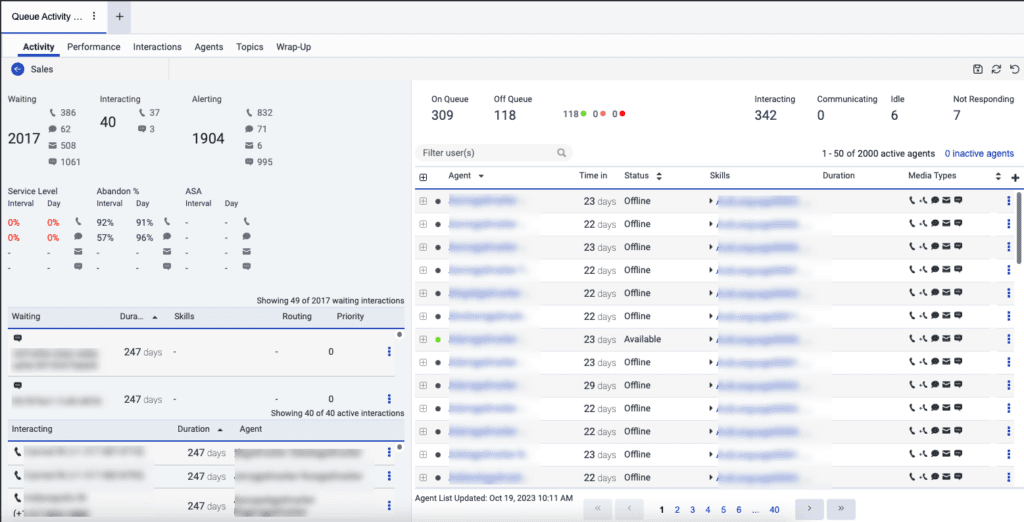
The information in the Queues Activity Detail view updates in real time. The Interaction panel information on the left side and the agent status counts on the upper right always update in real time. The data in the agent table in the lower left, except status and interaction data, do not update live until you apply a status filter.
- When you do not apply a filter, or you apply a filter other than status to the agent table on the right-hand panel, the agent list does not update live, and an Agent List Updated time stamp that indicates the last updated time appears.
- The Queue Activity Detail view reflects the interaction’s priority and skill requirements at the time it began waiting in the queue. Any updates made to priority or skills while the interaction is already in queue, including changes from in-queue flows, are not reflected in the real-time view.
The agent Activate and Deactivate settings prevent the auto-page refresh. When you activate or deactivate an agent, to update the Agent list, click Refresh at the top of the page.
- Calls that are part of the callback appear as a separate interaction from the callback. These interactions appear as two separate interactions.
- The Queues Activity Detail view is based on real-time statistics. The active callback interactions are available for 14 days.
- A consult with two agents appears as two separate interactions.
- The Waiting list and Interacting lists show a maximum of 100 interactions per media type across both lists. If a media type has more than 100 interactions, then the lists display only 50 interactions for that media type.
- The Updated time stamp, at the bottom of the agent panel, indicates the last time the list of agents was updated before you apply a filter or click Refresh .
Manage access to Queue Activity detail view based on division permissions
You can manage access to the Queue Activity detail view based on the division permissions of the user. You can restrict the managers and team leads from viewing the agent detail or performance information in the Queue Activity detail view. For example, if you have permission for division 1 and division 2 alone, then you can view the detail or performance information of the agent belonging only to division 1 and division 2 alone. You cannot view the agent detail or performance information of other divisions. The details of the agents belonging to other divisions are blurred out.
If obfuscation is on, you must have the Directory > User – View permission for the division to access any user in that division.
To enable the division permission, use Developer Tools or your application of choice to make the following API call:
PATCH /api/v2/analytics/reporting/settings
{ “queueAgentAccessObfuscation”: true }
Click the image to enlarge.
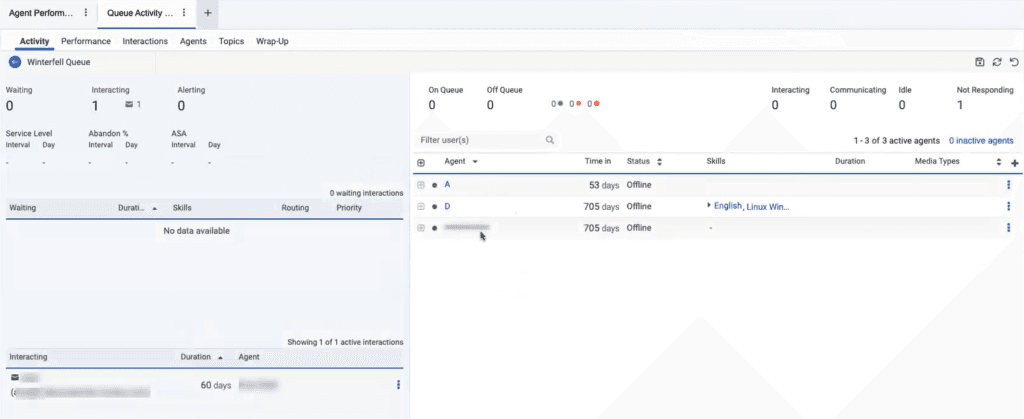
On exporting the Queue Activity detail report, the blurred-out agent name displays as REDACTED.
Click the image to enlarge.

The following information is available in the Queues Activity Detail view.
These terms relate to interactions in the queue and are on the left side of the view.
| Term | Description | ||||||||||||||||||||||||||||||||||||||||||
|---|---|---|---|---|---|---|---|---|---|---|---|---|---|---|---|---|---|---|---|---|---|---|---|---|---|---|---|---|---|---|---|---|---|---|---|---|---|---|---|---|---|---|---|
Waiting | Interactions that are in the queue and waiting for an agent to answer them. | ||||||||||||||||||||||||||||||||||||||||||
Interacting | Interactions that an agent has answered and is working on. | ||||||||||||||||||||||||||||||||||||||||||
Alerting | The total number of alerting conversations. | ||||||||||||||||||||||||||||||||||||||||||
Priority | The priority assigned to the conversation when it was routed to the queue. | ||||||||||||||||||||||||||||||||||||||||||
Duration | The amount of time since an interaction entered the queue or an agent answered the interaction. In the Waiting list, Genesys Cloud bases duration on the amount of time an interaction has been waiting in the queue. In the Interacting list, Genesys Cloud bases the duration on the amount of time since an agent answered the interaction. | ||||||||||||||||||||||||||||||||||||||||||
Skills | The skills specified for the interaction. | ||||||||||||||||||||||||||||||||||||||||||
Routing | Displays the routing methods that were requested for the interaction. Note: Depending on the routing method selected for each queue, administrators set up timeout options where, after a set period, Genesys Cloud transitions from one routing method to another. For example, the queue starts out by using Preferred Agent Routing, and after some time, transitions to Bullseye Routing, and after another amount of time, transitions to standard routing. Depending on the setup and how long it takes for an interaction to be answered, different combinations are listed. | ||||||||||||||||||||||||||||||||||||||||||
Agent | The agent who is working on the interaction. | ||||||||||||||||||||||||||||||||||||||||||
Service Level | Service level measures the percentage of conversations answered within a defined time threshold. It helps you evaluate how effectively your organization responds to customer interactions within a target timeframe. How is service level measured?Service level is measured based on how long a conversation waits in a queue before an agent answers it. The timer starts when the conversation begins, waiting in a queue. The timer stops when the conversation is answered. The total wait time is compared with the configured service level target. If the wait time is less than or equal to the target, the conversation meets the service level. Service level calculationService level is calculated as: Service Level = Conversations answered within the target time Total conversations included in the calculation The number of conversations included in the calculation depends on your configured service level options. To set these service level options, see Configure contact center analytics options. Service level optionsYou can use service level options to determine the conversation type to be included in the calculation. These options do not affect how wait time is measured; they only determine which conversations are included in the calculation of the final service level percentage. You can enable or disable each of the following service level options independently:
How the options work togetherService level can be understood as follows: Service Level = Conversations that met the target Conversations included in the calculation The numerator always represents conversations answered within the target time. The denominator changes depending on which options are enabled. The following example illustrates how different conversation outcomes and service level options affect both inclusion in the calculation and whether each conversation meets the target, using a service level target of 20 seconds.
In the preceding example, only Conversation A meets the target. The total number of included conversations varies based on the enabled service level options. Service level for callback conversationsBy default, callback conversations use the same service level calculation as other conversations. The calculation uses the standard Answer event for the callback media type. For Agent First Callback, the Answer event occurs when an agent accepts the callback. Therefore, the default calculation provides a meaningful indication of whether the callback met the service level target. For Customer First Callback, the callback media type does not have an Answer event because the system handles the callback offer directly. As a result, the callback leg does not have a meaningful "met target" signal for determining whether the service level target was met under the default calculation. The Include Callback Virtual Wait in SLA option, described in the preceding Service level options section, addresses this difference. When you enable this option, "met target" and "included" signals for callback conversations for both Agent First Callback and Customer First Callback are based on Callback Virtual Wait instead of the standard Answer event. Callback Virtual Wait measures the time from when the callback offer enters the queue until the callback reaches an agent. A callback meets the service level target when Callback Reached occurs before the configured SLA target elapses. Callbacks that exceed the SLA target are counted by the Callback Over SLA metric.
The Include Callback Virtual Wait in SLA option is off by default to maintain backward compatibility. Existing service level reporting remains unchanged unless you enable this option. You can configure it with the other service level options. For more information, see Configure contact center analytics options. Enabling this option does not create a separate service level metric. Instead, it changes how callback conversations contribute to the existing service level calculation. When you query service level across multiple media types, including voice and callback for the same queue, the numerator and denominator contributions from each media type are combined to calculate a single overall service level ratio. Callback conversations contribute to this calculation based on the service level configuration enabled for your organization. For more information about callback metrics and reporting, including the differences between Agent First Callback and Customer First Callback, see About callback reporting. Service level and operating hoursService level calculations do not consider queue operating schedules. Wait time is not paused when a queue is closed, and time spent waiting during closed hours is fully included in the total wait time. For example, if a conversation enters the queue at 5:55 PM, the queue closes at 6:00 PM, and the conversation is answered at 9:00 AM the next day, the entire overnight period is included in the wait time. As a result, the conversation likely does not meet the service level target. How service level is reported over timeService level is reported based on when a conversation is answered, not when it enters the queue. Metrics are recorded at the time that the conversation is answered, and reporting intervals—such as hourly or daily views—group conversations using this timestamp. For example, if a conversation enters the queue at 11:50 PM on Day 1 and is answered at 12:10 AM on Day 2, the service level impact is reflected in Day 2 reporting. Aggregation and averagesService level is calculated using totals rather than by averaging percentages across intervals. To determine service level over multiple intervals, add the total number of conversations that met the target and the total number of conversations included, then divide these totals. This approach ensures an accurate overall service level. For more information about aggregates and averages, see the developer center. | ||||||||||||||||||||||||||||||||||||||||||
Abandon % | The percentage of offered interactions in which the customer disconnected before connecting with an agent. The abandon rate can identify queues that require extra staff to handle interactions in a timely manner. Calculated by: (Abandoned Count / Offered Count) * 100 |
These terms relate to agents in the queue and are on the right side of the view.
| Term | Description |
|---|---|
On Queue | The On Queue metric represents the number of agents that are on queue for a specific queue. |
Off Queue | Off Queue represents the number of agents that are off queue for a specific queue. These agents are in another status, such as Available, Busy, or Meeting. Agents in the Out of Office and Offline statuses are not included in this number. |
Presence indicators | Indicates the number of agents off queue and in a particular status: green (Available), yellow (Away, Break, Meal, or Training), or red (Busy or Meeting). |
Interacting | The number of agents working with interactions. This number includes agents completing after call work. |
Communicating | The agent is on a non-ACD call, and, in relation to agent utilization and call routing, Genesys Cloud treats the non-ACD call like an ACD call. For example, administrators could configure agent utilization so Genesys Cloud does not route new interactions to agents while they are on an ACD or non-ACD call. This status only appears if administrators have selected “Count non-ACD calls in utilization capacity” within the agent utilization configuration. |
Idle | The amount of time an agent spends in the Idle routing status. This routing status represents agents who are On Queue and able to take interactions but are not currently working with interactions. |
Not Responding | An agent was On Queue or Interacting and did not answer an offered interaction. The agent could still be handling and completing other previous interactions. While Not Responding, the agent does not receive new interactions. |
These icons indicate specific media types throughout the view.
| Icon | Media Type |
|---|---|
 | Voice |
 | Callback |
 | Chat |
 | |
 | Messages |
How filtering works in Queues Activity Detail view
This view supports filtering by either presence values or routing status values, but it does not allow combining both filters simultaneously. Therefore, you should select one of the following filter types that best aligns with your specific question:
- Routing Status to identify which agents the routing system considers available or currently handling contacts. For example, consider a supervisor use case, “Who is handling contacts right now?”
- Presence to determine agents’ client-side availability settings. For example, identify agents who have set their status to Do Not Disturb or Busy.
If you require both perspectives, including both an agent’s presence and routing status at the same time, then you should use the Analytics API endpoints or a report that surfaces both data points. For more information, see Presence and Routing Status troubleshooting.
Customize the view
To show only certain data, customize the Queues Activity Detail view. For example, you can choose to show only certain columns or filter to see agents in certain statuses. Your customizations remain as you leave and return to a view. You can also save your customizations as a saved view to switch between different data of interest in the same view.
To filter the displayed interactions to see only waiting interactions, click the Waiting statistics section. 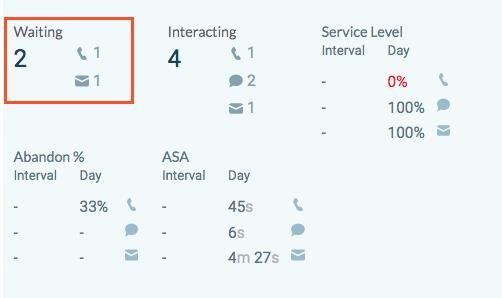
To filter the displayed interactions to see only interacting interactions, click the Interacting statistics section. 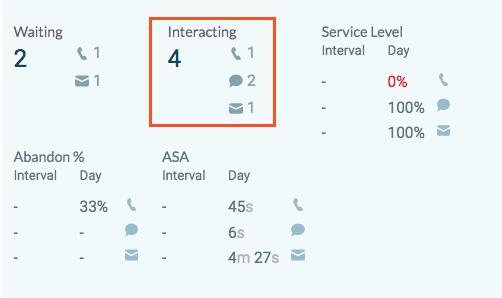
To stop filtering, click the selected filter again.
To sort the Waiting and Interacting lists by duration, click the Duration column header. 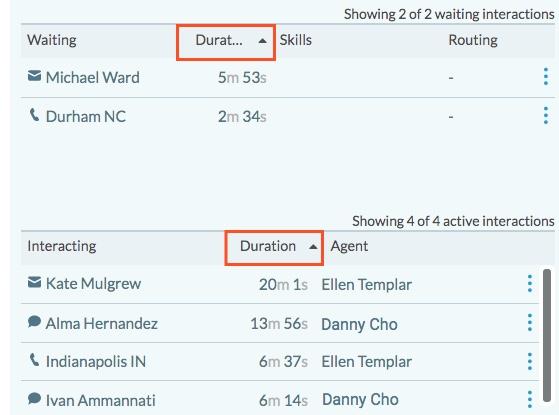
In the Waiting list, Genesys Cloud bases duration on the amount of time an interaction has been waiting in the queue.
In the Interacting list, Genesys Cloud displays the time duration since an agent answered the interaction.
You can manually assign waiting interactions to on-queue agents, or to yourself.
Manually assign a waiting interaction in a queue to an on-queue agent
- From the Queues Activity Detail view, in the Waiting list, find the interactions waiting in the queue.
- For a waiting interaction, select the moremenu beside the interaction.
- On the menu, select Assign to Other.
- In the search box, begin typing the on-queue agent's name. As you enter a name, agent names are displayed in the search results.
- Select the agent's name.
For an agent to assign a waiting interaction to themself
- From the Queues Activity Detail view, in the Waiting list, find the interactions waiting in the queue.
- For a waiting interaction, select the moremenu beside the interaction.
- On the menu, select Assign to Self.
To monitor an interaction, select More beside the interaction in the Interacting list. Then click View Details.
The interaction’s detail page appears in a new tab. You can jump between the interaction tabs to see the interaction list view and the interaction detail view. The title of the interaction detail view tab shows the truncated Interaction ID and has a fixed width as all other tabs in the workspace. When hovering on the tab name, a tooltip with the untruncated Interaction ID displays.
- When switching between the interaction detail view tabs, the recording playback stops working.
- When switching between the interaction detail view tabs, the following features on the interaction detail view tab continue to work as expected:
- Monitor/coach/ a live call
- Interaction download
- Quality management/evaluations
- Schedule Coaching
- Audit Trail tab
- The number of interaction detail view tabs that can be opened at a time is limited to a maximum of 20 tabs. If the user opens a new tab by clicking an interaction while 20 tabs are open, the new interaction detail tab opens in the existing tab.
Click More in the title of the interaction detail view tab and choose the required task to perform any of the following:
| Columns | Description |
|---|---|
| Reload | Reloads the current tab alone. |
| Duplicate | Creates a duplicate copy of the current tab. |
| Close | Closes the current tab alone. |
| Close all tabs | Closes all the open tabs. |
| Close other tabs | Leaves the current tab open and closes all the other open tabs. |
To rename the title of the interaction detail view tab:
- Click Save View on the right side. The Save view pane appears.
- Click the Save To drop-down list and perform one of the following steps:
- To save the view as a new view, click New and in the View Name field, enter a name for the view.
- To overwrite the existing view’s current settings, click the existing view’s name.
- Click Save. The title of the interaction detail view tab changes.
The interaction’s detail page appears. For more information about monitoring an interaction, see Monitor in-progress interactions.
The supervisor can preview an active email while in queue or parked state to gain a clear understanding of the content before assigning it to themselves or another agent. The email preview feature helps evenly distribute the workload to prevent burnout, significantly improve query handling speed and productivity, and ensure faster response times to customer inquiries while maintaining high service levels.
To preview an email in a queue and in a parked state, configure Enable Manual Assignment in Create and configure queues.
To preview an active email:
- From the Queues Activity Detail view, in the Waiting list, find the interactions waiting in the queue.
- Click the More icon corresponding to the required interaction and click the Preview email icon. The preview email window opens.
Routing status is defined as the agent’s routing system state, including On queue to Idle and On queue to Interacting or Off queue. It describes how the routing subsystem classifies the agent for handling contacts and is tied to the queue or ACD state.
To filter the agent list to see only agents who are in a specified routing status, click the routing status above the agent list that you want to filter by. For example, click Not Responding to see only agents who are not responding.
To stop filtering, click the selected routing status again.
For more information, see Routing status.
Search for and filter agents in the agent list by an agent’s name, skills, or language.
- In the Filter user(s) box, type the name, skill, or language that you want to filter the agent list by.
- From the list that automatically displays, select a category for the keyword. For example, if you want to filter the agent list to show only agents who speak English, type English, then select in Languages.
- If you want to add more filters, repeat the previous steps. You can filter by multiple skills and languages, but you can only filter by one agent name.
- To delete a filter, click X next to the filter’s keyword.
Presence is defined as the agent’s client presence or state, including Available, Away, and Do Not Disturb. Presence reflects what the agent’s client reports about availability and may include administrator-created secondary presences.
To filter the agent list by an agent’s status, click the up and down arrows beside the Status column heading.
Then select a status from the list. To filter by more than one status, select another status.
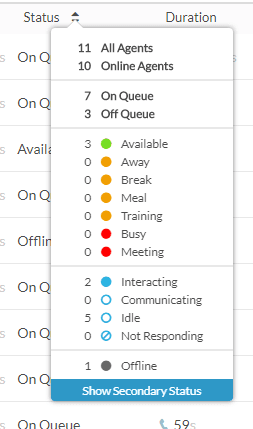
- You can filter by multiple user presence statuses, such as Busy and Meeting, or multiple routing statuses, such as Idle and Not Responding. However, you cannot filter by a combination of presence and routing statuses.
- On filtering the agents’ list by user presence or routing status, the list of agents gets updated in real time as agent statuses go in and out of the selected filters.
- When filtering by Status, the Agent column arrows are not available for ordering the agents’ list. Use the Time in column to order the agents’ list when filtering by Status.
- On applying a status filter, the list of agents is limited to five pages of users.
Tables are updated to provide a more accessible and user-friendly experience through enhanced keyboard navigation, screen reader support, focus management, and improved accessibility compliance. These enhancements help users interact with table content more effectively. You can also resize columns and scroll horizontally, making it easier to view and work with large datasets.
To show or hide columns:
- At the upper right corner of the table header, click the Edit columns icon. The Add/Remove Column pane appears.
- Click the Manage columns tab.
- (Optional) To sort the columns in ascending or alphabetical order, click Sort by > Column Name A-Z.
- (Optional) To sort the columns in descending or reverse alphabetical order, click Sort by > Column Name Z-A.
- (Optional) To categorize or uncategorize the columns, click Sort by and enable or disable the Group by Categories toggle.
- Search or scroll to select the columns you want to view. Note: You can also use keyboard navigation to choose the columns.
- Click Save. The selected columns appear on the screen. Note: The column selections appear only after saving the changes and do not apply to the table immediately.
To reorder the columns within the column picker:
- At the upper right corner of the table header, click the Edit columns icon. The Add/Remove Column pane (column picker) appears.
- Click the Reorder columns tab.
- Click the grid icon
 of a column, and then drag and drop to reorder it within the column picker.
- You can also use keyboard shortcuts to reorder the columns. To reorder the columns using the keyboard, perform the following:
- Click to select the grid icon of the column to be reordered, and on the keyboard, press the Spacebar.
- To position the column, use the Up or Down arrow keys.
- Press the Spacebar. The chosen column is reordered.
- To improve keyboard accessibility and provide a more consistent user experience, column reordering is no longer performed by dragging column headers directly in the table. To reorder columns, use the Reorder Columns tab.
To reset a view to default column settings, click Reset view to defaults .
You can select up to 20 columns.
To better accommodate your screen size and reporting needs, you can customize the table layout in the view.
Resize columns
To resize the width of a column:
- Hover over the boundary between two column headers.
- When the resize cursor appears, click and drag the column border left or right.
- Release the mouse button when the column reaches the desired width.
Resizing columns can help you view longer values, such as conversation IDs, user names, or other data, without truncation.
Scroll horizontally
If the view contains more columns than can fit within the available screen width, a horizontal scroll bar appears at the bottom of the table.
To view more columns:
- Use the horizontal scroll bar at the bottom of the table.
- Scroll left or right to access columns that are not currently visible.
Horizontal scrolling lets you view all available data while maintaining your selected column widths.
When a user is on multiple conversations, Duration columns can be displayed, horizontally, to show the duration time for the interactions from Shortest to longest, or Longest to shortest.
To rearrange the Duration columns in the agents list:
- Click the Sort icon to the right of the Duration columns in the table header.

- Select either Shortest to longest or Longest to shortest. Here’s an example.
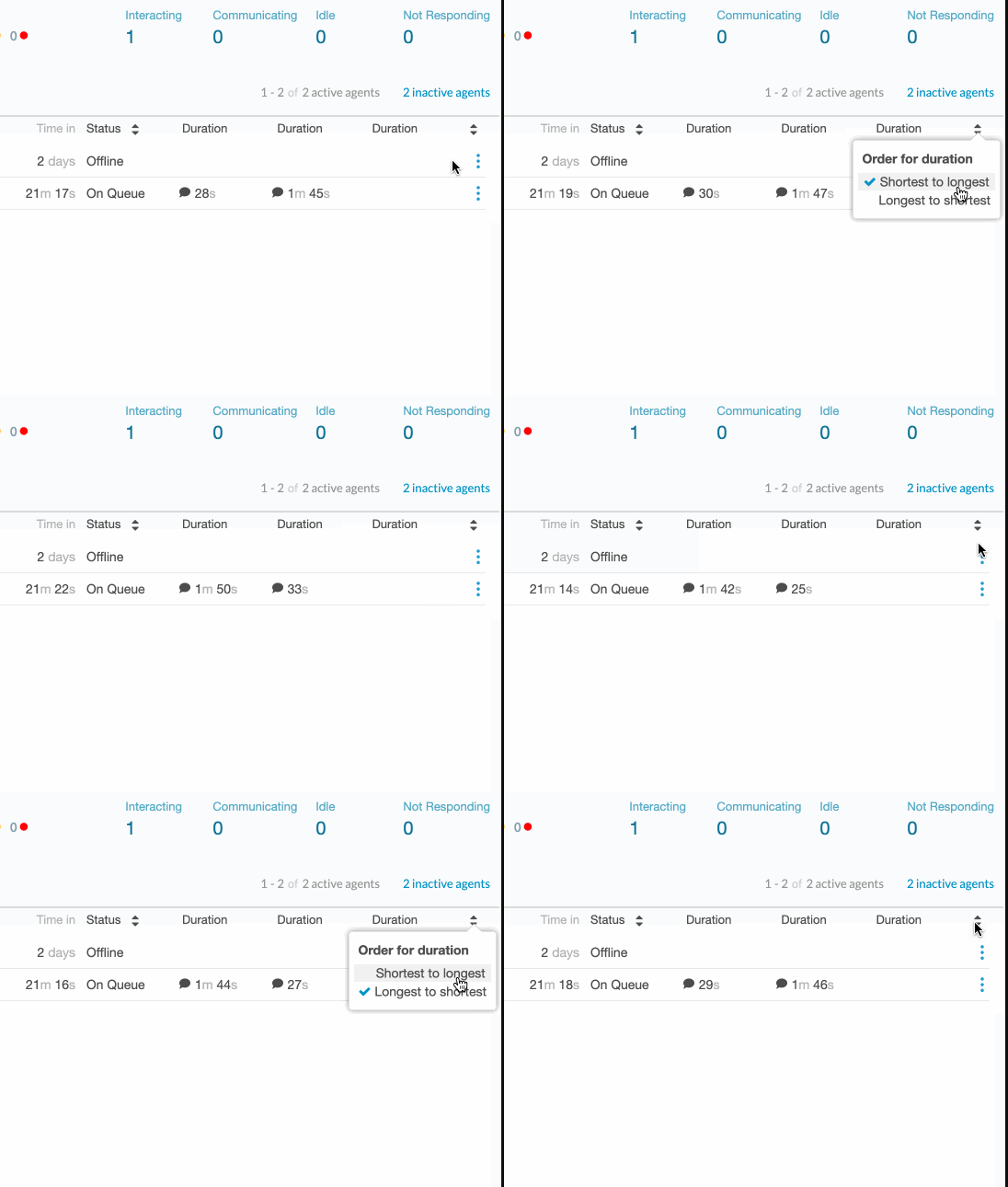
This setting also applies to the interactions listed below an agent when you view more information about an agent’s activity.
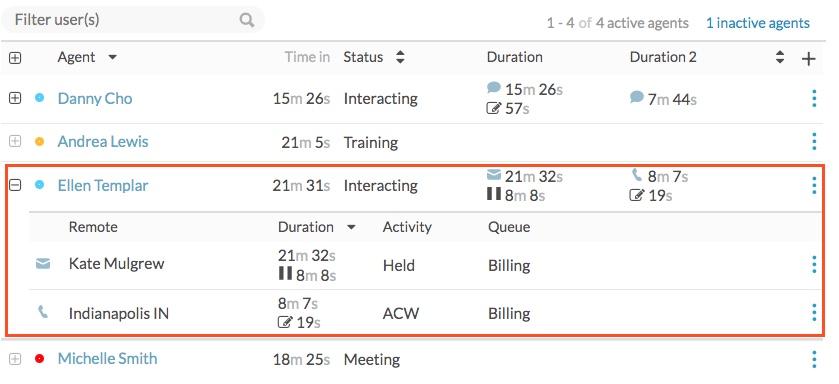
To see more information about an agent’s current activity, click More details next to that agent’s name. When expanded, the row shows the current activity for each of the agent’s interactions, such as Interacting, ACW, or Hold. It also shows how long the interaction has been in that state.
Managers can activate and deactivate agents in queues.
- To activate an agent for a queue, the agent must be a member of that queue.
- To view more information about an agent or activate them for a queue, the agent must be in a division granted to you in the Directory > User – View permission. For more information about divisions and access control, see About access control.
After you activate an agent for a queue, when the agent’s status is On Queue, the agent receives interactions from that queue. Agents can also choose the queues to work themselves.
Activate and deactivate agents to and from queues
- Click Menu > Analytics > Analytics Workspace.
- In the Default section, search for Queue Activity and then click the view name to open it.
- Select the appropriate queue.
- From either the active agents or inactive agents list, click the more menu beside an agent’s name.
- Click either Activate or Deactivate to activate or deactivate the agent for the queue.
To change an agent's status, complete the following steps:
- Click Performance > Queues Activity.
- Click Menu > Analytics > Analytics Workspace.
- In the Contact Center section, click Queue Activity.
- Select a queue in which the agent is a member.
- From the queue's activity detail view, hover over the presence dot beside an agent's name.
- To set the agent's status to Off Queue or On Queue, select On Queue or Off Queue. If you change the status from On Queue to Off Queue, then the agent's status automatically also changes to Available.
- To set the agent's user status, select a status from the status drop-down. If the agent's status is On Queue, selecting a user status also sets them to Off Queue.Note: The status drop-down does not have an option to change an agent’s status to Out of Office. If an agent’s presence status is Out of Office, it cannot be changed.
- If the status you select has secondary statuses, select a secondary status in the drop-down below the primary status.
From the Queues Activity Detail view, hover over the presence dot beside an agent’s name.
To log out an agent, click Log off. If the agent is On Queue, set the agent's status to Off Queue, and then click Log off.
From the Queues Activity Detail view, hover over the presence dot beside an agent’s name.
To disassociate an agent from the station, click Disassociate Station.
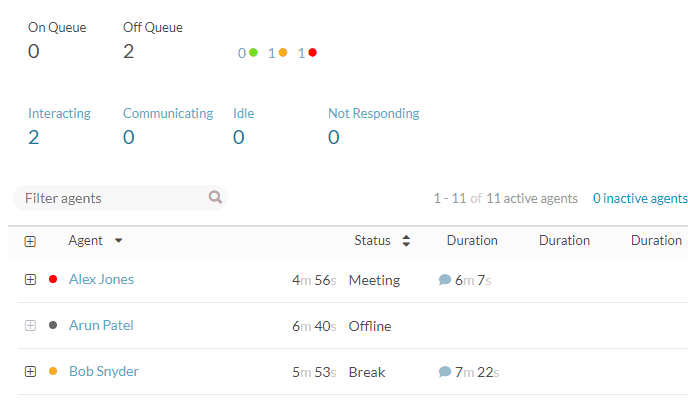
In both the Queue Activity Summary and Detail views, user statuses and routing statuses sometimes add up to more than the total number of agents in the queue. This situation arises when agents change their user status while working with interactions.
For example, agents Bob and Alex are each working with an interaction. Bob changes his status to Break, and Alex changes his status to Meeting, but they both still have a chat interaction. In this situation, the view displays “2” in the Off Queue section, but it also displays “2” in the Interacting section.
[NEXT] Was this article helpful?
Get user feedback about articles.