FAQs: Mobile apps
Genesys Tempo for iOS billing
Does use of Genesys Tempo for iOS impact billing for customers who use by-the-hour pricing?
No, Genesys Tempo users are not treated as logged in when they use the app, and usage of the app does not impact billing.
Does use of Genesys Tempo for iOS impact the number of simultaneous users for customers using concurrent pricing?
No, Genesys Tempo users are not treated as logged in when they use the app, and app usage does not impact the total number of concurrent users.
Genesys Tempo for iOS schedules
How do I view my schedule with Genesys Tempo for iOS?
- Tap Schedule. The month appears in the top pane.
- Tap the date on the calendar.
Your schedule appears in the lower pane.
What schedules can I see with Genesys Tempo for iOS?
Tempo for iOS offers month and day views. It can display up to three years in the future and up to one year in the past. You can also see your shift, activities for the shift, and time-off requests.
Genesys Tempo for Android documentation
How do I view the documentation for Genesys Tempo for Android?
Tap Settings. Then tap FAQ.
You can also view the FAQs on the Genesys Cloud Resource Center.[/bs_citem]
How do I log in to Genesys Tempo for Android?
To log in to Genesys Tempo for Android, perform the following steps:
- From the Regions list, select the region in which your organization was created.
- Tap Choose.
- Enter your email address and password, and tap Log In.
If the single sign-on (SSO) option is enabled, then perform the following steps:
- Tap More Login Options, enter your organization name.
- Authenticate with the identity provider. For example, OneLogin.
If I log in to Collaborate for Android, must I log in to Genesys Tempo for Android separately?
No, when you log in to Collaborate, you also log in to Tempo.
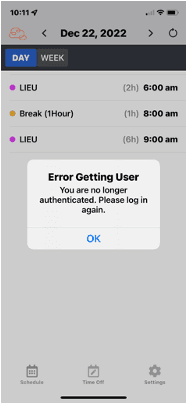
Why do I see the error getting User message?
You see the Error Getting User message if you are inactive and your administrator configures an inactivity timer for Genesys Cloud log in instances.
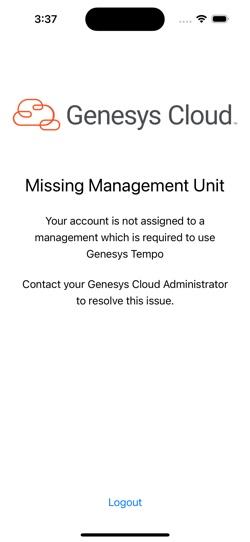
Why do I see the missing management unit message?
You see the Missing Management Unit message if you are not assigned to a management unit. Contact your supervisor or your Genesys Cloud Administrator to inform them about the issue.
How do I log in to the Genesys Cloud mobile apps?
- To launch the app, on your home screen, tap its icon.
- At the bottom of the screen tap Login. and follow the prompts. For more information, see Log in to the Genesys Cloud mobile apps.
Can an admin disable a user’s access to Genesys Cloud mobile apps?
Yes, an admin can deny access to the Genesys Cloud mobile apps. To do so, remove the appropriate permission from the user:
- For Collaborate, remove the Mobile > Collaborate > View permission from the user.
- For Associate, remove the Mobile > Communicate > View permission from the user.
- For Genesys Tempo™, remove the Mobile > Tempo > View permission from the user.
Where can I find answers to frequently-asked questions about Genesys Tempo for iOS?
You can find a list of FAQs for Genesys Tempo for iOS here.
Where can I find answers to frequently-asked questions about Genesys Tempo for Android?
You can find a list of FAQs for Genesys Tempo for Android here.
Where can I find answers to frequently-asked questions about Associate for iOS?
You can find a list of FAQs for Associate for iOS here.
Where can I find answers to frequently-asked questions about Associate for Android?
You can find a list of FAQs for Associate for Android here.
Where can I find answers to frequently-asked questions about Collaborate for iOS?
You can find a list of FAQs for Collaborate for iOS here.
Where can I find answers to frequently-asked questions about Collaborate for Android?
You can find a list of FAQs for Collaborate for Android here.
How does my current geolocation sync between the browser or desktop apps and the mobile app?
If you log in from multiple clients, then Genesys Cloud reports your mobile app’s most recent . In other words, your mobile device’s geolocation is primary when you use multiple Collaborate clients:
- If you are logged into multiple Collaborate clients, for example, the web browser app on your work computer, the desktop app on your home computer, and the mobile app on your mobile phone, the most recent geolocation update from the mobile app is reported.
- If you are not logged into the Collaborate for iOS or Android, or if the geolocation on the mobile phone timed out after the one hour timeout period, Genesys Cloud reports the most recent geolocation update from the last computer that you used.
Why do I still get mobile app notifications after I close Genesys Cloud?
Genesys Cloud mobile apps continue to push notifications unless you log out of Genesys Cloud. Closing the app does not automatically log you out.