Configure the after call work component
Administrators can enable agents to use the after call work (ACW) component directly in the Salesforce Voice Call record page instead of the Genesys Cloud CX Utility window. Agents can also view recommended wrap-up codes and AI-suggested interaction summaries through AI-powered features such as Agent Copilot.
Create a Visualforce page in Salesforce
Create the after call work component as a Visualforce page in Salesforce and later add it to the Voice Call record page. To create a Visualforce page in Salesforce:
- On the Setup Home page, enter Visualforce Pages in the Quick Find box, then select Visualforce Pages.
- Click New.
- Enter a label and name for the page.
- Select the Available for Lightning Experience, Experience Builder sites, and the mobile app option.
- In the Visualforce Markup text box, enter the following Visualforce markup for the page:
<apex:page>
<apex:iframe id="acw" width="100%" frameborder="0" height="400px" src="https://<Genesys Cloud region URL/crm-embeddable-desktop/component.html#/acw?size=fluid&scope=default" />
</apex:page>
Refer to the following table and modify the URL based on the location of your Genesys Cloud organization.
- Click Save.
Add the after call work component to the Voice Call record page
You can add the after call work component to an existing Voice Call record page.
To add the component:
- From the Standard list in the Lightning app Builder, drag and drop the Visualforce component into the record page.
- Enter the following properties for the component:
- Label – Enter a name for the component name to display on the record page.
- Visualforce Page Name – Select the Visualforce page you previously created.
- Height (in pixels) – Enter 420, which is the recommended minimum size for the component.
- (Optional) Set Component Visibility – Add Record > Call Status Equalcompleted as the filter option.
- Click Save and Activation.
How it works
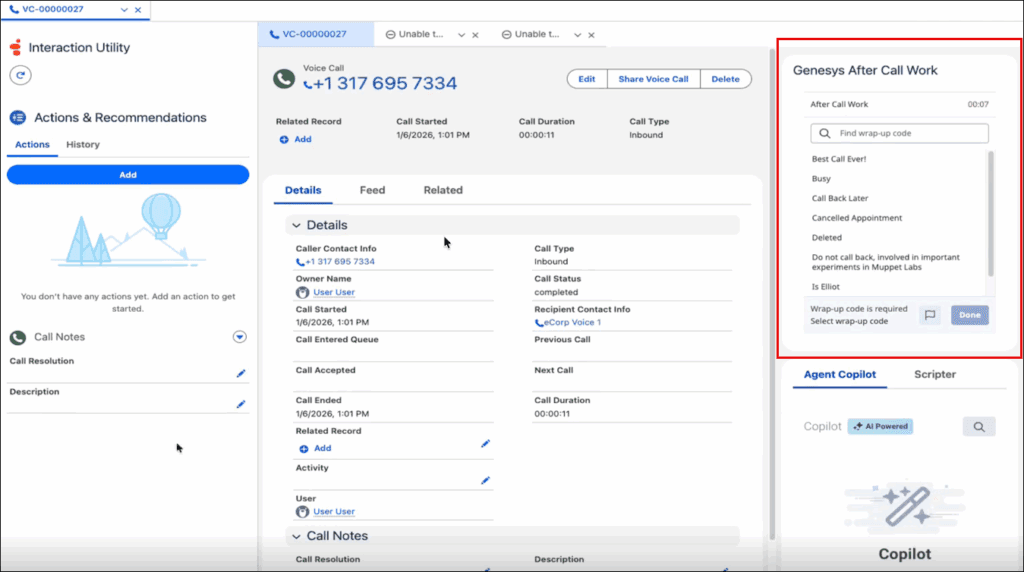
When an agent completes an interaction, the after call work component displays the following information on the Voice Call record page of the corresponding interaction:
- Expiration time, if Time-boxed is configured, for completing the wrap-up
- List of applicable wrap-up codes for the voice call
To enter call notes, agents can edit the Description field under the Call Notes section on the Voice Call record page in Salesforce.
For more information, see Configure after call work for agent requests and After call work.
[NEXT] Was this article helpful?
Get user feedback about articles.