AppFoundry for resellers
Series: AppFoundry
Previous suggested step: AppFoundry reporting
Next suggested step: AppFoundry ISV partners
AppFoundry is launching support for Genesys resellers, enabling them to offer purchases and/or free trials of available ISV applications to their customers, including indirect customers of Genesys Cloud. Let us discuss the following items in detail:
- Overview of functionality for Genesys resellers
- Reseller onboarding
- Managing a reseller profile
- Indirect customer experience
Reseller enablement
Onboarding is a simple process for the Genesys reseller’s channel manager. The channel manager needs to update the reseller’s account in Genesys’s internal Salesforce.com by adding an AppFoundry Markup and Percentage to be applied to all White List items on the Partner Margins node. The White List items have the resellers’ markup percentage added to the Gray List price for the end customer. As mentioned earlier, the resellers are responsible for providing first-level support services to the end customers for these applications. The channel managers then notify the AppFoundry Team about the reseller account update and share the Genesys Cloud Org ID of the reseller and the reseller account ID (aka GARN ID) with the AppFoundry Team. The AppFoundry team takes up to three business days to enable the reseller Genesys Cloud Org for administrative access on AppFoundry’s website.
Genesys resellers, once onboarded, are enabled to decide on the ISV applications that they want to offer pricing, purchases, and free trials to their customer base on AppFoundry. Resellers can select the required ISV applications by adding individual ISV applications to their reseller profile. The ISV applications provide the following advantages over ad hoc integrations:
- Streamline the installation experience, including scope acceptance.
- Terms of acceptance (reseller and AppFoundry partner).
- Usage tracking in Genesys Cloud.
- Consolidated invoice.
Sale or free trial notification
Ad hoc reports point out the changes in Genesys Cloud subscriptions. Upon purchasing or taking advantage of a free trial of any AppFoundry subscription, resellers receive notifications. If you are not already receiving notifications of new subscriptions on AppFoundry, you can obtain the report by submitting an email distribution list and filing a deal support request in the Genesys Ascend partner portal.
Post-sale operations for resellers
When indirect customers purchase or trial an item on AppFoundry, the items are handled similarly to any Genesys Cloud subscription or service item. The following operational norms apply:
- Subscription and usage information about AppFoundry ISV applications is reported in-app (Admin UI > Subscription) and in the Partner Billing APIs.
- Standard AppFoundry margins for resellers apply. The resellers are charged the amount of the difference between the Genesys list and the reseller’s margin. However, the end customer price is based on the reseller’s markup for whitelist items.
- Win reports are set out upon any automated purchase, including a free trial or purchase, on AppFoundry and contain the Terms of Service that the customer agreed to on AppFoundry.
Indirect customer experience
Unauthenticated AppFoundry customers, including direct customers and indirect customers, can view all AppFoundry listings. Only authenticated customers can view curated pricing based on currency and their direct vs. indirect relationship with Genesys. Authenticated direct customers can see Genesys List pricing in the currency of their subscription. Authenticated indirect customers can see tailored content based on their Genesys reseller’s profile on AppFoundry.
Based on the reseller’s profile or lack of profile, the indirect customers can view any of the following:
- Subscription currency pricing with reseller markup (aka Whitelist pricing) that includes support services and one of the following options:
- Free trial
- Purchase
- Contact Us. Note: Contact Us requests are sent to the vendor and the account owner in Genesys’s internal Salesforce.com.
- Subscription currency pricing at Genesys List pricing (aka Gray list pricing) that does not include support services and one of the following options:
- Free trial
- Purchase
- Contact Us.
- No pricing information (aka Black list) and only the Contact Us button.
Customers can still contact the vendors regarding pricing and purchase options for the application.
If you are a reseller and have any questions, contact the Genesys Channel Manager.
Profile request
Request onboarding
Genesys Cloud resellers must complete an onboarding setup process to offer Genesys add-on features and third-party software to their customers. The Genesys Cloud reseller or Genesys Cloud Channel Manager must open a Partner Support Request in the Genesys Ascend Partner Portal and begin the onboarding process. The AppFoundry reseller must provide the following details during onboarding:
- Reseller’s Genesys Cloud Org Name
- Reseller’s Genesys Cloud Org ID in Genesys Cloud (Admin > Organization Settings > Advanced area). For example, 59aaaaaa-bbbb-cccc-dddd-eeeeeeeeee9e.
- Reseller’s Genesys Cloud Org Region. For example, us-east-1, ap-southeast-2, and more.
- Genesys Salesforce Account URL(s)
- E-Mail address to send activation e-mails to. Note: Only one address is allowed.
Options for profiles
Most Genesys resellers have a single Genesys account record in our CRM. Genesys resellers with a single account must create a single profile that works in all Genesys Cloud regions except FedRamp. Larger multinational Genesys resellers, with multiple account records in our CRM, have more options to explore. Each Genesys reseller’s CRM record is associated with an individual operating company per country.
| Options | Profile Description |
|---|---|
| Option 1 | One Master Profile
|
| Option 2 | One Profile Per Country
|
| Option 3 | Group Profiles
|
Each profile is a single G/W list that works in all Genesys Cloud regions except FedRamp.
- One profile per orgID is allowed.
- If the reseller has more than one operating company, all Salesforce Account URLs must be provided.
- If the reseller has more than one operating company, the submission must have the following options when setting up the AppFoundry Profile:
- Option 1: All SFDC Account URLs and the single OrgId or region for the profile are included in the request.
- Option 2: A unique orgId or region is provided for each Salesforce Account URL.
- Option 3: The regional groupings of Salesforce Account URLs must be associated with a single orgId or region per grouping of Salesforce Account combinations.
The Partner Hub team adds an AppFoundry markup and percentage to all whitelist items on the partner margins node and updates your account in Genesys’s internal systems. The whitelist items have the reseller’s markup percentage added to the gray list price provided to the end customer. Resellers provide first-level support services to the end customer for these whitelisted applications. The Partner Hub team takes up to three business days to enable the reseller Genesys Cloud Org for administrative access on AppFoundry’s website.
Profile management
Enable users for AppFoundry reseller management
To enable a user on AppFoundry with more capabilities, the Genesys Cloud user requires extra permissions. To enable a user with more capabilities, you require the following permissions:
- appFoundry > reseller > All Permission
- appFoundry > reseller > Add
- appFoundry > reseller > Delete
- appFoundry > reseller > Edit
- appFoundry > reseller > View
You can quickly and easily set up a reseller profile. The reseller profile consists of the following:
- Whitelist: Items on this list are available for free trial or purchase with the reseller’s markup percentage added to the Genesys list price. The items on this list are selected as first-level support services supplied by the reseller on the app listing on AppFoundry.
- Greylist: Items on this list are available for free trial or purchase at the Genesys list price. The resellers are not expected to provide first-level support services. Indirect customers, similar to direct customers, must contact the AppFoundry partner for support services.
- Blacklist: Items on this list are unavailable for free trial, purchase, or even being visible to the customer. By default, if an item is not on a White or Grey List, then it is on the blacklist.
Learn about reseller white and grey lists.
Terms of Service options for resellers
White and Grey Terms of Service: Genesys resellers must provide their Terms of Service (ToS) to their indirect customers. Genesys provides these terms in the win reports upon free trial and/or purchase for compliance purposes.
Manage reseller profile on AppFoundry
The enabled Genesys Cloud Org administrator has to add permissions to authorize users within their Genesys Cloud Org for reseller profile management.
To add permissions, perform the following:
- Log in to the enabled reseller org.
- Click People and Permissions.
- Enable the following permissions for the role of AppFoundry administrators:
- appFoundry > reseller > All Permission
- appFoundry > reseller > Add
- appFoundry > reseller > Delete
- appFoundry > reseller > Edit
- appFoundry > reseller > View
Upon authenticating the Genesys resellers using the Genesys Cloud Org on AppFoundry, the resellers can see more options on AppFoundry.
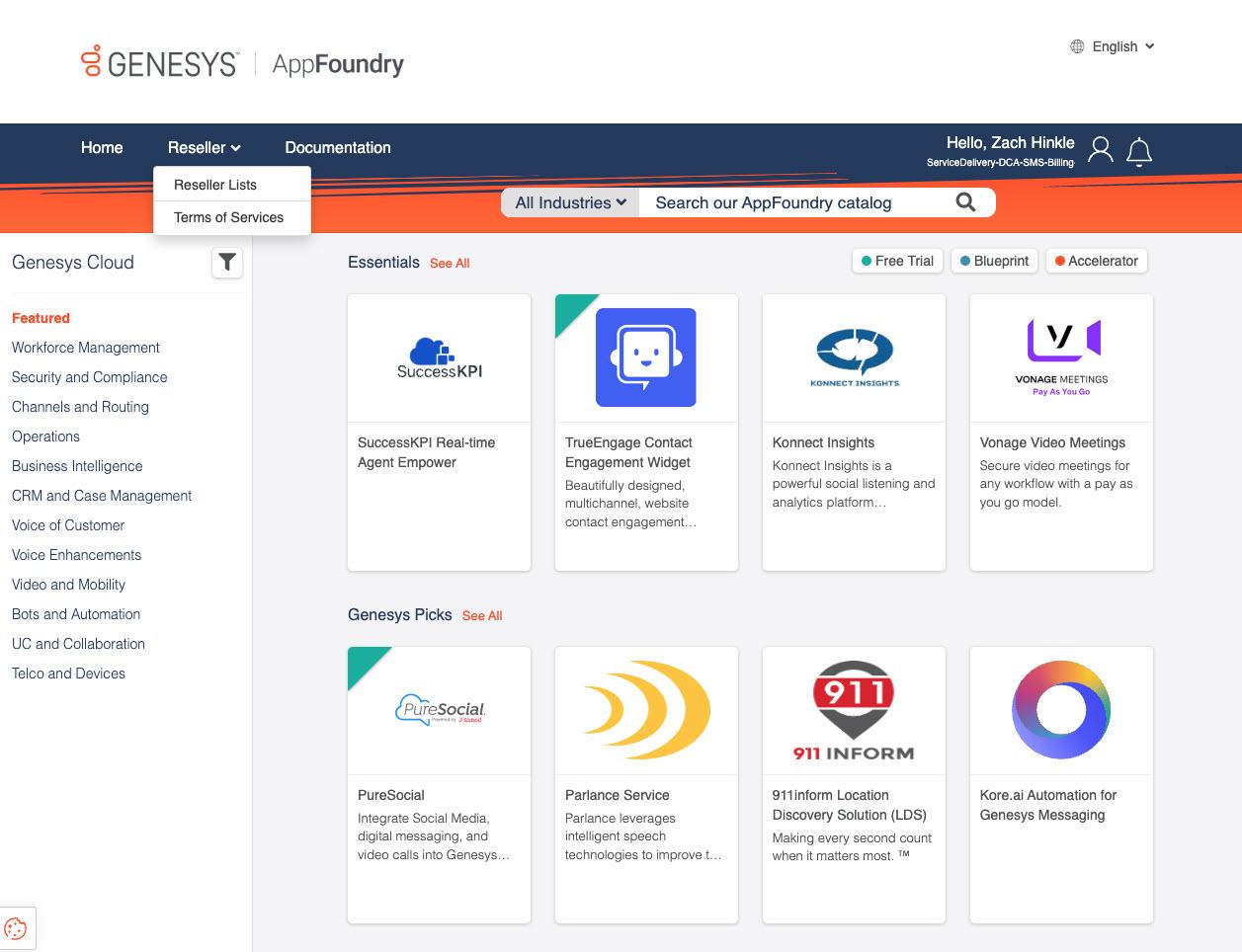
Create a reseller profile on AppFoundry
Learn about enabling reseller white and grey lists.
To create a reseller profile on AppFoundry, perform the following:
- In the upper right corner, below the account profile, select Reseller Lists.
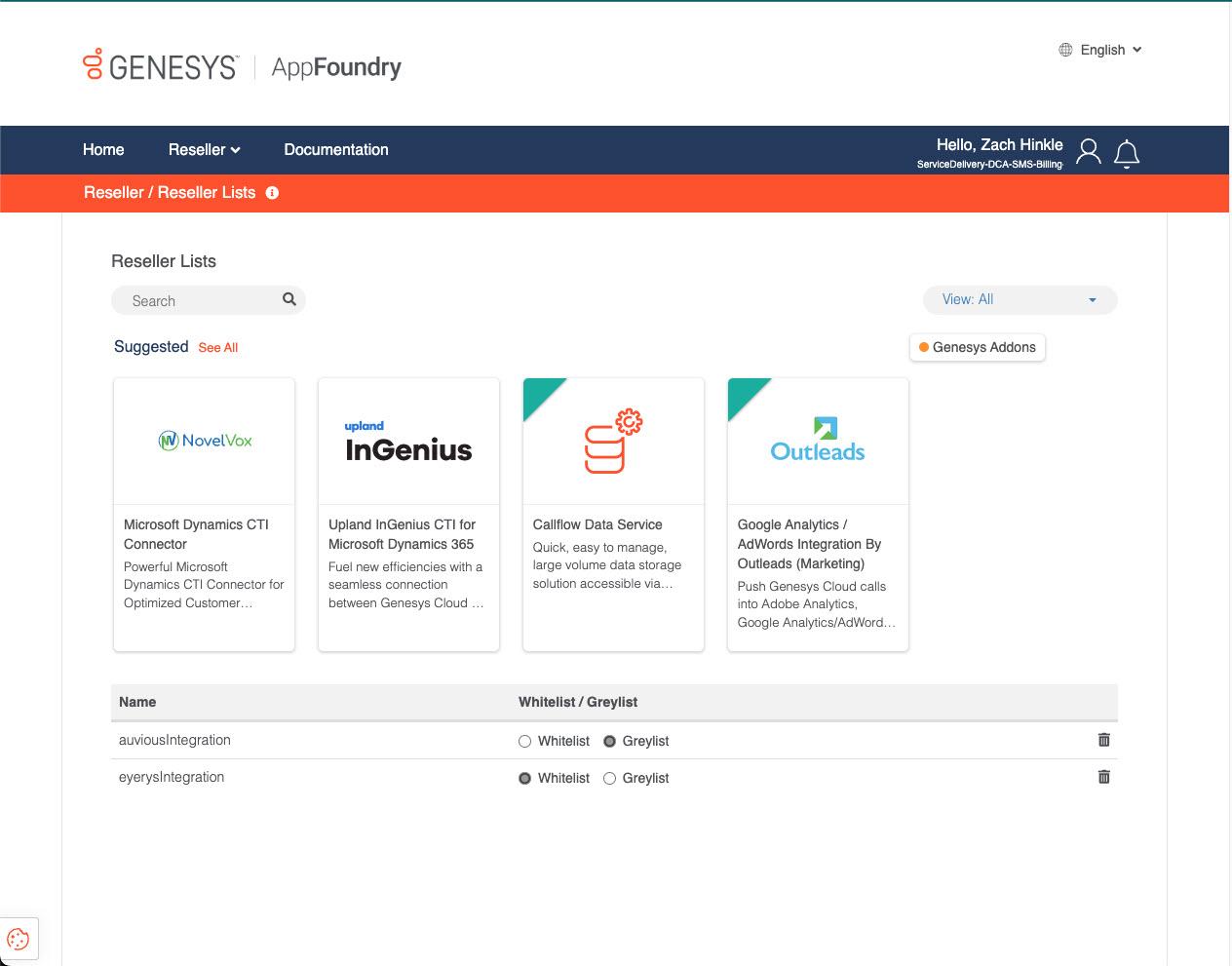
- Select an ISV Application.Note: By default, all ISV Applications are added to the Grey List. When the ISV applications are not added, these applications are blacklisted and the customer’s reseller cannot start a free trial.
- Click Whitelist or Greylist to add the chosen item to the whitelist or greylist.
- Click Save.
You can repeat the preceding steps until you complete the reseller profile.
Once an application is added, regardless of being greylisted or whitelisted, the customer can start a free trial as long as the AppFoundry partner offers a free trial.
Add reseller Terms of Service
To add the reseller Terms of Service, perform the following:

You can repeat the preceding steps for other languages.
Video demonstration
For more information about profile management using a video, see AppFoundry video.
[NEXT] Was this article helpful?
Get user feedback about articles.