Accept and respond to a social listening interaction
- Log in as an agent and go on queue. The Agent Workspace opens and new messages appear in the Active Interactions list.
- To accept a social listening interaction, click Answer. The social listening message appears.
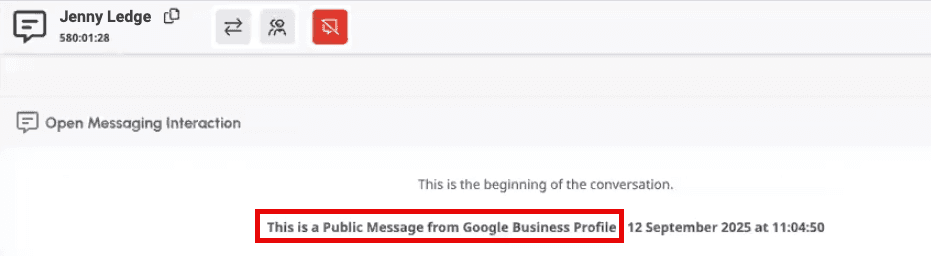
- Type your response to the incoming message.
- (Optional) To attach a file, do one of the following:
- Drag and drop the file into your message.
- Paste the file from your clipboard.
- Below the message entry box, click Attach file and locate the file that you want to attach.
Notes:
- If you attach multiple files, Genesys Cloud sends them as individual messages.
- Incoming media from X direct messages arrives as a link.
- You cannot send media for X interactions.
- Because Google Business Profile does not support attachments, you cannot send or receive attachments with Google Business Profile interactions.
- To send your message, click Send or press Enter.Note: By default, Genesys Cloud sends the response publicly. To send the message privately, click Send as Public > and select your preferred visibility. Genesys Cloud sends the message as a response to the latest public message. If you want to respond to a different public message, above the message, click More and Reply.
- To continue the conversation, repeat steps 3–4 as needed.
- To end the interaction, click End Messages.

- Complete any needed after contact work.
Notes:
- When you decline or do not answer an interaction within a certain amount of time, Genesys Cloud places you into Not Responding status. While Not Responding, you do not receive new interactions. Declined or unanswered interactions reenter the queue.
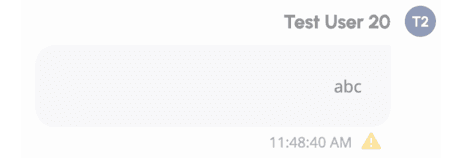
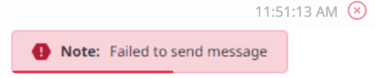
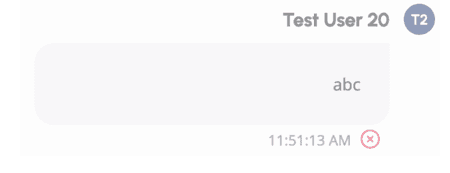
- Genesys Cloud confirms a successful message delivery with a . If message delivery fails, Genesys Cloud displays a warning to inform you of a delivery error. For more information, see Messaging errors and explanations.
- To resend or to copy a message, beside the message sender’s name, click More and then either Resend or Copy.
- You can escalate a maximum of 50 messages per minute as a conversation. If you exceed this limit, Genesys Cloud throttles message processing and does not allow automatic escalation. You must escalate throttled messages manually. For more information, see Social Listening Posts view.
[NEXT] Was this article helpful?
Get user feedback about articles.