Genesys Cloud provides comprehensive social listening capabilities through a unified Social Listening Posts view that monitors public posts and comments across multiple platforms including Open Messaging, X (formerly Twitter), Instagram, Google Business Profile, and Facebook. Access to this feature requires specific permissions for post viewing, message escalation, integration management, and content moderation administration.
The interface displays key post details including creator username, publication timestamp, source type, and platform-specific information such as follower counts for X posts and non-owned labels for external Facebook content. The system incorporates AI-powered sentiment analysis to automatically classify posts as positive, negative, or neutral, enabling rapid brand perception assessment. Verification status badges indicate author credibility, with platform-specific variations in badge types and availability.
Engagement metrics including likes, comments, shares, and views refresh upon webhook receipt, with platform-specific support varying across channels. X supports likes, shares, and comments; Facebook supports likes, shares, comments, and views; Instagram supports post-level likes and comments only; and Google Business Profile does not support likes metrics. The interface provides direct links to original posts and reviews, with up to one-hour fetch delays for Google Business Profile reviews.
Media content undergoes AI-based moderation with automatic blurring of not-safe-for-work (NSFW) content. Supported formats include JPEG and PNG images up to 5 MB and MP4/MOV videos up to 10,240 MB with specified codecs. Users can manually toggle media visibility, and administrators with appropriate permissions can escalate posts to agents, though NSFW-flagged posts require SFW designation before escalation. Escalation is limited to 10 messages per minute by default, with higher thresholds available through ServOps approval.
Data coverage varies by platform. X allows tracking of all public posts and comments based on configured rules, while Facebook ingestion is limited to owned pages with established integrations, though non-owned external content can be ingested with appropriate labeling. Instagram integration permits viewing only brand-owned pages, excluding tagged or mentioned brand content. Google Business Profile integration retrieves reviews and ratings for connected locations. Public posts are retained for 60 days from collection, while escalated content follows organizational retention policies.
The Social Listening Performance view supports extensive customization through multiple filtering options including topic, ingestion rule, escalation status, sentiment, content safety, platform, engagement metrics, comments count, views count, country, and language. The Words or Phrases filter enables targeted searches using include/exclude logic with OR and AND operators. Source Type filtering segments data by ownership category: Owned, Non-Owned, and Others. Date filtering offers preset options spanning from daily to quarterly ranges or custom ranges up to six weeks.
Users can sort posts through multiple criteria including Newest first, Oldest first, Most Followers, Most likes, Most comments, Most shares, and Most views, with platform-specific sorting limitations. Customized views can be saved with specific filter and column settings for quick access. The system updates automatically except when filters are applied, requiring manual refresh for current data. Public data escalation is limited to a single instance per post or comment, with repeat attempts resulting in error messages.
The following permissions:
All permissions under socialmedia > postDetail
socialmedia > postDetail – View (view social listening posts section under Analytics Workspace)
socialmedia > message – Escalate (manually escalate an ingested post to an agent for response)
Messaging > Integration – View (view the list of integrations that you created and manually escalate a post by selecting an integration)
All permissions under socialmedia > contentModerationCategory (admins to assign all content moderation category permissions, including any future permissions)
socialmedia > contentModerationCategory – Edit (admins to edit a Content Moderation Category)
socialmedia > message – edit post attributes (users to change a post moderation flag between SFW or NSFW)
socialmedia > topic – View (view the social listening topics in the filters section)
The Social Listening Posts view provides a unified view of all public posts and comments captured through your configured data ingestion rules across different platforms, including Open Messaging, X (formerly Twitter), Instagram, Google Business Profile, and Facebook.
Note: This view displays only publicly visible social posts and does not show any direct private messages.
Navigation
To see social listening posts, perform the following:
Click Menu > Analytics > Analytics Workspace.
In the Default section, search for Social Listening Posts and then click the view name to open it.
Set a default time zone in the workspace
You can set the default time zone in the analytics workspace before viewing any analytics view.
To set the default time zone in the workspace, follow these steps:
Click Performance > Workspace.
Click Menu > Analytics > Analytics Workspace.
On the left side, from the Time zone drop-down menu, select the required time zone as the default time zone for the analytics workspace.
Social Post Insights and Metrics
This view provides the following key insights about each ingested post or comment:
Post Details
Genesys Cloud can ingest publicly available posts and comments from Facebook pages that your organization does not own, in addition to owned-page data. To help supervisors quickly distinguish external page activity from brand-owned interactions, non-owned Facebook posts and comments display a Non-owned text tag.
Each post displays the following basic information:
Username: The account or user who created the post or comment.
Note: Due to Meta privacy restrictions, user profile information is not available for posts and comments ingested from non-owned Facebook pages. For these interactions, the username appears as No name or an anonymized participant ID.
Timestamp: When the post or comment was published.
Note: Some platforms do not always provide these details. These details appear only when available.
Source type: Displays whether the social content is from an owned, non-owned, or other source. Non-owned Facebook posts display a Non-owned label to help you distinguish content from external Facebook pages from content on pages owned by your organization.
Followers: Displays the approximate number of followers of the author who created the post. Hover over the follower count to view the exact number. This information is available only for posts from the X platform.
Verification status: Displays the verification badge for the author of an X post:
Blue – Verified individual or X Premium subscriber.
Gold – Verified business or organization.
Grey – Verified government or multilateral organization.
No badge – Unverified author’s account.
Note: Posts from platforms other than X do not display follower counts or verification status.
Sentiment
An emoji indicates the sentiment of each post – showing whether it’s positive, negative, or neutral. This sentiment is automatically detected using our AI-powered sentiment analysis models, helping you quickly gauge how people feel about your brand or topic.
Engagement Metrics
Engagement metrics show how people interact with social media posts, indicating the attention or interest a post receives. These insights help you measure audience engagement and identify posts that are performing well.
Engagement metrics refresh when Genesys Cloud receives a new like or a like-related update through a webhook. When this situation occurs, Genesys Cloud retrieves and updates the latest values for all available engagement metrics, including likes, comments, shares, and views. If no new like or like-related update is received, then the other engagement metric values do not refresh.
For Facebook, posts and comments from both owned and non-owned pages contribute to the overall Facebook channel usage. Available engagement data from non-owned Facebook pages, including likes, comments, shares, and views, is included in the aggregated Facebook metrics.
These metrics include:
Likes – The number of likes that a post received.
Comments – The number of comments that a post received.
Shares – The number of times that a post was shared.
Views – The number of times that a post was viewed.
For Facebook posts, Genesys Cloud retrieves the available engagement metrics when the post is initially ingested. For posts from owned Facebook pages, engagement counts are updated in near real time.
List of platforms and their engagement metrics:
Platforms
Engagement metrics
X
Supports engagement metrics, including likes, shares, and comments.
Facebook
Supports engagement metrics, including likes, shares, comments, and views, for posts on a Facebook-owned page.
Supports the retrieval of engagement data for posts on a Facebook-owned page.
Captures and aggregates posts, comments, and engagement metrics, including likes, comments, shares, and views from non-owned Facebook pages into total Facebook channel usage metrics.
Instagram
Supports engagement metrics, including likes and comments, for post-level engagement.
Does not support engagement metrics for comments or replies, including likes on comments or likes on replies.
Supports retrieval of engagement data for posts on an Instagram-owned page only after fetching the comments associated with those posts.
Does not support the retrieval of the mentioned posts.
Google Business Profile
Does not support the likes engagement metrics.
View Post
Each entry in the view includes a view post link. Click View Post to view the original post on its native social media platform.
View Review
Each entry in the view includes a view review link. Click View Review to view the original post on your Google Business Profile locations where the review has been added. The Google Business Profile supports both the reviews made on your Google Business Profile locations and the ratings.
Note: It takes up to one hour for the reviews to be fetched for Google Business Profile.
View Information
Each entry in the view includes an information icon. Click View Review to view the information about the topic and the data ingestion rule used to retrieve this data.
Media
Media refers to the images and videos in the public posts. Genesys Cloud applies AI-based content moderation to images displayed in the Social Listening Posts view to ensure a safe viewing experience. By default, media is blurred when our AI algorithms detect that the media is not safe for work (NSFW). By default, profile pictures are blurred. The NSFW model does not process the profile pictures. Users can click the profile image to view it.
When content is flagged as NSFW:
The system automatically blurs the post media.
A top-level NSFW label indicates that the content has been moderated.
An information icon is displayed, which users can select to view the associated moderation categories.
This moderation applies only to the visual rendering of images and does not affect post metadata, sentiment, or engagement metrics.
The supported file types and sizes for images are:
Maximum file size: 5 MB
Supported formats: .jpeg, PNG
The supported file types and sizes for videos are:
Maximum file size: 10,240 MB
Supported formats: .mp4, MOV (H.264, VP8, or VP9 video codecs)
All other formats, including .gif and .mkv, are not supported.
For unsupported or oversized media:
Media files that exceed the supported size limits are automatically classified as Unknown and appear blurred.
Media files in unsupported formats are also classified as Unknown and appear blurred.
Content classified as Unknown is not escalated to the agent desktop. To escalate this content, an agent must manually review it and mark it as SFW.
To view or hide the media, perform any of the following:
To view the media, click Show media
To hide the media, click Blur media
Manual post escalation
Administrators or supervisors with the necessary permissions can escalate a particular post to an agent for a response if it requires the agent’s attention.
For non-owned Facebook posts, you must select an active Facebook integration when you manually escalate the post. Because the post originates from a page that your organization does not own, Genesys Cloud cannot automatically use the source integration.
To manually escalate a post, perform the following:
In the upper right corner of the required post to be escalated, click Escalate icon. The Integrations window opens.
Select the required integration from the drop-down menu. Upon successful escalation, a successful in-app notification appears.
Notes:
The integrations configured for that platform by the admin appear in the integrations list. If the admin has not added any integrations for a post, that post cannot be escalated.
A social post can be escalated only once.
For a non-owned Facebook post, select an active Facebook integration associated with your organization before you escalate the post.
Escalation messages per minute: The default limit is 10 messages per minute. This limit can be increased to 50, 100, or up to a maximum of 250 messages per minute by submitting a ServOps ticket, subject to review and approval.
You cannot escalate a post that is flagged as NSFW, either manually or through automated social escalation rules. If a post is incorrectly flagged, a user with the appropriate permissions can update the flag to safe for work (SFW). Once marked as SFW, the post becomes eligible for escalation.
Data Coverage
This view allows you to monitor social media content based on specific data coverage rules for each platform.
Platforms
Data Captured
X
You can track all public posts and comments based on the data ingestion rules you have created.
Facebook
You can view and ingest data only from the pages your brand owns and for which you have established an integration with Genesys Cloud.
You can ingest and view posts and comments from Facebook pages based on your configured data ingestion rules. Facebook content can originate from owned pages associated with your organization or non-owned external pages. Non-owned content is identified with a non-owned label. Due to Meta privacy restrictions, user profile information is not available for non-owned Facebook content.
You cannot ingest posts or reels into Genesys Cloud where your brand is tagged or mentioned by other users.
You can retrieve comments on tagged or mentioned posts or reels, and can respond to them. It allows you to engage with users who are discussing your brand, even if the original post has not been ingested.
Instagram
You can view and ingest data only from the pages your brand owns and for which you have established an integration with Genesys Cloud.
You cannot ingest posts or reels into Genesys Cloud where your brand is tagged or mentioned by other users.
You cannot retrieve comments on tagged or mentioned posts or reels.
Google Business Profile
You can retrieve both the reviews for the connected locations and the ratings.
Data Retention
All public social posts ingested into Genesys Cloud are stored for 60 days from the date they were collected. After 60 days, these posts are automatically removed from the system and will no longer be visible. For example, if a post was ingested on June 1, it will be automatically deleted after July 31.
If a post or comment has been escalated to an agent, it is not deleted after 60 days. Instead, it is retained according to your organization’s retention policy. You can do the escalations in any of the following ways:
Automatically, based on a configured escalation rule.
Manually, when a user escalates a specific post or comment to an agent for a response.
Save view
To save the view with your filter and column settings, click Save.
Refresh view
This view updates automatically except when you use filters from the Filters pane. To see the most current data, click Refresh .
Customize the view
To show only certain data, customize the Social Listening Performance view using any combination of filters. For example, you can choose to show only certain filters to see certain types of data. You can also save your filter and column settings as a saved view to switch quickly between different data of interest in the same view.
To filter by information about the interaction, click Toggle filters panel , and then search or scroll to select the filter you want to use.
Interactions filters
Filter
Description
Topic
Choose the required topic from the list of topics created with different data ingestion rules. You can view all the deleted topics and data ingestion rules when no topic is selected. You cannot view all the deleted topics or data ingestion rules when applying a filter.
Note: You can select up to 50 topics. If you select more than 50 topics, an error message appears.
Ingestion Rule
Choose the required data ingestion rule. The data ingestion rule is displayed based on the topic selected.
Note: You can select up to 50 data ingestion rules. If you select more than 50 rules, an error message appears.
Posts
Choose the required escalation type:
Escalated – Shows the data that was escalated as a conversation.
Non-escalated – Shows the data that was not escalated as a conversation.
Sentiment
Choose the required sentiment type:
Positive – Displays the posts with a sentiment score greater than zero.
Negative – Displays the posts with a sentiment score less than zero.
Neutral – Displays the posts with a sentiment score equal to zero.
Unknown – Displays the posts with a sentiment score as unknown. If the language is unknown, the sentiment score is also unknown.
Content Safety
Choose the required option:
Not safe for work – Displays the social posts that are flagged as NSFW and Unknown.
Safe for work – Displays the social posts that are flagged as SFW.
Platform
Choose the required platform:
Open – Displays the social posts received from Open Messaging.
X – Displays the social posts received from X (formerly Twitter).
Instagram – Displays the social posts received from Instagram.
Facebook – Displays the social posts received from Facebook.
Google Business Profile – Displays the reviews received from your Google Business Profile locations.
Likes count
Displays posts based on the number of likes. Select a comparison operator, enter the required value, and then click Apply.
Shares count
Displays posts based on the number of shares. Select a comparison operator, enter the required value, and then click Apply.
Comments count
Displays posts based on the number of comments. Select a comparison operator, enter the required value, and then click Apply.
Views count
Displays posts based on the number of views. Select a comparison operator, enter the required value, and then click Apply.
Country
Choose the required country.
Language
Choose the required language from the list of supported languages.
Note: As the language detection accuracy for smaller posts (fewer than five words) is low, Genesys Cloud skips the language detection algorithm for the smaller posts and marks the language as Unknown.
Words or Phrases
Displays posts that contain specific words or phrases. Filter for specific words or phrases that include or exclude certain words or phrases. Select the word or words that you want. Filter for multiple words by entering more words and searching again.
You can select the preferred words or phrases and filter the data based on the selected words or phrases. By default, the Includes option is enabled. You can select single or multiple words or phrases in the same level and view the filtered results. The words within the same level are combined using the OR operator. You can use the +AND with words or phrases option to add another level of words or phrases that must be AND’d together. This option allows you to perform layering analysis on the posts.
Source Type
Owned data – Displays the social posts from Facebook pages that you own, Instagram, and Google Business Profile.
Non-Owned data – Displays the social posts from Facebook pages that you do not own
.
Others – Displays the social posts from X and Open Social channels.
Note: Data retrieval can take up to five minutes.
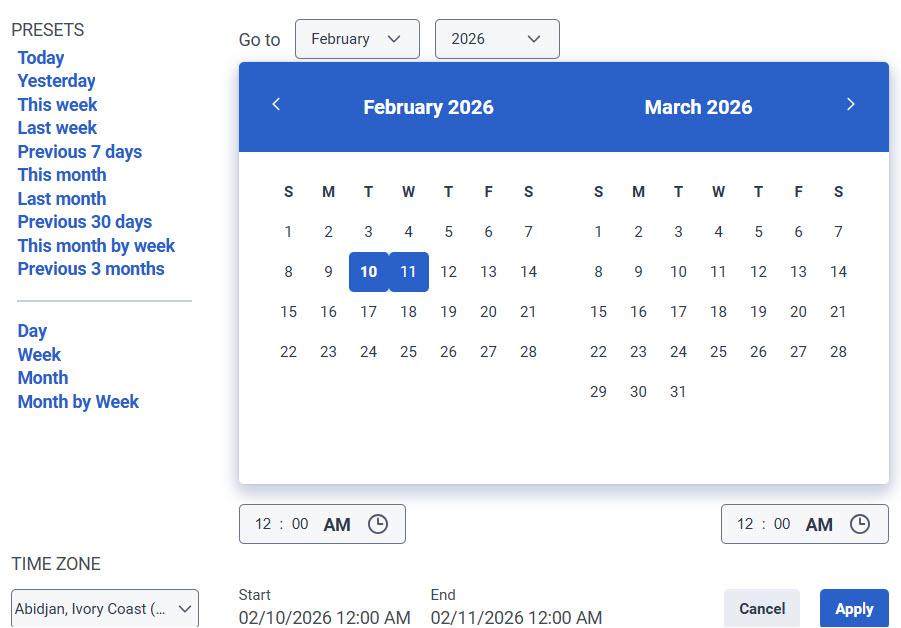
To customize analytics views, use the preset date ranges.
To filter metrics by date or configure a custom date range, use presets. When filtering metrics for this view, select any custom date range up to 6 weeks.
To use a preset to filter metrics, complete the following steps:
To display the date filter, click the date.
In the Presets list, select a preset date option.
Date presets
Presets
Description
Today
Shows data for the current day.
Yesterday
Shows data for the previous day.
This week
Shows data for the current week, that is, Sunday through Saturday.
Last week
Shows data for the previous week, Sunday through Saturday.
Previous 7 days
Shows data for the previous seven days.
This month
Shows data for the current month, with no extra days.
Last month
Shows data for the previous calendar month with no extra days.
Previous 30 days
Shows data for the previous 30 days.
This month by week
Shows data for the current calendar month starting on Sunday and ending on Saturday, including extra days if the month does not start on Sunday or end on Saturday.
Previous 3 months
Shows data for the previous 3 months. For example, Nov 1, 2022 – Jan 31, 2023.
Day
Shows data for a single 24-hour day.
Week
Shows data for a Sunday through Saturday time period.
Month
Shows data for the exact month with no extra days. If the current month is selected, you can see the data up to the current date.
Month by Week
Shows data for a calendar month starting on Sunday and ending on Saturday, including extra days if the month does not start on Sunday or end on Saturday.
To use a custom date range to filter metrics, complete the following steps:
Click the date to display the date filter.
Select a start date and an end date on the calendar.
Click Apply.
To view data for a different time period using the same date presets, click the arrows on either side of the date display. For example, to view data for the previous day, click the Day preset, and then click the arrow on the left side of the date.
To sort the social listening posts by date, in the upper left corner, choose any one of the required sorting types from the Newest first drop-down:
Newest first (Default)– Sorts the social listening posts by the most current or newest date.
Oldest first– Sorts the social listening posts by the oldest date.
Most Followers– Sorts social listening posts in descending order by the follower count of the authors.
Note: This filter option applies only to X posts. When selected, X posts appear first, sorted by follower count in descending order, followed by posts from other platforms, which are sorted by date in descending order.
When multiple posts have the same follower count, the most recent posts appear first.
Most likes – Sorts Facebook posts in descending order by the number of likes.
Most comments – Sorts Facebook posts in descending order by the number of comments.
Most shares – Sorts Facebook posts in descending order by the number of shares.
Most views – Sorts Facebook posts in descending order by the number of views.
Notes:
Due to Instagram’s privacy policies, user profile information, including usernames or profile pictures, is displayed only when the user directly interacts with your brand.
The Most likes, Most comments, Most shares, and Most views sorting options apply to Facebook posts only.
If a user only comments on a public post or reel without sending a direct message, their profile details are not visible in this view.
For the Open Messaging channel, post types are not available.
Public data can be escalated only once. Repeat escalations are not allowed. If you attempt to escalate the same post or comment again, you see an error message, or the escalate icon appears unavailable.
 icon. The Integrations window opens.