AppFoundry ISV partners
Series: AppFoundry
Previous suggested step: AppFoundry for resellers
The ISV AppFoundry partners have the following extra capabilities enabled on AppFoundry:
- Vendor profile: A vendor profile has information, including sales, support, and other general company materials, useful for the customer to contact the ISV application vendor.
- Listing Editor: The vendors can make edits to any existing listing linked to their vendor profile. Submit the edits to the AppFoundry team to get them reflected on AppFoundry.
- Usage Dashboards: The usage dashboards show the vendor’s total customer count, the customer’s region-based application usage, and the customer’s individual subscriptions. The AppFoundry Usage APIsprovide the usage statistics.
Vendor enablement
To request access to the App Usage dashboards, the ISV AppFoundry partners must send an email to appfoundry@genesys.com with the following details:
- Organization (Org) ID. To find your Organization ID, perform the following:
- Log in to Genesys Cloud.
- Click Admin > Organization Settings.
- Click Menu > Account > Organization Settings.
- In the Organization Details tab, expand the Advanced area to view or copy your Organization ID.
- Region of Org: To determine the region, send the URL that you use to log in to Genesys Cloud.
Genesys controls Genesys AppFoundry vendor access via Genesys Cloud authentication. If you do not have a user account in your Genesys Cloud development organization, perform the following:
- Contact the administrator of your Genesys Cloud organization, which is the org provided above.
- Ask the administrator to create a user account for each user for whom you must manage your AppFoundry vendor profile and listings.
To add a new user to the organization, see Add a User. After creating the user accounts, the partner must have the proper permissions to manage the AppFoundry vendor content. The Genesys Cloud administrator must create a new role called AppFoundry Admin (Admin > Roles). For more information on adding a new role, see Add a Role. The AppFoundry Admin role needs the following permissions:
- All permissions under appFoundry > vendor
- appFoundry > vendor – Add
- appFoundry > vendor – Delete
- appFoundry > vendor – Edit
- appFoundry > vendor – View
- All permissions under appFoundry > appUsage
- appFoundry > appUsage – View
To enable vendor enablement, perform the following steps:
Step 1: Enable users for AppFoundry vendor management
On adding the role, you must apply the new role to all users who can manage your AppFoundry content.
To add the role to the user, perform the following:
- Click Admin > People.
- Edit properties for the required user who can manage your AppFoundry profile and listings.
- Click the Roles tab and select View All.
- Assign the AppFoundry Admin role to that user.
Upon assigning the role to that user, the user can log in to the AppFoundry site using their Genesys Cloud credentials. The user can view the Vendor menu to manage the profile and listings. To assign a role to a user, see Assign Roles.
Step 2: Create vendor profile
As a Genesys ISV, you must create a vendor profile to provide important company information to Genesys sales, resellers, and customers. The vendor profile provides you with the ability to manage your AppFoundry listing. For more information about the vendor profile, see vendor profile.
Step 3: Listing management
The AppFoundry ISV partners can make edits, updates, and submit changes to an existing listing on AppFoundry. For more information about editing a listing, see Listing Editor.
Step 4: Usage dashboards
The AppFoundry ISV partners, with their ISV applications, are provided with the usage dashboards to provide subscription information about their ISV applications. For more information about usage dashboard, see Usage Dashboards.
Profiles
Once vendor access is enabled, perform the following:
- Log in to the AppFoundry.
- In the upper right corner, click your user name.
- Select the proper region for your organization.
- Enter your credentials. The menu bar next to the Home link displays the Vendor menu.
- Select Vendor Info.
- Enter Offices, Office Hours (Sales, Support, and Additional), Phone Numbers, Websites, and Documents.
- To create or manage your vendor profile, your Genesys Cloud org must be enabled for vendor access, and your user account must have proper AppFoundry permissions. For more information about AppFoundry permissions, see AppFoundry ISV Partners.
- Upon profile configuration, send an email to appfoundry.support@genesys.com so that Genesys can associate your profile with your listings. If you have multiple listings, specify all listings in the email.
The sample updated AppFoundry listing page is as follows:
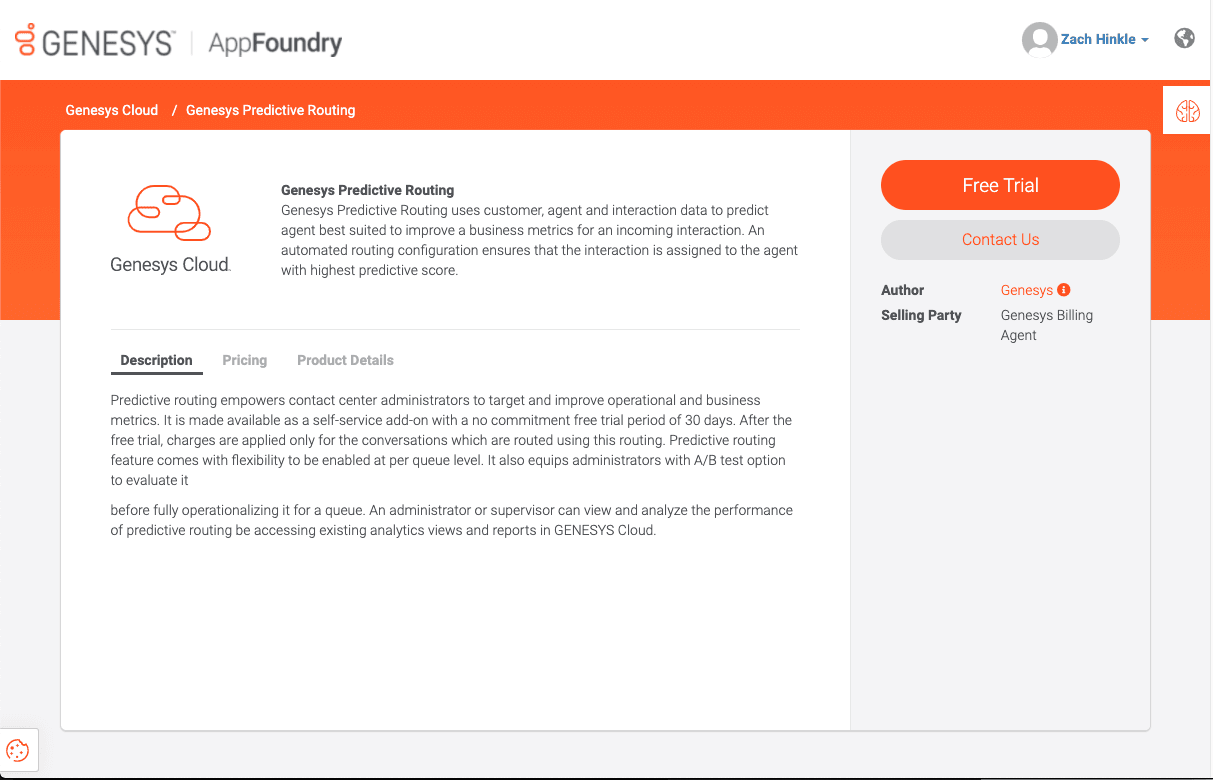 The sample detailed information page is as follows:
Listing editor
Once you have enabled vendor access and paired your listings with your profile, perform the following:
- Log in to the AppFoundry.
- In the upper right corner, click your user name.
- Click Vendor > Listing Editor.
- Click the Published Listings tab to view all published listings associated with your vendor profile. The Drafts tab appears next to the published listings.
- To make edits to your listings, click the Create Draft icon.
- Edit the required fields, including Application Name, Tag Line, Short Description, Full Description, Use Case—Do Not Alter Format, Product Details (Languages, Industry, Attestations), Terms and Conditions (URL), Marketing Brochure (PDF), Help Documentation (URL), Images, and Video URL.
- Click Save.
- Click Submit after updating your listings to notify the AppFoundry team that your edits are ready for review.
If your draft listing is accepted, the AppFoundry Team publishes your listing on AppFoundry. If your draft listing is rejected, the AppFoundry Team explains the rejection so that the issues are addressed and resubmitted for approval.
Usage dashboards
The enabled Genesys Cloud Org administrator has to add the following permissions to authorize users within their Genesys Cloud Org for App Usage dashboards:
- appFoundry > appUsage – view
The enabled Genesys ISV AppFoundry partners can see the Vendor menu with the App Usage menu once authenticated using the Genesys Cloud Org on AppFoundry.
To view the usage dashboard, perform the following:
- Once set up, enter the API key.Note: If you do not have your API key, open a case in the Genesys Partner Hub by selecting Partner COE Request in Category Generic, Partner Management & Supportin Category, and AppFoundry – Sales & Marketing related queries in Sub-Category.
- Click Save.
- In the columns on the left side, add your unique app IDs. A single AppFoundry partner can have multiple app IDs.
- To segment customer data by region, select the Genesys Cloud region below the app ID(s) on the left side.
- To view the customer-specific contract information regarding the ISV app, click an individual org ID.
Enterprise agreements
AppFoundry ISV Partners, with a published ISV Application sold through and invoiced by Genesys, can also sell the same offering directly to the customer/reseller and invoice for the usage of their product. The ISV applications invoiced by the ISV are not considered part of the Genesys subscription. The AppFoundry ISV partners must manually turn on the ISV application for each customer purchasing their product directly from them.
Requirements
The AppFoundry ISV partners are required to meet all requirements for the ISV applications on the Genesys subscription. To become an ISV, you must satisfy the basic requirements listed as follows:
For the AppFoundry ISV starting an agreement:
- Vendor enabled Genesys Cloud organization: Must have a Genesys Cloud role with the following permissions:
- All permissions under billing > enterpriseAgreement
- billing > enterpriseAgreement – add
- billing > enterpriseAgreement – delete
- billing > enterpriseAgreement – view
- billing > enterpriseAgreement – edit Note: If these permissions do not exist in your organization, then the organization has to be enabled for vendor enablement.
- SKUs/Parts: Even though the ISV can invoice directly, all ISV applications must be able to sell through Genesys on the Genesys Cloud subscription. Therefore, SKUs/Parts must be set up for the ISV applications with Genesys as per the standard billing guidelines.
- ISV application install wizard: The ISV applications, invoiced by Genesys, require an install wizard to facilitate the deployment of the ISV application. The ISV can also use the same install wizard to invoice the ISV application. The installation wizard cannot determine if Genesys or the ISV is billing for the ISV application.
For the reseller/customer accepting an agreement:
- Reseller permissions: Must have a Genesys Cloud role with the following permissions:
- All permissions under billing > enterpriseAgreement
- billing > enterpriseAgreement – delete
- billing > enterpriseAgreement – edit
- billing > enterpriseAgreement – resellerAccept
- Customer permissions – Must have a Genesys Cloud role with the following permissions:
- All permissions under billing > enterpriseAgreement
- billing > enterpriseAgreement – delete
- billing > enterpriseAgreement – edit
To use the functionality, the customer’s Genesys Cloud organization cannot have a subscription for the integration enabled using this capability. To use this capability, the customer’s organization must be free of a Genesys Cloud subscription of the product before enabling the ISV application using this capability.
Start enterprise agreements for ISV
To start an enterprise agreement, an ISV user with the proper permissions performs the following:
- Log in to the AppFoundry.
- Click Admin > Enterprise Agreements.
- Click the Initiating Agreements tab.
- To start an enterprise agreement between the ISV and the customer and/or Genesys reseller who authorizes the customer access to the ISV application, click the Create a New Agreement link. The Create a New Agreement dialog box appears.
- In the Create a New Agreement dialog box, perform the following:
- Name: Provide a unique name to identify this particular enterprise agreement. As a suggestion, you can specify the product name and the intended customer to easily find to refer to that agreement later in the list of enterprise agreements.
- Target Organization Id: Provide the customer’s Genesys Cloud organization ID. Ensure that only this organization accepts the agreement.
- Authorizing Organization Id: Provide the reseller’s Genesys Cloud organization ID that is enabled for AppFoundry reseller access. The reseller has to provide this organization ID to the ISV. Note: This field is applicable only if the ISV is billing the Genesys Reseller.
- Listing: Select the product authorized for the customer from the drop-down menu. Note: If you do not find any listings, ensure that you are logged into the correct organization that has been enabled for AppFoundry vendor access. The relationship for the listings provided in the drop-down menu is Vendor-enabled Org > Vendor Profile > Vendor Listings .
- Listing Parts: Click Add Part and add product parts and committed quantities to the enterprise agreement.
- Click Create. The Terms of Usage dialog box appear.
- Select I accept the Terms of Usage.
- Click Create to begin the process of generating the enterprise agreement.
All enterprise agreements created by the ISV are maintained in the enterprise agreements list. The list displays information about the enterprise agreement and its current state. Once the ISV starts the enterprise agreement, the agreement appears in the Initiating Agreements tab for the ISV.
Authorizing agreements (Customer)
When the ISV directly sells an ISV application to a customer, the ISV is required to manually enable the ISV application for that customer after completing all the commercial sale paperwork. Once the ISV starts the agreement, a notification is sent to the customer. Upon logging in to the AppFoundry, the customer can find the notification listed in the notification section.
Enable ISV AppFoundry application for customer
To enable the ISV AppFoundry application in the customer’s organization, perform the following:
- Log in to AppFoundry using the Genesys Cloud organization where the ISV application is used.
- Click Admin > Enterprise Agreements.
- Click the Authorizing Agreements tab.
- Click the Display Name > Pending Upgrade line item. The enterprise agreement from the ISV is displayed.
- Validate that the enterprise agreement is acceptable, specifically the Listing Parts and quantities.
- Upon reviewing the details, choose one of the following:
- Accept Agreement: Click to accept the enterprise agreement and enable the ISV AppFoundry application for the customer’s Genesys Cloud organization. Upon choosing to accept the enterprise agreement, the Terms of Usage dialog box appears.
- Delete Agreement: Click to delete the enterprise agreement.
- Upon accepting the enterprise agreement, read the terms.
- To accept the terms, click I accept the Terms of Usage.
- Click Accept Agreement. The ISV AppFoundry application is enabled in the customer’s organization.
Enable ISV client application for customer
To enable the ISV client application in the customer’s organization, perform the following:
- Click Admin > Integrations.
- In the upper right corner, click the Integration link.
- Click Install.
- Perform all the steps explained in the preceding Enable ISV AppFoundry application for customer section.
Enable CRM application (aka Embeddable framework applications) for customer
To enable the CRM application in the customer’s organization, perform all the steps explained in the preceding Enable ISV AppFoundry application for customer section. The required permissions and licenses are now enabled.
Authorizing agreements (Genesys reseller)
When the ISV sells an ISV application to a reseller on behalf of a customer, the ISV is required to manually enable the ISV application for that customer after completing all the commercial sale paperwork. Once the ISV starts the agreement, a notification is sent to the customer. Upon logging in to the AppFoundry, the customer can find the notification listed in the notification section.
To enable the ISV AppFoundry application for the Genesys reseller, perform the following:
- Log in to AppFoundry using the Genesys Cloud organization provided to the ISV for approval.
- Click Admin > Enterprise Agreements.
- Click the Authorizing Agreements tab.
- Click the Display Name > Pending Upgrade line item. The enterprise agreement from the ISV is displayed.
- Validate that the enterprise agreement is acceptable, specifically the Listing Parts and quantities.
- Upon reviewing the details, choose one of the following:
- Accept Agreement: Click to accept the enterprise agreement and enable the ISV AppFoundry application for the customer’s Genesys Cloud organization. Upon choosing to accept the enterprise agreement, the Terms of Usage dialog box appears.
- Delete Agreement: Click to delete the enterprise agreement.
- Upon accepting the enterprise agreement, read the terms. Resellers have their terms with the ISV. The terms shown acknowledge the commercial aspects outside Genesys’ agreements.
- To accept the terms, click I accept the Terms of Usage.
- Click Accept Agreement. The ISV AppFoundry application is enabled in the customer’s organization.
Enable ISV client application for Genesys reseller
To enable the ISV client application for Genesys reseller, perform the following:
- Click Admin > Integrations.
- In the upper right corner, click the Integration link.
- Click Install.
- Perform all the steps explained in the preceding Enable ISV AppFoundry application for Genesys reseller section.
Enable CRM application (aka Embeddable framework applications) for Genesys reseller
To enable the CRM application for the Genesys reseller, perform all the steps explained in the preceding Enable ISV AppFoundry application for Genesys reseller section. The required permissions and licenses are now enabled.
Disabling and deleting agreements
Once the AppFoundry ISV enables an enterprise agreement and a customer or a Genesys reseller directly accepts the agreement on behalf of a customer, both the AppFoundry ISV and the customer or Genesys reseller can disable the ISV Application in the future. If the AppFoundry ISV, customer, or reseller disables the enterprise agreement, the ISV application is immediately unavailable. If the enterprise agreement is disabled by one party, only the other party can delete the agreement. For example, see the following scenarios:
- Customer to AppFoundry ISV enterprise agreement:
- If the customer disables the agreement, the AppFoundry ISV has the option to delete the agreement.
- If the AppFoundry ISV disables the agreement, the customer has the option to delete the agreement.
- Reseller to AppFoundry ISV enterprise agreement:
- If the reseller disables the agreement, the AppFoundry ISV has the option to delete the agreement.
- If the AppFoundry ISV disables the agreement, the Reseller has the option to delete the agreement.
Usage APIs
AppFoundry ISVs can expect usage counts returned in AppFoundry’s Usage APIs for usage type (aka licensed), mimic type, and recurring applications.
ISV revenue share submissions
AppFoundry ISVs, per the AppFoundry ISV partnership agreement, are required to share revenue with Genesys for any sales of the ISV application. Genesys invoiced ISV applications are handled automatically. However, the ISV invoiced ISV applications require manual reporting of the revenue share.
To report revenue share for a deal, perform the following:
- Log in to the Genesys Ascend Partner Portal.
- Click AppFoundry > AppFoundry Report.
- For each deal, create a new AppFoundry License Report.
- Click Submit.
This reported deal revenue is considered when calculating the ISV’s AppFoundry partnership tier.
[NEXT] Was this article helpful?
Get user feedback about articles.