Variables in guides
A guide variable enables your AI agent to pass information within the guide, send information to Architect Virtual Agent flows, and receive information from Architect Virtual Agent flows. For example, you can use references between steps in the guide and exchange data with Architect flows during the conversation, making the customer’s interaction more dynamic.
When creating variables, you can use optional validation controls to define how values are captured in guides. Once configured, the guide accepts only values that meet the specified criteria. Provide brief, high-level descriptions for variables and rely on validation settings to enforce constraints. If a participant submits a value outside the allowed criteria, the guide-based Virtual Agent responds with a message indicating the issue.
Create guide variables
- Click Menu > Orchestration > AI Studio > Guides.
- Open an existing guide or create a new one.
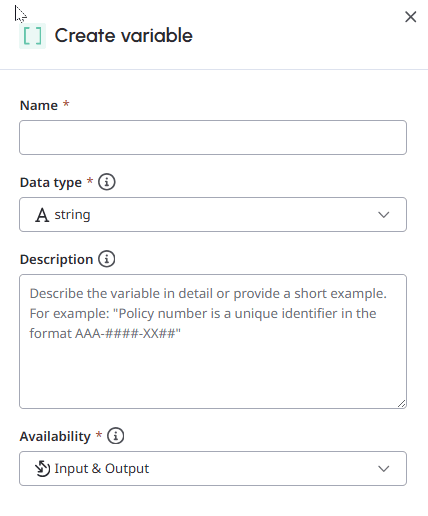
- Open the Variables tab and click Create. The Create variable panel opens.
- Under Create variable, follow these steps:
- In the Name field, enter a variable name.Note: The maximum length of a variable name is 80 characters.
- From the Data type list, select one of the following data types:
- string: A standard text string. Data other than a number, integer, or Boolean must be captured through a string variable.
- boolean: A Boolean can have only one of two values: true or false.
- number: A number includes decimal values such as an amount of money.
- integer: An integer is a whole number such as the number of people for a reservation.
- date: A date value in a specified date format such as yyyy-mm-dd.
- list: An array of items paired with optional synonyms. Note: Ensure that the data type matches correctly with the intended values. This behavior improves the large language model (LLM) accuracy when identifying and gathering information.
- From the Availability list, select the appropriate direction of data transfer.
- Input: Use this direction to receive data from the Virtual Agent-enabled flow.
- Output: Use this direction to send data to the Virtual Agent-enabled flow.
- Input & Output: Use this option to send data to or receive data from the Architect flow.
- Guide only: Use this option to ensure that data is used exclusively within the guide. Note: For any information that you want to use within the guide, select any of the data direction options.
- In the Description text box, enter a description that is simple and clear.
- (Optional) Under Validation, configure the rules (conditions) that the system must evaluate before accepting a value.
- If you chose list from the Data type list, configure the list options using these steps:
- Select one of the following list types:
- Static List: Use this option to define the list of values and synonyms manually.
- Dynamic List: Use this option to retrieve values through an existing data action.
- Under List values, set values manually for a static list or select the data action for a dynamic list.
- For a static list, select whether the participant input must match exactly or partially using the Exact Match | Flexible Match toggle. Then, click Add value and add list values along with synonyms.
- For a dynamic list, select an existing data action from the Data action list. Before selecting the Data Action, one must be created that returns an array of string values and, optionally, an array of arrays of string synonyms. The synonyms must be structured as an array of arrays, since each value can have multiple synonyms. If there is only one synonym per value, a single array can be returned for each entry.
- Select one of the following list types:
- In the Name field, enter a variable name.
- Click Create. You can now use this variable in your guides.
- A list variable always has a List Selection string variable attached to it. This list selection variable stores the customers choice from the list. For example, if the list variable “car_models_list” stores a set of car models, the list selection variable “customer_model” stores the model given by the customer, if it matches one of the list values.
- List variables can be used as input to a Call command (for example, a data action). However, they cannot be used in the Store command within an Ask or Call command. Operations that update list selection variables other than capturing them through their parent list variable are not allowed.
- The Flexible Match option in a static list variable requires a set of values, each with a corresponding description. Agents use these descriptions to determine their meaning and to map customer utterances to the correct value. For example, if the value is “delivered” and the corresponding description is “The customer has received their order,” and the customer says, “Yeah, I got it,” the system outputs the value “delivered.”
- The Exact Match option in a static list variable works best with a list of synonyms. For example, if the value is “delivered”, the synonyms list may include “received”, “I got it”, and “arrived.” The customer must say something that contains either the value or one of its synonyms. A customer utterance such as “Yeah, it was yesterday I got it” matches because it contains “I got it”, while “Yeah, I did get it” does not match, as there is no overlap. If two synonyms match two different values, the agent is instructed to ask the customer for clarification.
- When generating a guide using an AI prompt, the guide creates variables to complete the task you have given it. However, you must ensure that the variable name, description, and type match your business needs.
- Once you have published a guide and connected it to an Architect flow, all variables except the Guide only variables get locked and you can then update only their descriptions. If you must make significant changes to the variable such as its data type, you must create a new one or duplicate it to edit.
Validation (optional)
The validation options in the Validation section enable you to apply rules and conditions to a variable. The validation parameters are optional and they vary depending on the selected data type.
Strings
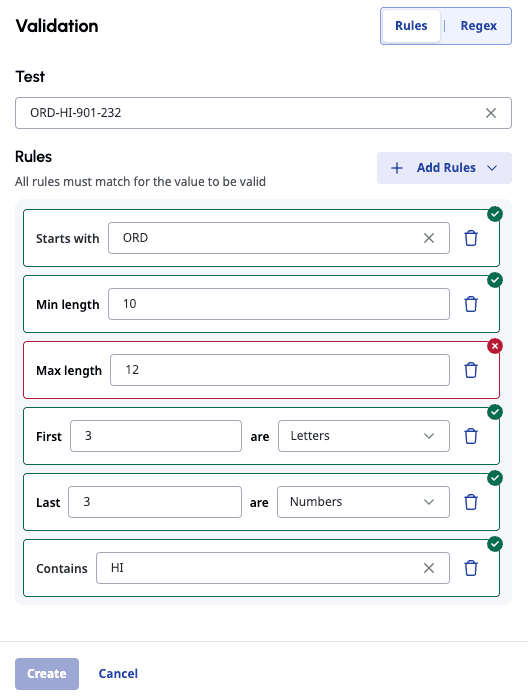
You can configure the validation options for string variables using either the pre-existing rules or regular expressions. Rules and regex enable authors to enforce predefined criteria for user input. If a value fails validation, the system returns an error message and requires a valid input before proceeding from the Ask command.
To add rule conditions, select Rules in the Rules | Regex toggle and click Add Rules. The following rule conditions are available:
| Rule | Usage description |
|---|---|
| Starts with | The value must start with the selected text. |
| Ends with | The value must end with the selected text. |
| Contains | The value must contain the selected text. Spaces are not allowed. This rule can be applied up to five times. |
| Allowed characters | Allowed combination of characters. The following combinations are available:
|
| Min length | The minimum allowed length (number) of the string value. The value can be greater than or equal to this length. |
| Max length | The maximum allowed length (number) of the string value. The value can be less than or equal to this length. |
| First characters | The first N number of letters or alphabets allowed in the string value. |
| Last characters | The last N number of letters or alphabets allowed in the string value. |
To add regex, select Regex in the Rules | Regex toggle and click Add Regex. Then, enter your regular expression to validate the string values. You can combine multiple expressions.
- Only one pattern requires to match the customers utterance in part or full.
- Regex patterns must not be wrapped in quotes.
- Regex patterns support non-capturing groups (?:…) only. Capturing groups (…), named groups (?P<name>…), back references (\1–\9, \k), and recursive patterns ((?R), (?0), (?1)) are not allowed. The maximum allowed pattern length is 500 characters. For more information, see Regular expression language quick reference.
You can also test how your rules or regular expressions work by entering a sample string value in the Test field.
Numbers and integers
Set the minimum and maximum values that the variable must accept. Both the minimum and maximum values are optional.
Dates
Use the date validation options to indicate which dates and date formats that the system must allow.
- Select the allowed dates from the Capture list. The following options are available:
- Any date: This option allows the date variable to accept any date.
- Past dates only: This option allows the date variable to accept only specified past dates. You can define the rolling aggregate in the past such as refunds only valid for the last one year.
- Future dates only: This option allows the date variable to accept only specified future dates. You can define a rolling aggregate in the future, such as limiting restaurant reservations to 30 days ahead.
- Within a date range: This option allows you to select a date range that the variable must accept.
- From the Store as list, select the allowed date format.
Use variables
- Open an existing guide or create a new one.
- In the Instructions tab, place your cursor where you want to insert a variable and type /.
A pop-up dialog box appears showing options to insert a data action or variable. - Select Variables. The dialog box now lists the available variables.
- Select the required variable. The editor emphasizes variables present in your guide with a gray background.
- Click Save to save the guide or click Publish to publish the guide.Note: The maximum number of variables that you can have in a single guide is 50.
[NEXT] Was this article helpful?
Get user feedback about articles.