Create guides
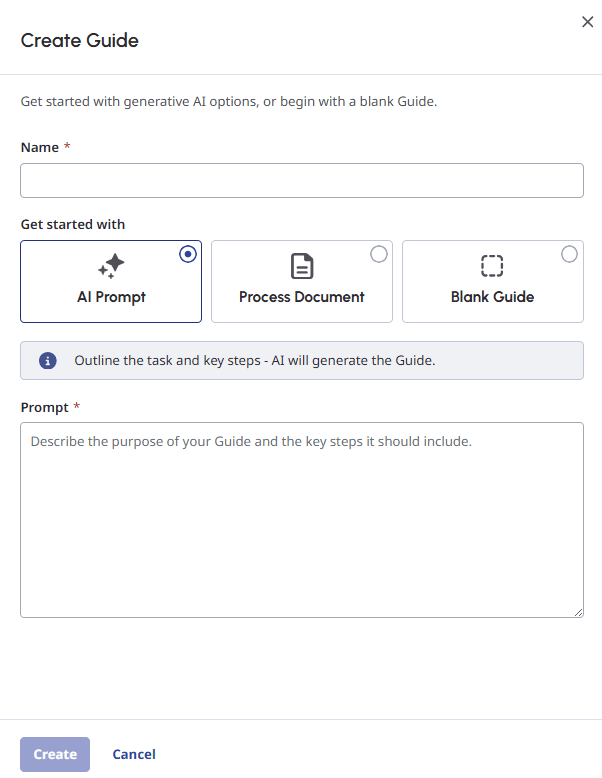
The Create Guide panel offers flexible ways to create a guide. You can quickly generate a guide using an AI prompt or create from scratch by starting with a blank guide. Also, you can use an existing standard operating procedure document or the past customer-agent transcripts and convert them into a guide.
To create a guide, follow these steps:
- Click Menu > Orchestration > AI Studio > Guides.
- Click Create Guide. The Create Guide panel opens.
- Enter a unique name for your guide. Assign a name that indicates what your guide does. For example, Hotel Booking, Order Lookup, or Billing Request.Note: The maximum length of a guide name is 80 characters.
- To create a guide, choose one of the following options:
- AI Prompt: Outline the guide’s purpose and get an AI-generated guide.
- Process Document: Upload a .pdf document with instructions for handling customer interactions, such as one of your existing standard operating procedure documents.
- Transcripts: Generate a guide from real customer-agent conversations from a specific queue and date range. Follow the two-step process of queue and transcripts selection.
- Blank Guide: Start with a blank slate. Write your key steps of the guide from scratch. For guidelines on writing and formatting your instructions, see Best practices for writing guides.
- If you chose AI Prompt, describe the purpose of your guide in detail and add any key steps to include in the guide in the Prompt field. Follow the best practices for generating guides using AI prompts.
- If you chose Process Document, drag and drop a .pdf document or use the Click to upload option in the Upload Document section. Note: The maximum file size of the document you can upload is 2.1 MB.
- If you chose Transcripts, follow these steps to select a queue and filter transcripts:Note: For best results when creating guides using transcripts, follow the best practices for generating guides using transcripts.
- Under Step 1 of 2: Select conversations to analyze, select a queue from the Queue list.
- Select the language of the transcript from the Transcript Language list. The system uses the selected language to generate a guide.
- Select the date range to filter the transcripts using the Start Date and End date fields. The system retrieves all transcripts that were recorded during the selected date range.Note: To generate a guide based on transcripts, select a queue and a date range that contain a minimum of 30 transcripts. Also, the system includes up to 1,000 transcripts only.
- Select the type of transcripts (voice or message) that must be included in the filter results in the Conversation Channel field.
- Click Continue. The Step 2 of 2: Choose a Guide section appears. The section displays the matching transcripts grouped under commonly identified topics.
- Select the common topic that matches your requirement.
- Click Create to create a draft version of the guide. You can now add instructions to your blank guide or tweak the instructions of an AI-generated guide (AI prompt, transcript, or process document). Note: When generating a guide based on transcripts, the system could take several minutes to create the guide depending on the number of selected transcripts.
For more information about writing and publishing a guide, see Write and publish guides.
[NEXT] Was this article helpful?
Get user feedback about articles.