Use the rich text toolbar to format text in a message interaction
AI-generated summary
Genesys Cloud provides a rich text toolbar for formatting text in message interactions across multiple channels. The toolbar is accessed by clicking the Toolbar button below the interaction window, with available options varying by message channel. Common formatting features include Bold, Italic, Strikethrough, and Monospace text options available across Facebook, Web messaging, and WhatsApp. Web messaging additionally supports text highlighting, hyperlinks, and code blocks. WhatsApp supports bulleted and numbered lists, quoted text, and code blocks. All channels include Undo, Redo, and Erase functions. Users can also employ markdown syntax for formatting, and the text entry window can be expanded using the Resize feature. Channel-specific documentation provides additional formatting guidance for Facebook, Web messaging, and WhatsApp.
To format text in a message interaction, use the rich text toolbar:
To access the toolbar, below the interaction window, click Toolbar
.
Note: Different options appear on the toolbar depending on the message channel.

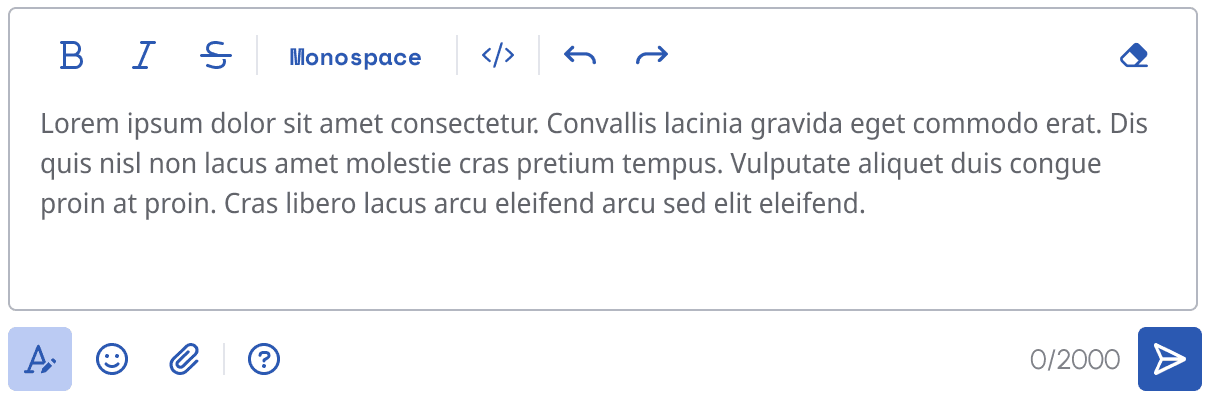
To format text, select the text that you want to format and click one of the following:
- For bold text, click Bold .
- For italic, click Italic .
- For strikethrough text, click Strikethrough .
- For monospaced text, click Monospace.
- For a code block, click Code .
- To undo the last action, click Undo .
- To redo the last action, click Redo .
- To delete all, click Erase .
Note: You can also use the markdown syntax for Facebook. For more information, see Format text in messages on Facebook chat.
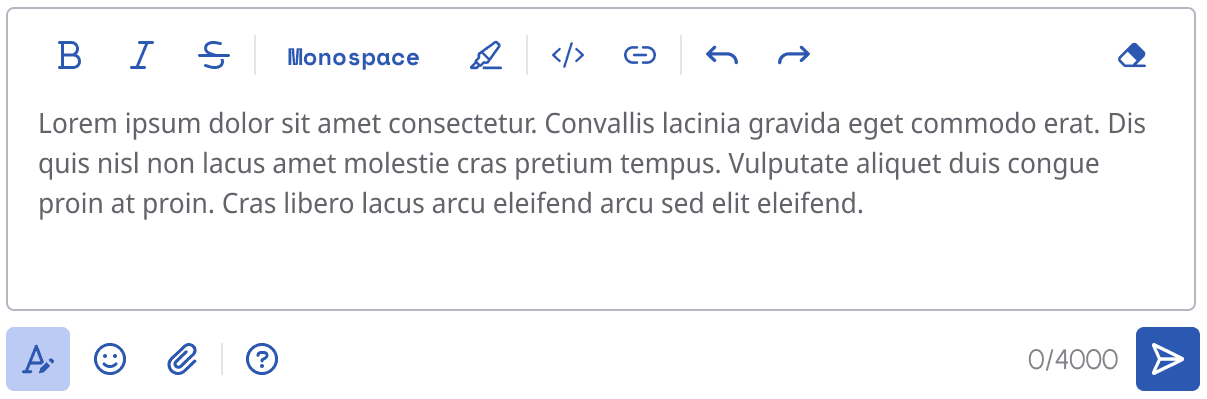
To format text, select the text that you want to format and click one of the following:
- For bold text, click Bold .
- For italic, click Italic .
- For strikethrough text, click Strikethrough .
- For monospaced text, click Monospace.
- To highlight text, click Highlight .
- For a codebook, click Code .
- For a hyperlink, click Link .
- To undo the last action, click Undo .
- To redo the last action, click Redo .
- To delete all, click Erase .
Note: You can also use the markdown syntax for Web messaging. For more information, see Markdown syntax for rich text in Messenger.
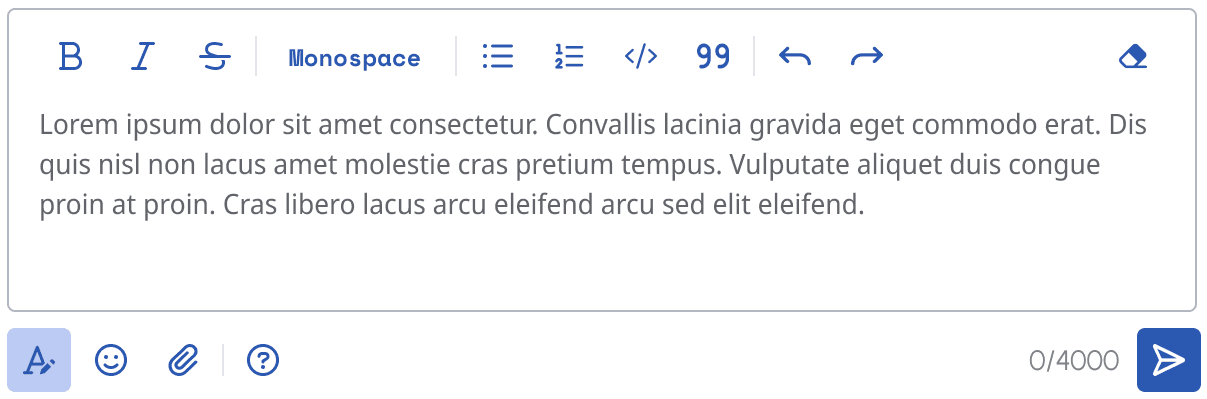
To format text, select the text that you want to format and click one of the following:
- For bold text, click Bold .
- For italic, click Italic .
- For strikethrough text, click Strikethrough .
- For monospaced text, click Monospace.
- For a bulleted list, click Unordered list .
- For a numbered list, click Ordered list .
- For a code block, click Code .
- For quoted text, click Quote
- To undo the last action, click Undo .
- To redo the last action, click Redo .
- To delete all, click Erase .
Note: You can also use the markdown syntax for WhatsApp. For more information, see How to format your messages.
Note: To expand the text entry window, click and pull Resize .
[NEXT] Was this article helpful?
Get user feedback about articles.