Use canned responses during agent interactions
AI-generated summary
Genesys Cloud's canned response system provides agents with pre-written response templates accessible through the Interactions panel across chat, email, and messaging channels. Agents require "Responses > Response > View" and "Responses > Library > View" permissions to access this functionality. The system supports response discovery through library browsing, searching across assigned responses (subject to a 500-response limit), and filtering by queue-associated libraries.
For chat interactions, agents click Canned Responses, select the desired response, and click Insert to place it in the chat window, replacing any unsent text. Formatting such as bulleted lists and hyperlinks may display differently in the chat window than after sending to customers. Email workflows require agents to access Canned Responses, select a response, position the cursor in the reply field, insert the response, add supplementary text if needed, and send. Message interactions follow similar steps: agents click Canned Responses, select and insert the response at the desired cursor location, add supplementary text, send, and complete after-call work.
The platform includes form handling capabilities allowing agents to provide explanatory messages and process customer submissions within the interaction panel. Form-type responses in message interactions are sent directly without field modification capability, though accompanying text messages may be sent before or after. Responses can include supporting documents as attachments, which are sent as separate files. The Insert with attachments option allows agents to insert responses with all attachments, text only, or attachments only, or to attach individual files as needed. Agents require the Conversation > Message Media > View permission to use responses with attachments in messaging interactions.
Notable limitations include formatting inconsistencies between the editor and chat display, queue-specific library access restrictions, and constraints on form response modifications. All interaction types require after-call work completion and Done button confirmation. The documentation includes a feedback collection mechanism for users to report on article helpfulness, identify their system role, and provide contact information while acknowledging the Genesys Cloud privacy policy.
The following permissions:
- Responses > Response > View
- Responses > Library > View
- Conversation > Message Media > View (for agents)
Agents can find and use canned in the Interactions panel. Agents can read responses during a call or insert and send responses in chat interactions.
To access canned responses from the Interactions panel, click Canned Responses .
Notes:
- When an agent uses a formatted canned response, the agent’s editor does not retain all the formatting options used in the canned response.
- The current queue displays only the canned responses from the libraries that are associated to the queue.
- From an interaction, click Canned Responses .
- Click a from the libraries listed.
- Click a response name. The response’s text displays.
- If the response’s text is too long to display in the responses list, to view the full response, click expand .
- From an interaction, click Canned Responses .
- Use the Search All Responses field to search across all responses from all libraries assigned to the queue.
- To search for specific libraries, click the Filter icon .
- In the Search Library field, type the library name you are looking for.
- Click the required library from the search results. All the responses from the selected library are displayed. The breadcrumb below the search box indicates the library that you are in.
- From the responses list, click the response that you want to view. Alternatively, click the Filter icon to search for a specific response within the library that you are in. The search term can be a part of the response name or in the response.
Notes:
- Genesys Cloud restricts library search results to 500 responses. If you receive a large number of libraries and responses, then refine your search terms for better results.
- Genesys Cloud only displays responses from libraries that your admin assigns to your queue.
Genesys encourages existing web chat customers to migrate to web messaging.
- In a chat interaction, click Canned Responses .
- Find and select the response you want to use.
- Click Insert .
Genesys Cloud inserts the response in the chat window. The response replaces and deletes any previous unsent text.Note: A response can have formatting, such as bulleted lists or custom hyperlinks. This formatting does not display the same way in the chat window as it does after you send it to the customer. To learn more about formatting in chats, see Format text in chats. A response can have supporting documents as attachments; these attachments are sent to customers as separate files when the responses are sent. - Select the chat window and press Enter to send the chat message.
- In an email interaction, click Canned Responses .
- Find and select the response you want to use.
- In the email reply, place your cursor where you want to insert the canned response.
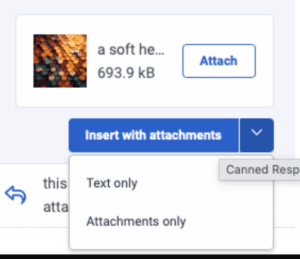
- Click Insert . Note: If the response contains one or more files as attachments, you can click Insert with attachments to insert the response with all the attachments; or from the Insert with attachments drop-down, you can choose to insert only the text or only the attachments, as needed. Alternatively, click Attach corresponding to the file name to attach only that particular file.
- To complete the email message, continue to type in the reply field.
- To send the reply, click Send.
- Complete any required after call work and click Done.
- In a message interaction, click Canned Responses .
- Find and select the response you want to use.
- In the message reply, place your cursor where you want to insert the canned response.
- Click Insert .Note: If the response contains one or more files as attachments, you can click Insert with attachments to insert the response with all the attachments; or from the Insert with attachments drop-down, you can choose to insert only the text or only the attachments, as needed. Alternatively, click Attach corresponding to the file name to attach only that particular file. Agents must have the Conversation > Message Media > View permission to use responses with attachments in messaging interactions.
- To complete the message, continue to type in the reply field.
- To send the reply, click Send.
- Complete any required after call work and click Done.
- In a message interaction, click Canned Responses .
- Find and select the response (form type) that you want to use.
- Click Send. You can see the form immediately appearing in the response window in the interactions panel.Unlike other response types, you cannot modify the form fields before sending them to the customer. However, you can type information about the form as an explicit message and send it to the customer either before or after sending the form.
- After the customer has filled and submitted the form, the responses to the form fields are shown in the interaction panel.
- Perform the next steps based on the submitted form values.
- Complete any required after call work and click Done.
[NEXT] Was this article helpful?
Get user feedback about articles.