Manage customer intents
Managing customer intents allow you to maintain a clean, accurate taxonomy as your business needs evolve. From this page you can create, update, or delete intents, keeping the taxonomy aligned to real customer goals. Strong governance ensures that customer intent remains a reliable data point for analytics, orchestration, and AI-powered experiences. Regular reviews help keep assigned sources current so each intent continues to behave as expected across the customer journey.
Learn how you can create, update, or delete customer intents, keeping the taxonomy aligned to your real-world business goals.
Create customer intent
You can create a customer intent immediately after creating an intent category or by performing the following steps:
- Click Menu > Orchestration > Enrichments > Customer Intents.
- On the left pane, click expand icon of an existing customer intent category for which you want to create customer intent.
- Click Create Customer Intent.
- Specify the customer intent information in the following tabs:
- General settings tab – provide basic information about the intent such as name, description, and so on.
- Intent Category – displays the intent category name for which you are creating a customer intent.
- Customer Intent name – specify a reference name for the customer intent.
- Expiration after (days) – specify the number of days for which the intent must remain active with the customer information, that is, the external contact record. By default, it is set to seven. Expiration days cannot be more than 30 days. For more information about expiration, see Understanding the customer intent life cycle.
- Customer Intent description – provide a meaningful description that is relevant for the customer intent. For example, you can add information about the goal of the intent, typical phrases that a customer uses when searching for their needs, the scope of the intent, and so on.
- Click Next.
- Source assignment tab – select sources for the intent from the Intents, Topics, and Segments tab. At a time, you can assign or unassign a total of 50 sources for an intent. If you are assigning many sources at a time, save source assignments in batches. Note: Assigning sources when creating an intent is optional, you can assign them at a later stage as well. Sources that are assigned to other intents are represented with a folder icon .For more information about assigning sources, see Assign sources.
- General settings tab – provide basic information about the intent such as name, description, and so on.
- Click Create Customer Intent.
Edit customer intent
To edit a customer intent, perform the following steps:
- Click Menu > Orchestration > Enrichments > Customer Intents.
- From the left pane, click expand icon of an existing customer intent category.
- From the expanded left pane, click the customer intent that you want to edit.
- To edit the basic details of an intent,
- Click the vertical dots to the right of the customer intent’s name.
- In the shortcut menu that appears, click Edit Customer Intent.
- In the Edit Customer Intent pop-up dialog box, edit the basic customer intent values such as name and description.
- Click Save.
- To edit a customer intent’s expiration,
- Click the vertical dots to the right of the customer intent’s name.
- In the shortcut menu that appears, click Edit Expiration.
- In the Update Customer Intent expiration pop-up dialog box, edit the expiration days.Note: The expiry timeframe cannot be more than 30 days and it doesn’t affect any existing customer intents assigned to an External Contact. It will only affect new assignments.
- Click Update Expiry.
- To assign more sources to the customer intent, click Assign sources.
- To reassign an intent source,
- From the intent source list, page through or search an intent source.
- Select the intent source. From the options that appear at the top of the intent source list, click Reassign.
- In the Reassign Sources pop-up dialog box, update the intent category and intent from the list.
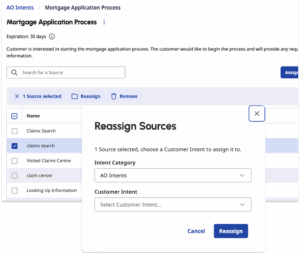
- Click Reassign. Reassign is unavailable if you have selected the intent that is currently assigned.
- To remove an intent source,
- From the intent source list, page through or search an intent source.
- Select the intent source. From the options that appear at the top of the intent source list, select Remove.
- In the warning message that appears, click Remove.Note: Removing an intent source only removes the association between the customer intent and intent source, it doesn’t remove the actual intent source.
Delete customer intent
To delete a customer intent, perform the following steps:
- Click Menu > Orchestration > Enrichments > Customer Intents.
- From the left pane, expand an existing customer intent category.
- From the expanded left pane, click the customer intent that you want to delete.
- Remove all the intent sources assigned to the intent by selecting the intent source and clicking Remove.
- Click the vertical dots to the right of the customer intent’s name.
- In the shortcut menu that appears, click Delete.
[NEXT] Was this article helpful?
Get user feedback about articles.