Connect guides to a knowledge base or configuration
Knowledge bases and knowledge fabric configurations supply relevant data sources and more context for your virtual agents during conversations.
The knowledge workbench allows a knowledge author to create and manage knowledge documents, train the search algorithms, and view the performance of knowledge bases. Knowledge bases are sets of predefined knowledge documents that respond to questions by agents and customers. For more information, see About knowledge workbench V2.
The knowledge fabric allows administrators to add content sources and knowledge configurations. The knowledge configurations enable the virtual agents to understand and respond to conversations, and ensure that customers get the answers they need. For more information, see About the knowledge fabric.
Set up knowledge preferences
- Click Menu > Orchestration > AI Studio > Guides.
- Open an existing guide or create a new one.
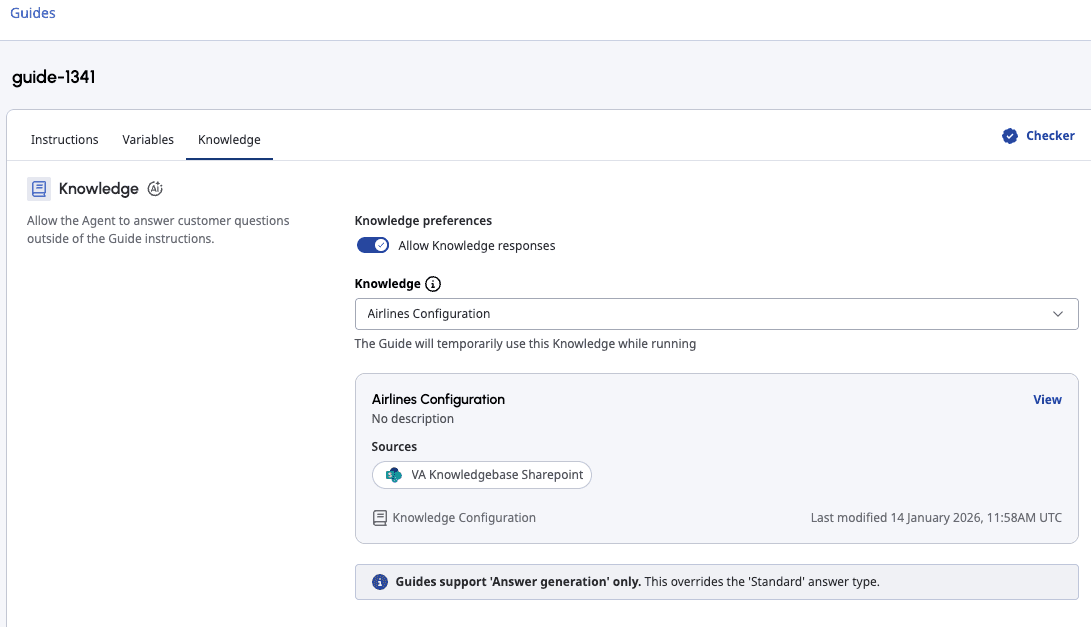
- Click the Knowledge tab. The Knowledge view opens.
- Toggle Knowledge preferences on or off depending on whether you want to allow knowledge responses during conversations.
- From the Knowledge list, select one of the following options:
- Use Knowledge set in the Virtual Agent: This option allows the guide to inherit the knowledge settings from the Virtual Agent flow. For more information about how to add knowledge to Architect flows, see Add knowledge to your bot flow. Note: Guides support answer generation only. If your Virtual Agent flow in Architect uses the Standard content type for answer generation and the flow calls a guide with knowledge enabled, the system overrides the Standard content type with Generative.
- Knowledge configuration: This option allows the guide to connect to one of the available knowledge configurations. For more information about creating a knowledge configuration, see Create a knowledge configuration.
- Knowledge base: This option allows the guide to connect to one of the available knowledge bases. For more information about creating a knowledge base, see Add a knowledge base V2.
- Use Knowledge set in the Virtual Agent: This option allows the guide to inherit the knowledge settings from the Virtual Agent flow. For more information about how to add knowledge to Architect flows, see Add knowledge to your bot flow.
- (Optional) If you selected a knowledge base or configuration in the previous step, click View to open the selected knowledge base or configuration in a new browser tab.
- Click Save.
For more information about writing instructions and publishing a guide, see Write and publish guides.
[NEXT] Was this article helpful?
Get user feedback about articles.