Calculate and understand chart results
Use chart results to analyze trends over time, compare data points, track progress, or changes and understand your customers. To open a chart, click the Charts icon in the upper right corner of the journey canvas.
To see a detailed visualization, click the required chart.
Note: If you change only the chart type, you do not need to run a new calculation. Genesys Cloud recommends chart type change to line chart if it is difficult to read a bar or column chart with more than 2 variables and 50 values.
- If your journey is in Analyzer mode, click View Chart Details to see the chart configuration. You can’t edit your chart in this state. To view the chart details in a table format. click the icon.
- To copy x-axis and y-axis bar bar names, click the required bar name.
- To share an existing chart with another user, click alongside the chart title, and select Copy share link.
- If your journey is in Edit mode, click Edit chart to open the chart editor.
Calculate charts
- Open the journey that you want to perform calculations for.
- Click Calculate in the upper right corner.
- Genesys Cloud runs a new calculation on the journey and all the associated charts.Note: The calculation can take some time to complete.
Examples
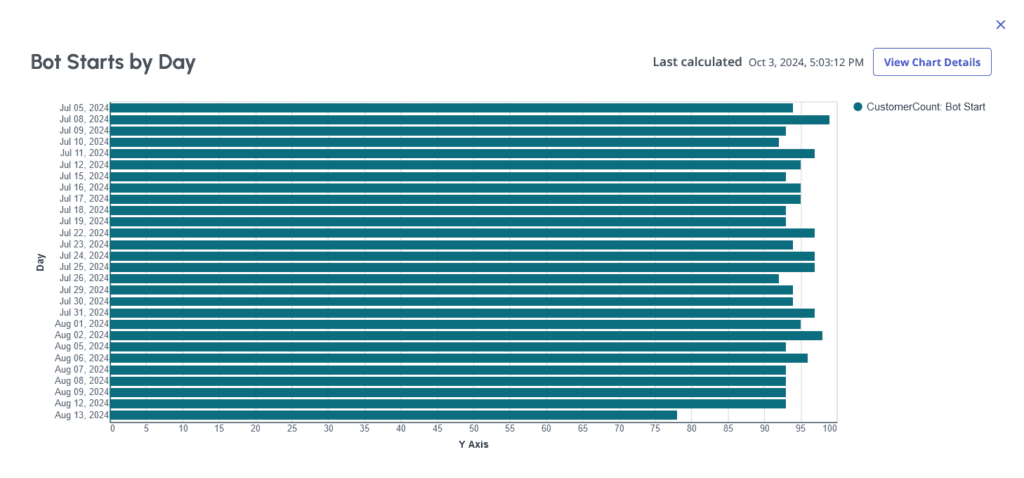
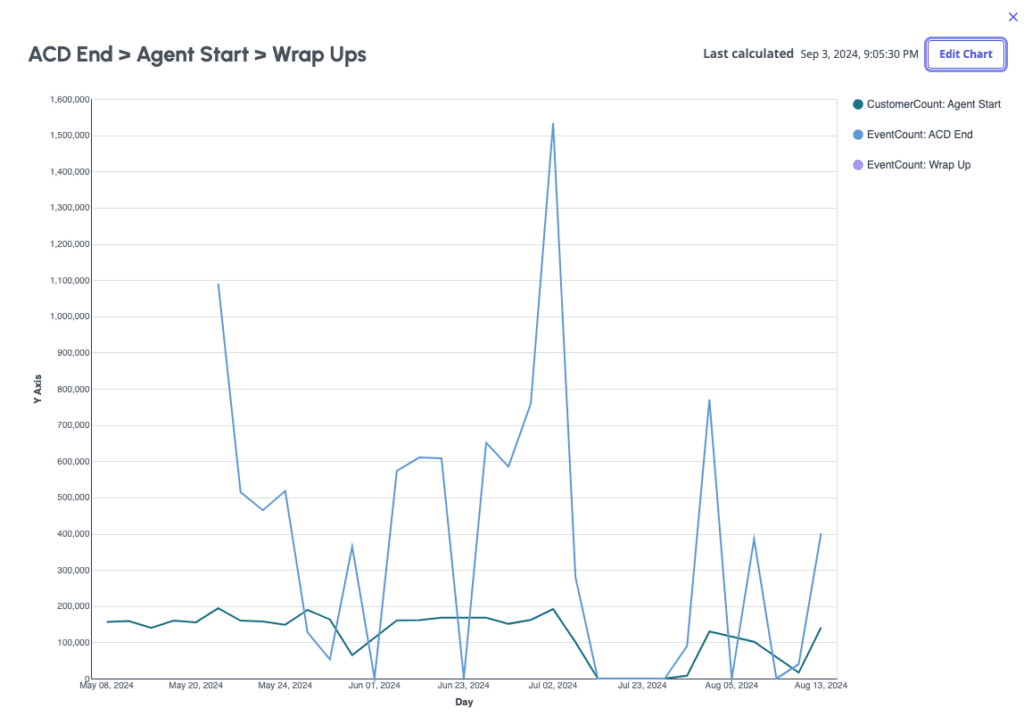
Chart result errors
Charts can display the following errors:
- Invalid chart: An event was deleted from the journey.
- Requires calculation: You have not yet run a calculation on the journey. Calculate the journey so the chart can update.
- Update calculation: The previous calculation is not valid, because the journey was edited. To update the chart, run a calculation.
- No data: No data exists to support the ability to create the specified chart. Possible reasons are that the selected attribute has no data due to a filter, or the nature of the event itself.
After you calculate charts for journeys, you can export customer journeys to download the data for any journey as a CSV file. For more information, see Export journey chart data.
[NEXT] Was this article helpful?
Get user feedback about articles.