External contact management scenarios
The following are examples of different single customer view scenarios on the profile panel.
| Scenario | Illustration |
|---|---|
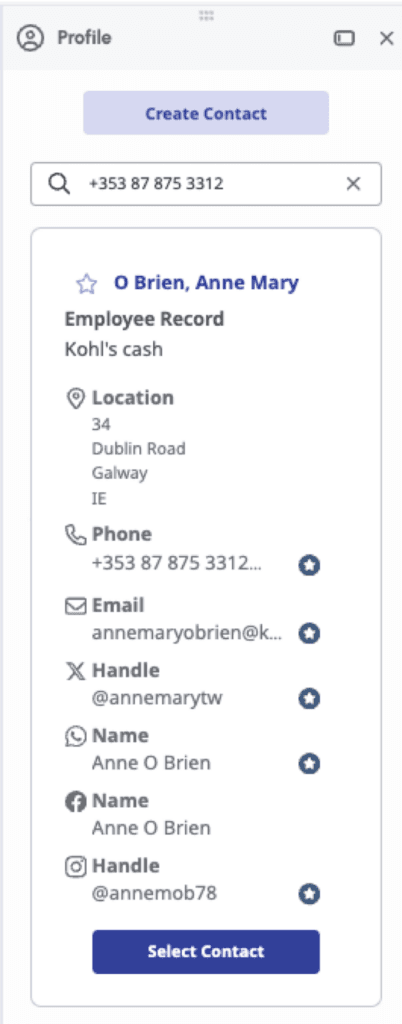
An existing contact with multiple matchesPrerequisite: External Contacts > Identify > Merge permission Single customer view auto stitches an interaction to an external contact considered to be the best match that is the first created external contact with an identifier, for example, a phone number for a voice call, an email address for an email, and a social identifier for a Genesys cookie. If Genesys Cloud finds other external contacts for that identifier, the search box is auto populated with that identifier and does a search. The search results show other external contacts related to that identifier. For example,
Notes:
| Inbound call interaction 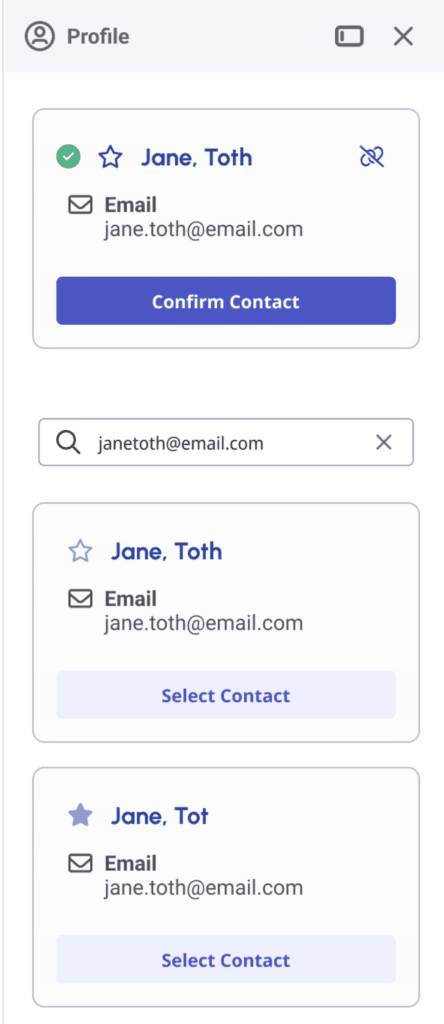 |
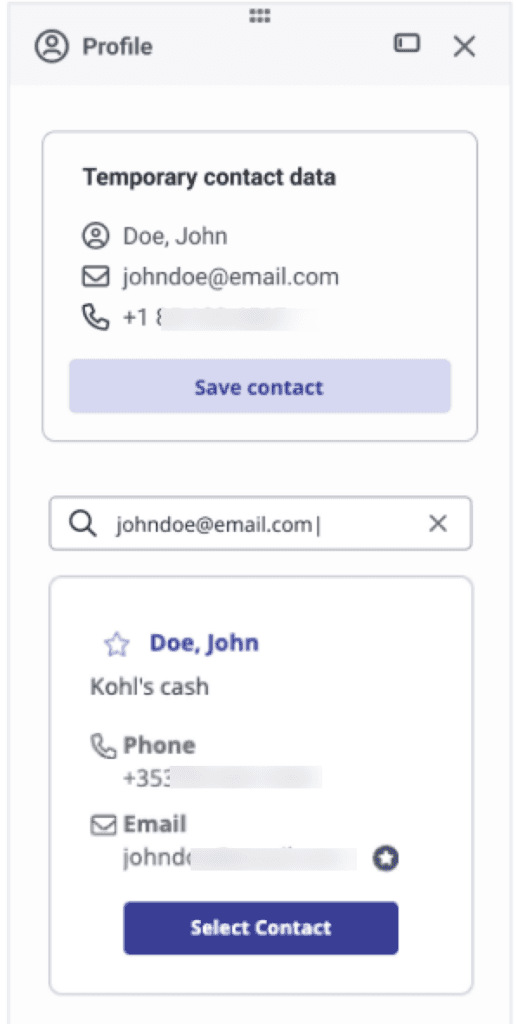
No existing contact for the identifierPrerequisite: External Contacts > Identify > Promote permission If the agent identifies that the existing external contact is not the best match for that interaction, the agent can choose the best match from the other possible external contact and link that interaction to the external contact. If Genesys Cloud cannot find the existing external contact using the contact identifiers, Genesys Cloud displays the Temporary contact data box. The agent can click the Save Contact button to create and save the external contact. For more information about creating a contact, see Add a contact. | Email interaction 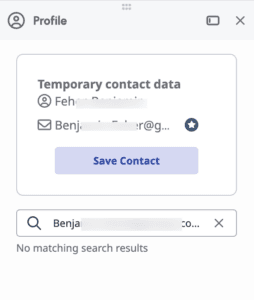 |
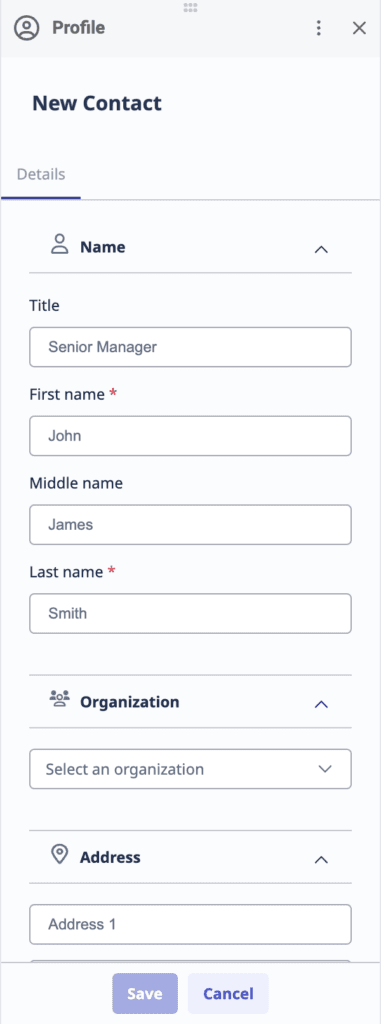
A web messaging interactionPrerequisite: External Contacts > Contact > View permission If a web messaging interaction does not have a related email address or phone number, the single customer view uses a Genesys cookie to create a temporary or ephemeral contact. Because the identifier information does not include the contact’s name, the single customer view does not display a name and saves the Genesys cookie with the ephemeral contact. The Genesys cookie does not appear on the External Contact record. To save the contact, click Create Contact. Then, enter the customer’s information and click Save. The first name and last name are required to save the contact. | Web messaging interaction 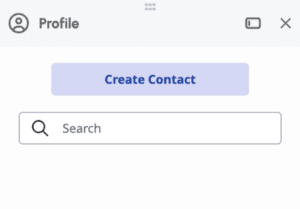 Add a contact
|
Callback and campaign interactionsThe single customer view does not currently support campaign callbacks and campaigns. The single customer view automatically populates the phone number in the search box and automatically searches for the contact during campaign callbacks and campaigns. The agent can now select an existing contact or create a new contact with the phone number of the campaign. The single customer view makes it easier for the agents to manually add the interaction to the correct contact. The customer conversation data does not appear in the Customer Journey tab. To search for a contact, in the search box, type the phone number, and then select it from the results. | Search for a contact
|
New visit with website form fill | Web messaging interaction
|
Social messaging interactionIf the single customer view does not find an existing contact with the social identifier, then the Temporary contact data box appears. To save the contact, click Save Contact. Then, enter the customer’s information and click Save. Note: For WhatsApp interactions, the single customer view does not automatically search on the WhatsApp phone number. The single customer view saves the number as a WhatsApp identifier under Channels. | WhatsApp messaging interaction 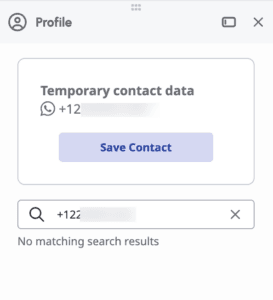 |
Lack of permissionsPrerequisite: The following permissions:
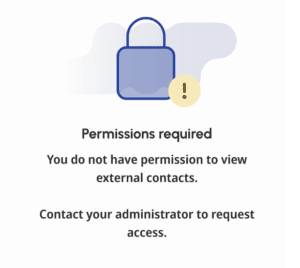
The single customer view automatically searches for an existing External Contact and retrieves the associated contacts. After retrieving, Genesys Cloud verifies the agent’s permissions on the retrieved contacts and displays the Permission required message in the following scenarios:
|
|
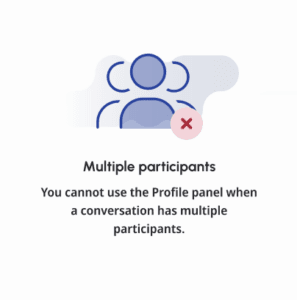
When there are multiple participants in an interactionPrerequisite The following permissions:
In single customer view, an agent interacting with multiple participants (internal or external) and who does not have the required permissions to perform a specific action is displayed with the Multiple participants message. The following are some of the example scenarios:
| |
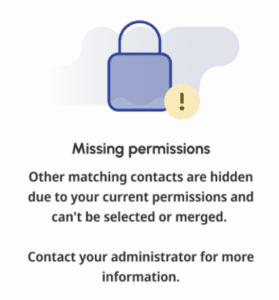
When there are missing permissions during contacts mergePrerequisite The following permissions:
Missing permissions is displayed when:
|
|
All current and previous interactions that relate to the contact appear on the Customer Journey tab.
[NEXT] Was this article helpful?
Get user feedback about articles.