Transfer voice interactions
AI-generated summary
Genesys Cloud provides comprehensive call transfer capabilities through blind and consult transfer methods, supported by robust permission controls and search functionality. The platform's blind transfer feature enables direct routing to users, queues, or external contacts without preliminary communication, while consult transfers allow agents to speak with recipients before completing the transfer. Dynamic search functionality displays real-time matches as agents type, with filtering options across users, queues, and external contacts. Queue transfers maintain original call priority and skills-based routing information, with agents able to view critical metrics including available agent counts and estimated wait times. The system supports three-party consult transfers through a tabbed interface, providing clear warnings to prevent call loss and offering dual call controls for managing both original and consultation calls. Essential features include dialpad access, hold/resume functionality, ACD conference creation, secure pause sessions, and the ability to manage multiple phone numbers per contact. Agents can effectively control their audio through mute options and disconnect themselves while completing transfers to consulted parties.
The following permissions:
- To add a call: Conversation > Call > Add
- To go onqueue: Routing > Agent > OnQueue
- To join a queue: Routing > Queue > Join
- To search for a queue: Routing > Queue > Search
- To view a queue: Routing > Queue > View
- To perform a blind transfer: Conversation > Communication > blindTransfer
- To perform a blind transfer to another agent: Conversation > Communication > blindTransferAgent
- To perform a blind transfer to an External Contact: Conversation > Communication > blindTransferExternalContact
- To perform a blind transfer to a queue: Conversation > Communication > blindTransferQueue
- To perform a consult transfer: Conversation > Communication > consultTransfer
- To perform a consult transfer to another agent: Conversation > Communication > consultTransferAgent
- To perform a consult transfer to an External Contact: Conversation > Communication > consultTransferExternalContact
- To perform a consult transfer to a queue: Conversation > Communication > consultTransferQueue
There are two ways to transfer a voice interaction to another person, number, external contact, or queue:
- Blind transfer: Transfer a call without speaking to the intended recipient.
- Consult transfer: Talk with the intended recipient before you transfer a call.
Use a blind transfer to transfer an ACD call directly to another user, number, external contact, or queue without talking to the intended recipient:
- From the current call, above the Interaction Details, click Transfer .
- In the Transfer window, begin to type a name and Genesys Cloud dynamically displays users, queues, and external contacts that match the input.
- To see all suggestions, click All .
- To filter by Genesys Cloud users, click User .
- To filter by queues, click Queue .
- To filter by External Contacts, click External Contact .
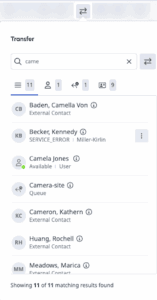 Notes:
- The All tab shows the sum of the initial results for the Users, Queues, and External Contacts tabs. To see all matching results, click the User, Queue, and External Contact tabs and scroll until the total showing is the same number as the matching results.
- Search results include agent skills. For example, if you search for Spanish, your results include agents who have the skill Spanish assigned to them.
- If the person you want to transfer the call to has more than one phone number, then to select the number that you want, click More .
- If you transfer the interaction to a queue, the interaction waits in the queue for the next available agent.
- If you transfer an ACD call to a queue, Genesys Cloud remembers both the priority and the skills-based information applied to the original call. You can change that behavior in organization settings. For more information, see Strip skills from voice interactions on blind transfers by agents.
- To see the number of available agents in a queue and, if available, the estimated wait time for a queue, hover over Information .
- From the results list, click the name of the person or queue to which you want to transfer the interaction. Warning: Be sure to select the transfer recipient from the results list. If you click Transfer without a recipient selected, the call can be lost.Genesys Cloud transfers the call to the number, person, or queue and sends you to after call work.
Use a consult transfer to talk with the intended recipient before you transfer a call.
Note: A consult can only include three parties. For more information about ACD conference calls, see Add participants to an ACD conference call.
- From the current call, above the Interaction Details, click Consult .
- In the Consult window, begin to type a name, and Genesys Cloud dynamically displays users, queues, and external contacts that match the input.
- To see all results, click All .
- To filter by Genesys Cloud users, click Users .
- To filter by queues, click Queues .
- To filter by External Contacts, click External Contact .
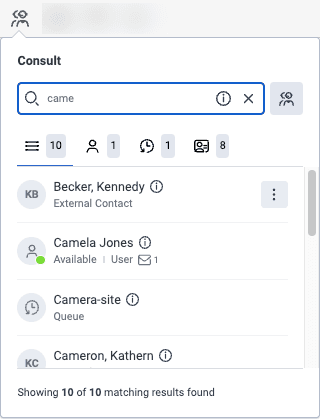 Notes:
- The All tab shows the sum of the initial results for the Users, Queues, and External Contacts tabs. To see all matching results, click the User, Queue, and External Contact tabs and scroll until the total that appears is the same number as the matching results.
- Search results include agent skills. For example, if you search for Spanish, your results include agents who have the skill Spanish assigned to them.
- If the person you want to consult with has more than one phone number, then to select the number that you want, click More .
- To see the number of available agents in a queue and, if available, the estimated wait time for a queue, hover over Information .
- From the results list, click the name of the person or queue to which you want to transfer the interaction. Genesys Cloud places the caller on hold and connects you to the person or queue that you want to consult with. Call controls appear.
 Warning: Be sure to select the transfer recipient from the results list. If you click Transfer without a recipient selected, the call can be lost.
 - To control the original call, use the top controls. To control the consultation, use the bottom controls.Note: Available controls vary based on your organization's settings.
- To use the numeric keypad to enter numbers, click Dialpad .
- To put the second party on hold, click Hold. This action puts the second party on hold and takes the first party off hold. To put the first party back on hold and speak with the second party again, click Hold .
- To to bring the original caller into the conversation with you and the consulted party, click Resume .
- To convert the consult into an ACD conference, click Start Conference.Notes:
- Although the consult is similar to a conference, the consult allows you to put either party on hold.
- To return the original conversation, the consulted party must drop from the conversation.
- To end your conversation with the consulted party, click Disconnect.
- To connect the original caller to the consulted party and leave the conversation, click Transfer.
- To mute your microphone, click Mute . To unmute your microphone, click Unmute .
- To start secure pause session, click Start Secure Pause . To end a secure pause session, click End Secure Pause .
[NEXT] Was this article helpful?
Get user feedback about articles.