Set guardrails for an agentic virtual agent
Series: Create an agentic virtual agent
Previous suggested step: Configure the start and exit behavior of an agentic virtual agent
Guardrails protect your agentic virtual agents from adversarial inputs like prompt injection, jailbreaking attempts, and other attempts to manipulate agent behavior.
The model provides two forms of protection: (1) built-in rules and (2) custom natural language rules. These rules apply to all interactions that an agentic virtual agent handles. The system evaluates user inputs against these rules to determine whether they break any of them. If a user input breaks one (or more) of the rules, it is blocked and it triggers a custom response. Guardrails are not meant to define an agent’s role or instructions, but rather to prevent unsafe behavior.
Built-in protection rules
The built-in pre-trained rules detect the following common adversarial patterns:
- Prompt injection: Attempts to override system instructions
- Jailbreaking: Efforts to bypass agent guidelines
- System prompt extraction: Requests to reveal internal prompts
- Role manipulation: Attempts to change the agent’s identity or purpose
Genesys Cloud enables these rules for agentic virtual agents by default, and you do not need to add anything else if these built-in rules cover your needs.
Custom natural language protection rules
Define rules that extend system guardrails to block specific customer behaviors; they do not guide agent behavior.
These rules can be used to enforce brand, safety, and capability limits when customers make requests that cannot be carried out. Any violations of these rules result in the customer being transferred out of the agentic virtual agent session.
Add custom guardrails
- Click Menu > Orchestration > AI Studio > Agentic Virtual Agents.
- (Optional) To search for a specific agent, start typing the name of the agent in the search box. As you type, the matching agents are shown.
- To open an AI agent, click the agent’s tile. The Agent profile view opens.
- Select the Guardrails tab.
- Under Rules, click Add. An empty text field appears.
- Enter your custom rule in the text field and click Confirm.
- Add as many rules as needed. You can also rearrange the rules in a specific order using the drag-and-drop method.
- Under Settings, define how the agent must behave if guardrail violations occur:
- In the Violation Response field, enter the message that the agent must present to the interaction participant.
- In the Violation limit field, set the number of violations allowed before the agent must exit the interaction.
- In the Exit response field, enter the message that the agent must present to the interaction participant before exiting.
- Click Save to save the rules and settings.
- Click Publish to apply the custom guardrails to your agent.
Best practices
- Test your rules: Verify both that problematic inputs are caught and that legitimate requests still work.
- Use natural language for custom rules: Write rule descriptions as you would explain the policy to a human.
- Consider your domain: Banking agents need different protection than weather agents.
- Monitor and iterate: Review blocked requests and refine your rules over time.
- Be minimalistic: Evaluation of rules adds to the latency of each request to the system.
Navigating the agentic virtual agent profile
The profile contains the following sections and a preview widget:
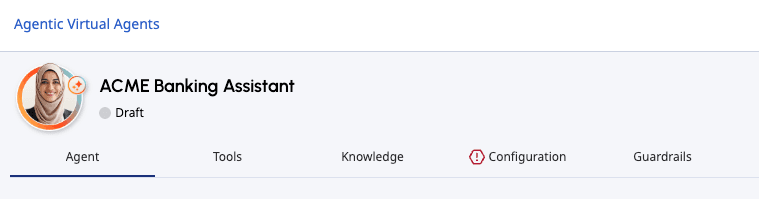
You can switch to any of the sections of the agentic virtual agent while creating a new agent, editing an existing agent, or viewing an agent. Any incomplete section is indicated by the icon preceding the section name. You can save an agent with an incomplete section but you cannot publish the agent until all sections are complete.
After you have completed all necessary sections of the agent setup, you can click Publish to publish the flow.

[NEXT] Was this article helpful?
Get user feedback about articles.