Make a conference call
- This article applies to the Genesys Cloud desktop and web apps. For more information about Associate for Android, see FAQs: Associate for Android. For more information about Associate for iOS, see FAQs: Associate for iOS.
- This article describes non-ACD conference calls. For more information about ACD conference calls, see Add participants to an ACD conference call.
- You cannot start a conference from calls that are being coached, monitored, and so forth.
If your organization enables call recording with the Stop Recording When Only External Parties Remain option, then Genesys Cloud issues a secure pause when all internal conference participants leave the call. For more information, see Manage recordings.
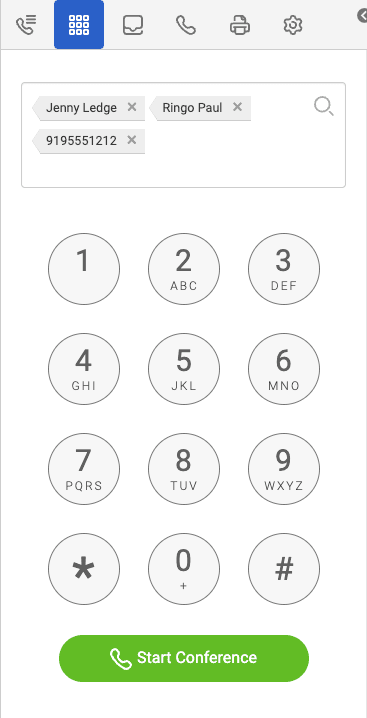
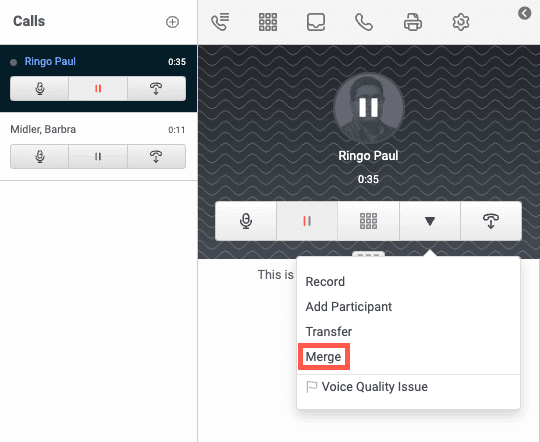
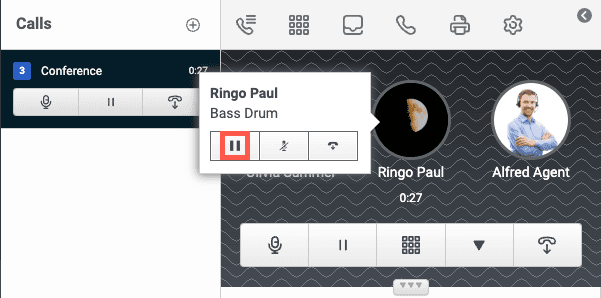
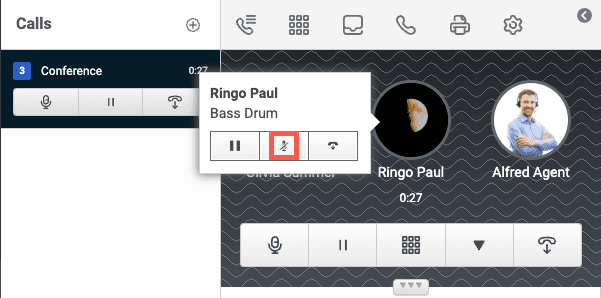
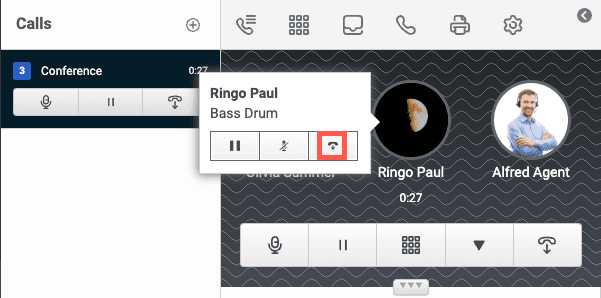
To create an immediate conference call, invite other users to join an active call. While on a conference call, you can mute someone, place them on hold, or disconnect them.
As long as more than one party remains in the conference, the conference call persists even when the person who started the call leaves. When one party remains, the conference ends. Conference calls can have a maximum of 20 participants.
A conference call that includes more than two users in your organization automatically opens a corresponding chat room in the Calls panel. The chat room also appears in the Chat panel in Personal Groups.
[NEXT] Was this article helpful?
Get user feedback about articles.