Home overview
The Home view enables agents and supervisors to view widgets and corresponding data directly related to their roles.
As an agent, you can view data related to your schedule, tasks, and performance in one place. At a glance, you can see your off-queue summary, current or upcoming schedule, scorecard, leaderboard, and coaching appointments. You can do the following:
- View today’s schedule.
- Stay in adherence and conformance by taking breaks at the scheduled time.
- View manager evaluations and provide feedback.
- Meet with your supervisor for coaching.
- Track your performance against objectives and peers in My Performance.
- Stay up to date on new policies and procedures.
- Complete learning content for professional development.
As a supervisor, you can enable the supervisor view from the Home view to monitor team performance and take action in one place. Use widgets to identify where to focus and act without navigating to individual feature pages. You can:
- Monitor team performance and identify areas that need attention.
- View agent scorecards (requires Scorecard > View All permission with access to the agent’s division).
- View leaderboards across gamification profiles (requires Leaderboard > View All permission with division access).
- Open an agent’s scorecard directly from the leaderboard by clicking the agent’s name.
- View custom profile leaderboards that include all members, regardless of division.
- Access features directly from widgets for deeper administration. Notes:
- A custom profile belongs to one division.
- Profile members can belong to any division.
- You can view custom profiles only for divisions to which you have access.
- To view an agent’s scorecard, you must have permission to access the agent’s division. For more information, see Scorecard and Leaderboards.
Available actions in the Home view
The upper right corner of the Home view displays icons using which you can perform specific actions. Click a tile for information on each action.
To navigate to the Home view, click Menu > Home.
Widgets on the Home view for agents
As an agent, you can view the following widgets. For more information, click a tile.
The Home view for agents displays the following icons on the widgets:
- Refresh icon: Refreshes and displays the latest data on the corresponding widget.
- Filter icon: Displays the filter options on the Evaluation Summary widget. When you click , it further displays the Customize Evaluations View dialog box, which further displays options to filter the results.
Widgets on the Home view for supervisors
As a supervisor, to enable the supervisor view, perform the following steps:
- In the right corner of the Home view, click the View As list.
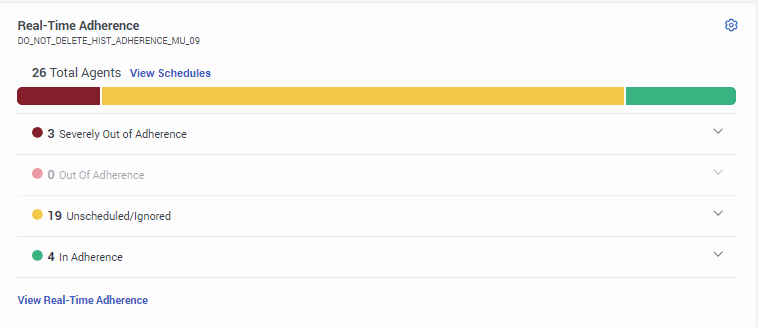
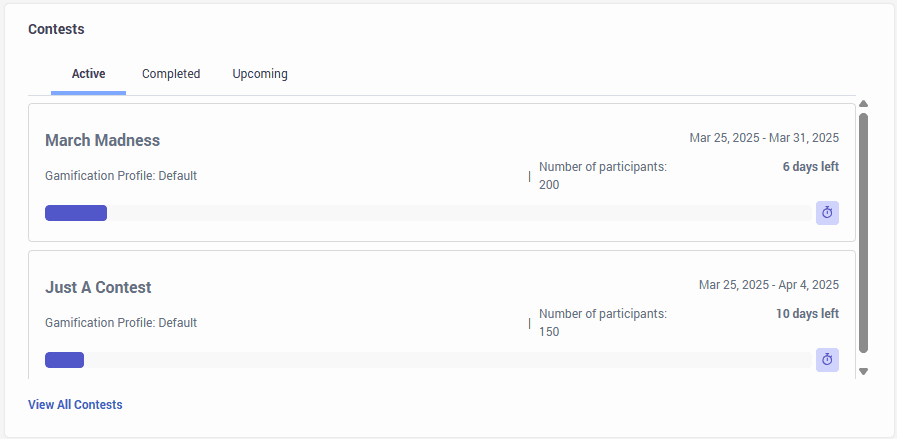
- Select Supervisor. The Supervisor view of the dashboard displays with the widgets that are applicable to the supervisor.
The Home view for supervisors displays the following icons on the widgets:
- Refresh icon: Refreshes the widget to display the latest data on the corresponding widget. This option is available on all widgets on the Home view.
- Filter icon: Displays the filter options corresponding to the widget that you want to use. For example, when you click on the Learning Performance widget, it displays the Select a user grouping dialog box, which further displays options to filter the data.
Depending on the zoom level of your screen, the icons display. For example, if the zoom level of the screen is set to Actual size, these options appear when you click the More icon on each of the widgets. Click the image to enlarge.
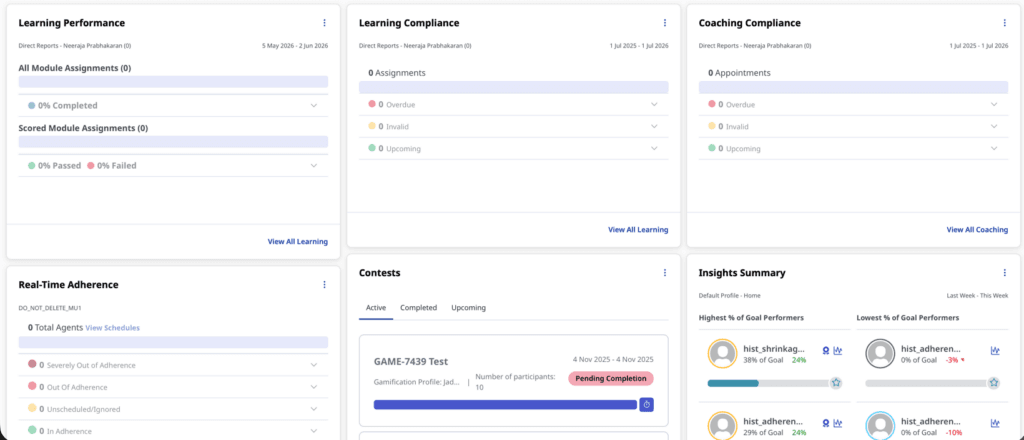 Home view for agents." class="alignnone wp-image-420537 size-large" srcset="https://help.mypurecloud.com/wp-content/uploads/2026/05/Home-view-agents-1024x440.png 1024w, https://help.mypurecloud.com/wp-content/uploads/2026/05/Home-view-agents-300x129.png 300w, https://help.mypurecloud.com/wp-content/uploads/2026/05/Home-view-agents-768x330.png 768w, https://help.mypurecloud.com/wp-content/uploads/2026/05/Home-view-agents-1536x659.png 1536w, https://help.mypurecloud.com/wp-content/uploads/2026/05/Home-view-agents.png 1640w" sizes="auto, (max-width: 1024px) 100vw, 1024px">
If the zoom level of the screen 90%, these options appear as icons on the widgets. Click the image to enlarge.
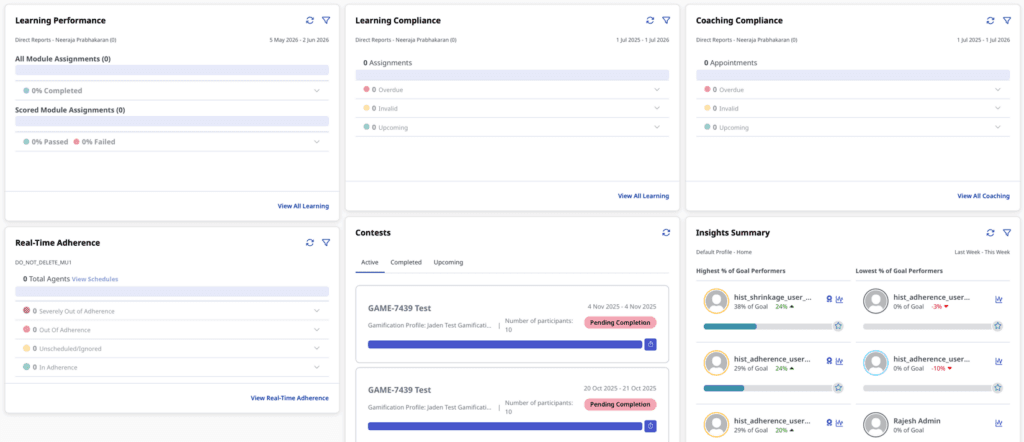
 icon to move around each widget.
 Home view" class="inline alignnone wp-image-418109 size-full">.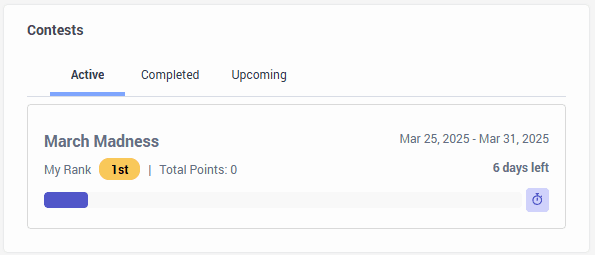


 ) allows supervisors to open the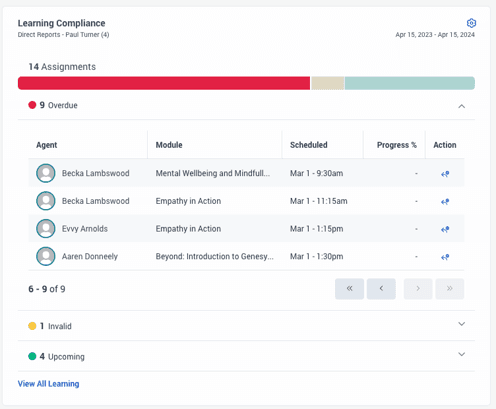
 ) allows you to reschedule an assignment directly in the supervisor view.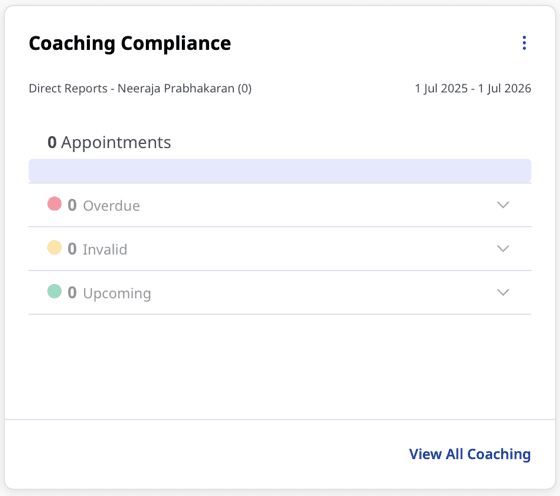
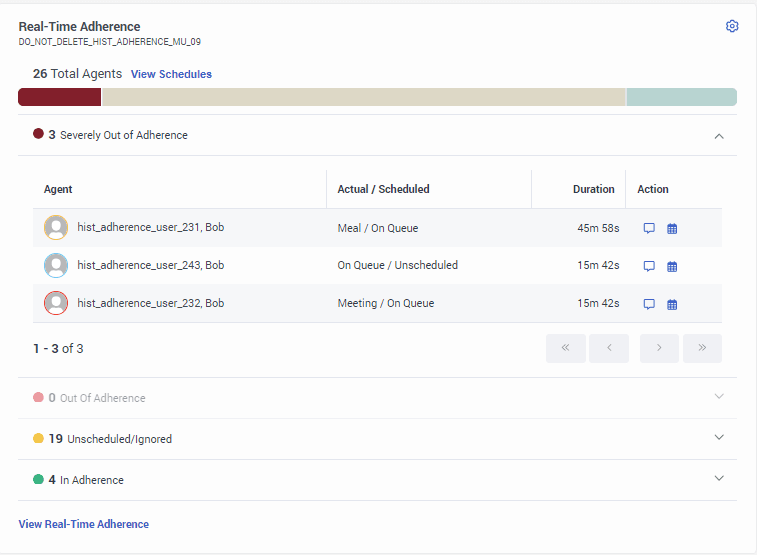
 ) next to the agent's name navigates you to the respective agent's profile.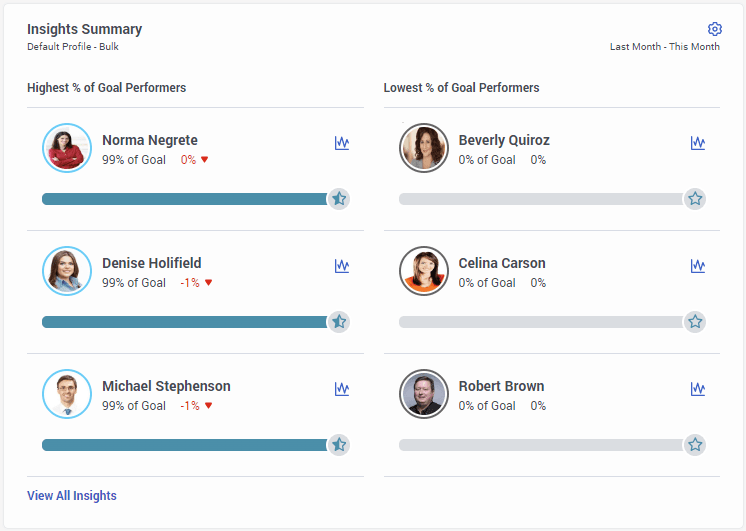
[NEXT] Was this article helpful?
Get user feedback about articles.