Edit user configuration data
To edit a user’s profile, roles, and other user-specific settings, click Menu > User Management > Users and do one of the following:
- Click the user’s name in the list.
- Click More in the user row and select Edit Person.
On the Person Profile page, you can view the following information about the user:
Under Roles section, click View Roles.
You can assign and unassign roles to control user access to Genesys Cloud features. By default, the assigned roles to the user are listed. To view all roles, select All from the View option. The following information is displayed for each role.
| Control | Action |
|---|---|
| Role | Lists the name of the role. You can click the role to open it on the Edit Role page. |
| Role Type | Lists whether the role is a standard (default) or custom role. |
| Description | Lists the role description, if one exists. |
| Divisions | Lists the divisions in which users with this role can access. Click the Edit to add or remove divisions for the role. |
| Group Inheritance column | Lists the groups that are assigned this role. |
| Unused | Indicates whether the role is unused. For more information, see unused roles for a user. |
| Assigned | Shows whether the role is assigned to the user. Use the toggle switch to assign or unassign it. |
Click Save Changes to update the user roles.
Related tasks
Under Division & License section, click View Division & License.
The license assigned to the user is displayed. By default, Genesys Cloud enables automatic license assignment.
| Control | Action |
|---|---|
| Division | Click the list to select the division in which the user’s object data must be assgined. |
| License Type | Displays the license type assigned to the user. Each role has an associated license, which reflects the level of permissions assigned to that role. |
| Available Add-ons | Lists the add-ons assigned to the user. When a user is assigned an add-on, the number of add-ons appears next to the user license in the People page. Hover over the number to view the assigned add-ons.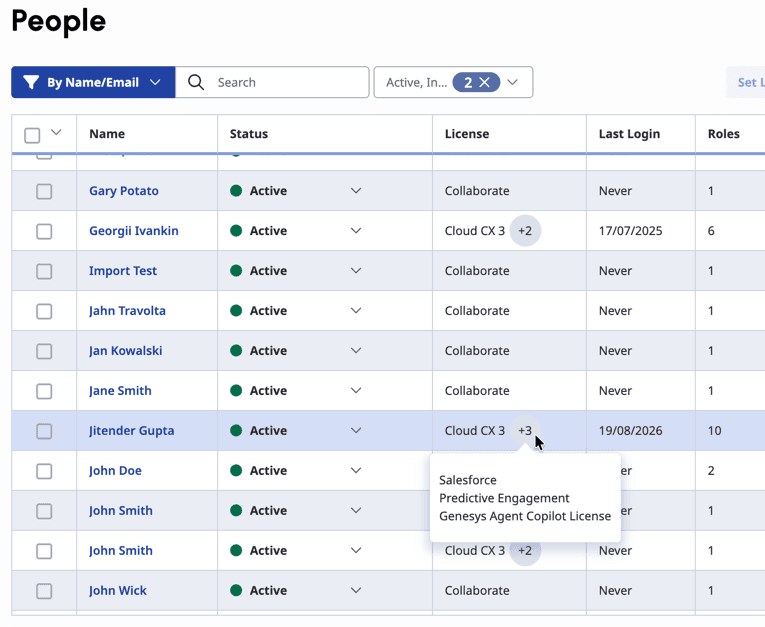 |
Related tasks
Under Permission section, click View Permissions.
The permissions that are assigned to the user are listed.
| Control | Action |
|---|---|
| Permission | Lists the permissions assigned to the user. |
| Roles | Lists the role that grants this permission. Click the role to open the Edit Role page for the selected role. |
| Divisions | Lists the divisions that the user with this permission can access. |
| Access | Lists the level of access allowed for this user. |
| Conditions | Includes any conditions that an administrator set on the permission. Use conditions to further limit what the user can access and manage if their role includes this permission. |
| Minimum License | Lists the minimum license required for the permission to be granted. |
| License panel | License are updated automatically when a role is assigned to the user. The corresponding license and the available add-ons assigned to the user are displayed. |
Related tasks
Under Phone section, click View Phone. The user’s default phone and voice call settings are displayed.
| Control | Action |
|---|---|
Phone | Lists available phones to assign to a user based on keyword search. Select a phone from the list. |
Alerting Timeout | Enter the number, in seconds, to alert the user before Genesys Cloud sends the call to voicemail. If you are updating the user’s phone details for the first time:
For an already edited user’s phone details for timeout seconds, you can directly update the Alerting Timeout field. You can click the Value is overridden icon and view the organization setting. |
| Automatically answer ACD voice calls assigned to this person | Select this option to set auto-answer for ACD calls for the user. |
Related tasks
Under ACD Skills section, click View ACD Skills. You can assign skills and languages to the contact center agent profiles for ACD routing.
| Control | Action |
|---|---|
| Skills | Assign skills to the user profile based on keyword search. |
| Languages | Assigns languages to the user profile based on keyword search. |
| Skills and language rating | Rate the user’s skill and language proficiency from 1 to 5 stars. The rating 1 represents a low proficiency and 5 represents a high proficiency. |
| Delete | Deletes the skill or language from a user profile. |
Related tasks
Under Queues section, click View Queues. You can assign one or more queues to the user.
| Control | Action |
|---|---|
| Assigned | Search for and select the queues to which you want to assign the user. Click Save Changes. |
Related tasks
Under Utilization section, click View Utilization. You can configure the number of interactions that the user can handle at any time across various channels sucb as voice, callback, chat, email, message, and workitem. By default, the system uses the default organization settings unless you configure them for the user. For more information, see Configure utilization at the org level.
If you want to configure the utilization details for the user, toggle the Use organization’s default settings switch to off and then edit the configuration for each channels. You can edit the following configuration details:
| Control | Action |
|---|---|
| Can be interrupted by | Specify the interaction types allowed to alert the agent while they handle interactions already assigned to them. |
| Maximum Capacity | Specify the maximum number of interactions to allow. |
| Count non-ACD calls in utilization capacity | This option is displayed only when you edit the voice channel. By default, Genesys Cloud does not include non-ACD calls in the overall ACD utilization count because they are internal, not ACD calls. To include them, select this option. |
Related tasks
Under Auto Answer section, click View Auto Answer. Click to enable auto answer for agents. When you enable the auto answer option, all incoming voice and digital interactions are auto answered. Genesys Cloud alerts the agents with a short audio alert and the new interaction is in ‘Connected’ status. You can exclude individual interactions from being auto-answered; disable the auto answer option for the specific channel such as message and email. For more information, see Auto answer incoming interactions.
This option also allows the agent to receive whisper audio, which lets them know what queue the caller entered before the agent connects to the call. By default, this setting is disabled.
Related tasks
Under Person Details section, click View Person Detail. The Person Details option displays the Edit Person page that lets you edit any part of a user profile, including fields that users don’t have permission to edit. You can edit the following details:
- Name
- Title
- Department
- Add New Section
- Relationships
- Groups
- Location
- Skills & Certifications
- Education
- Biography
- HR
- Contact Information
- Add email and phone numbers
Related tasks
For more information, see About people and permissions.
[NEXT] Was this article helpful?
Get user feedback about articles.