Create an OpenFrame configuration in ServiceNow
To configure phone support for Genesys with Customer Telephony Integration (CTI), create an OpenFrame configuration in ServiceNow. In the OpenFrame configuration, the administrators specify the phone window settings.
To create an OpenFrame configuration:
- Log in to ServiceNow.
- To display the OpenFrame Configurations list, navigate to All > OpenFrame > Configurations.
- Click New.
- Fill the following fields:
- Name – Name of the OpenFrame configuration.
- Title – The title that appears in the OpenFrame window header. For example, you can give the title as Genesys Cloud.
- Order – The order number for the configuration. If users have multiple OpenFrame configurations, they can only access the configuration with the lowest order number.
- Show presence indicator – Enables the indicator that shows the agent availability.
- Provider application – Select Genesys Cloud from the list.
- Width – The width of the OpenFrame window. Recommended width as 400.
- Height – The height of the OpenFrame window. The height does not include the OpenFrame header height. Recommended height as 300.
- URL – The URL to be launched within OpenFrame. Provide the Genesys org URL. Depending on the location of your Genesys Cloud region, the URL can change. For example, if your organization is in the Americas (US West), the URL is https://apps.usw2.pure.cloud/crm-service-now/index.html#.
- Active – Select the option for the configuration to be active.
- User Group – Selected the user group for this configuration. Access is limited to the users with the openframe user role and who belong to the selected user groups.Note: Ensure that you have created the same set of users in Genesys Cloud. For more information, see About people and permissions.
- Configuration – Enter the Unified Experience from Genesys and ServiceNow integration Id in JSON format. At a minimum, provide the Unified Experience from Genesys and ServiceNow integration Id. For more information, see Where can I find the integration ID for my ServiceNow integration in Genesys Cloud?.
{
"integrationId": "",
"popInteractionOnOffer": true
}
Supported configuration attributes
Attribute Description integrationIdThe integration Id of the Unified Experience from Genesys and ServiceNow integration. Required when a user has access to more than one integration. popInteractionOnOffer(Optional) Set this option to
trueto open the associated ServiceNow record when an interaction is offered to the agent, rather than waiting until the agent accepts it. This action allows the agent to review the interaction’s context while it is still alerting. The setting applies to all channels routed by Advanced Work Assignment, including voice, callback, chat, digital messaging, email, and workitems such as cases. The record that opens depends on the workitem type, for example, the interaction record for a voice call or the case record for a case workitem. The default value,false, means the record opens only after the agent accepts the interaction.Note: The Configuration field must contain valid JSON. If it does not, Genesys ignores all the settings in the field. Changes to the Configuration field take effect the next time an agent loads the OpenFrame window.
- If you are setting up for external routing of voice calls, then select Enable interaction controls option.
Click the image to enlarge.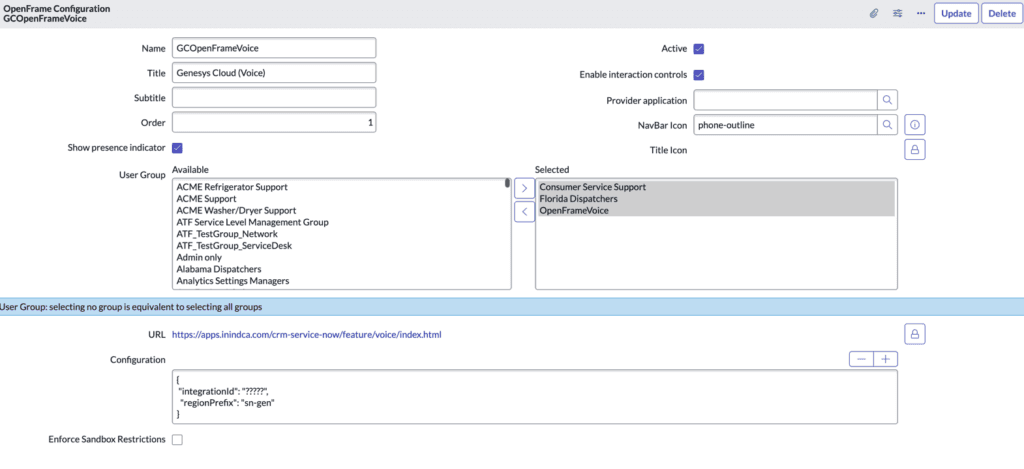
- Click Submit.
sys_id of the created Openframe configuration for later use.[NEXT] Was this article helpful?
Get user feedback about articles.