Configure Genesys Agent Copilot settings
Series: Create a Genesys Agent Copilot
Previous suggested step: Create a new Genesys Agent Copilot
Next suggested step: Configure Genesys Agent Copilot natural language understanding
Settings tab
The Agent Copilot setup procedure navigates you to Settings.
General settings
- You can rename the Agent Copilot.
- The language displays the language that you initially selected, which you cannot change.
- To add more languages, click + Add Additional Language.
Context settings
Context definition
Click Define context to determine what context Agent Copilot uses to filter the knowledge it displays to the agent. The Context window appears. This window lists all the contexts for this Agent Copilot. In the Actions column, you can click Edit to edit a context, or Delete to delete a context. For more information, see Context filtering in Genesys Agent Copilot.
To add a new context, click + New context.
- Enter a unique name for the context.Note: If you change a context name that is used in article filtering, you must delete and recreate the context article filter.
- Select a source type from the list.Note: The default source type is conversation attribute.
- Select an attribute schema from the list. For more information, see Conversation schemas overview.
- After you select an attribute schema, select an attribute from the Attribute name list.
Knowledge settings (optional)
In the Knowledge content selection section, choose either Knowledge Base or Knowledge Configuration. If you select Knowledge Base, you can use a knowledge base you previously created in knowledge workbench V2. If you select a knowledge configuration, you can reference a knowledge fabric. For more information, see About knowledge workbench V2 and About the knowledge fabric, respectively.
Knowledge Base
From the Knowledge base selection list, select the knowledge base that you want your Agent Copilot to use.
You can filter the knowledge base to show only applicable articles to agents. To do this, click Filter. From the list, select Categories, Labels, or Contexts.
For more information on labels and categories, see Understand knowledge base V2 categories and labels.
To use contexts for filtering, select a context by typing its name in the search box, then selecting it in the checklist. Choose whether articles must match all labels from the contexts, or whether they must only match any label. If you select match all, Agent Copilot does not search the knowledge base until all context values, such as the name of the active intent and the custom attribute value, are filled, for which it matches labels. If you select match any, Agent Copilot surfaces knowledge articles if at least one context value is filled, for which it matches a label.
If you apply more than one filter, the following rules apply:
- If you select categories and labels, an
ANDrelationship exists between categories and between labels; however anORrelationship exists with the categories, within the labels, and also between categories and between labels. For example: (Category 1ORCategory 2)AND(Label 1ORLabel 2). - If you select only labels, an
ORrelationship exists between the labels - If you select only category, an
ORrelationship exists between the categories
Note: The filter settings apply to both manual and automatic knowledge surfacing.Knowledge configuration
From the Knowledge configuration selection list, select the knowledge configuration that you want your Agent Copilot to use. For more information, see Create a knowledge configuration.
To check which knowledge configuration settings correspond to the selected item in the list, click the arrow next to the Knowledge Configuration list.
Additional settings
Knowledge confidence threshold
This setting allows you to adjust the sensitivity of articles being retrieved from the knowledge base for queries.
Note: Use caution when you adjust this threshold. A threshold that is too low can increase true positives but also increase false positives. A threshold that is too high can reduce false positives but also reduce true positives. Genesys recommends these default values:- 0.5 for non-content search knowledge bases
- 0.65 for English content search knowledge bases
- 0.7 for non-English content search knowledge bases
Additional guidance for content search knowledge bases
For content search knowledge bases in Filipino, Greek, Hebrew, and Malay, values above 0.7 may improve search quality. Genesys does not currently recommend a different default threshold for these languages. However, if your knowledge base uses one of these languages, consider testing higher threshold values to determine the optimal balance between search precision and recall for your content.
Tips:
- If you use AI-generated answers, set the confidence threshold to 0.65 or below for all languages.
- If a knowledge article supersedes an intent-based rule, lower the natural language understanding (NLU) confidence threshold.
- Use phrases sparingly and evenly distributed across knowledge articles.
- If you use a content search knowledge base, remove all phrasings. Make articles only title and body of contents.
- If you use a content search knowledge base and the title is not long enough to summarize all the content of the article appropriately, add up to three to five phrases to fill any gaps.
Auto suggestions
Genesys Cloud Copilot automatically displays an answer compiled from the assigned knowledge base.
Toggle Detect knowledge questions to allow the Agent Copilot to identify whether the query requires a knowledge search. This setting reduces the number of potentially irrelevant suggestions from Agent Copilot. Detecting knowledge questions is enabled by default for new Agent Copilots.
If Detect knowledge questions is enabled, you can toggle Refine search queries to allow Agent Copilot to reformulate the query. If you enable this, Agent Copilot can use the conversation context to reformulate and optimize the query for the knowledge search. To agents, Agent Copilot displays the reformulated query above the knowledge search result.
You can choose from the following options:
- Articles only: The Copilot displays up to three relevant knowledge articles.
- Answer highlights: The Copilot displays the answer from within the relevant knowledge articles that pertain to the customer’s query.Tips:
- Write full sentences as opposed to bullet points.
- Write grammatically sound sentences with proper punctuation.
- Answer generation: The Copilot generates an answer based on the content of the relevant knowledge articles in the assigned knowledge base.Note: Answer generation is only available for Knowledge bases in which content-based search is enabled.
For best practices, see How can I improve the frequency of AI-generated answers for auto-suggested knowledge?
Manual search
When enabled and an agent searches for a keyword or phrase, the Copilot displays an AI-generated answer compiled from the knowledge articles listed in the search results. Choose from the following options. Manual search is available for both knowledge bases and knowledge fabrics.
- Answer highlights: The Copilot displays the answer from within the relevant knowledge articles that pertain to the customer’s query.Tips:
- Write full sentences as opposed to bullet points.
- Write grammatically correct sentences with proper punctuation.
- Answer generation: The Copilot generates an answer based on the content of the relevant knowledge articles.
Natural Language Understanding settings
Confidence threshold: Adjust how the confidence threshold works in your organization’s NLU. This threshold determines which intents a model predicts based on a specified utterance.
Example: If the threshold is set at 0.65, the model only predicts an intent for an utterance when its confidence score meets or exceeds 0.65. To help enhance the model’s accuracy in predicting the correct intents, you can optimize the threshold. A threshold set too low can lead to more false positives, as the model can predict intents that are not a true match. Conversely, a threshold set too high could exclude relevant intents from being predicted. The recommended and default threshold is 0.4.After Call Work settings
Wrap up codes
Display AI-powered wrap up codes: When enabled, Agent Copilot displays AI-powered wrap up codes. Agent Copilot can suggest up to three predicted wrap-up codes when the agent begins after-call work.
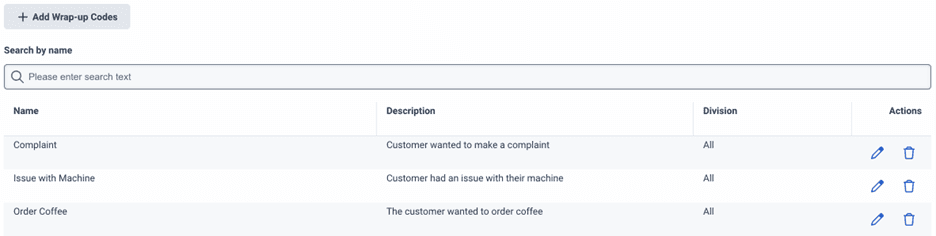
To set up wrap-up code prediction, admins must add descriptions to the respective wrap-up code.
To add a wrap-up code with description, follow the steps in Add a wrap-up code, and enter a description as well. Always assign the wrap-up code to the assigned queue.
Summarization
Display AI-powered summaries: When enabled, Agent Copilot displays AI-powered summarization. If you enable an Agent Copilot on a queue, conversation summarization automatically prepares summaries of conversations between agents and customers. Genesys Cloud generates summaries for all agents in the respective queue. Only agents with the Agents Copilot Agent role can view these summaries.
Notes:- If you do not want Agent Copilot to generate and store summaries, disable both Display AI powered summaries and Display AI-powered wrap up codes.
- If you enable suppression for interactive voice response (IVR), hold, or queue wait times, Agent Copilot does not generate transcripts for these segments. As a result, summaries do not include any content from these segments. Genesys recommends that you enable suppression during these segments to enhance customer privacy. For more information, see Call recording in Genesys Cloud overview.
- If you select categories and labels, an
- To create a new summary configuration, click the open button to open AI Studio in a new tab, and then add your summary configuration.
- To use an existing summary configuration, select it from the list.
- The summary may still be stored together with the transcript, depending on the recording policies that apply. For more information, see Do summaries generated by Agent Copilot persist longer than 10 days?.
- If the after call work timeout is longer than the summaries time to live, summaries only appear in the UI and changes or edits are not saved.
- If you add multiple languages to your Copilot, the time to live is the same for each new language as the original language by default. You can override the time to live for each language.
- If you change the time to live setting for a Copilot, the new value only applies to summaries generated after the change.
Summary configuration
Select an existing summary configuration, or create a new one.
For more information about summary configuration, see Customizable summaries overview.
Summary on demand
Choose whether agents can generate a summary for an interaction at any point before the interaction ends.
Agents can only create one summary per interaction. If the agent generates an on-demand summary, Genesys Agent Copilot does not generate a summary at the end of the interaction.
In case the interaction is transferred, Genesys Agent Copilot transfers the on-demand summary for the previous segment of the interaction. It does not transfer any edits the agent made to the on-demand summaries in the previous segment of the interaction.
Auto opt-in
Choose whether Genesys Agent Copilot must always use the latest model to generate summaries. This configuration applies to both standard summaries and custom summaries. If you opt in and if there is a newer LLM model available, Genesys Agent Copilot uses it to generate summaries. If you opt out, the Genesys Agent uses the older model until the model becomes deprecated. You can also toggle to opt in or out of an existing Copilot.
Summaries time to live
Specify how long Genesys Agent Copilot stores summaries. The value must be between one hour and 10 days. If you do not specify a time, Genesys Cloud stores summaries for 10 days.
Email settings
Summarization
Choose whether agents can use Agent Copilot to summarize email interactions on demand. Agent Copilot can generate summaries for long, multi-agent email conversations, reopened cases, reassignments, escalations, and merged threads. For more information, see Work with Agent Copilot email summaries.
Summary configuration
Select the summary configuration Agent Copilot must use for generating email summaries. For more information, see Configure Agent Copilot email summaries.
Click Save Copilot.
[NEXT] Was this article helpful?
Get user feedback about articles.