Configure a Jabra headset
Genesys Cloud supports Jabra headsets.
Call controls
Genesys Cloud WebRTC supports the built-in call controls on Jabra headsets when you run Genesys Cloud from a Chromium based web browser (either Google Chrome or Microsoft Edge), in the Genesys Cloud desktop app, or in the embedded clients. Genesys Cloud does not support the Jabra headset built-in call controls in Firefox or Safari.
The call control feature enables you to use the controls on the headset to perform basic call operations.
- Answer call
- Hang up a call
- Put a call on hold
- Remove a call from hold
- Mute a call
- Unmute a call
- Reject a call
To use the built-in call controls on a Jabra headset, you must have a WebRTC phone assigned to you and you must connect your Jabra headset via a wired USB connection or a Jabra USB Bluetooth adapter.
Set up the headset in the Genesys Cloud desktop app
To use a Jabra headset in the Genesys Cloud desktop app, you must be using the latest version of the app.
- Open the desktop app.
- In the title bar, click the Genesys Cloud icon.
- Select Check For Updates.
After making sure that you are using the latest version of the Genesys Cloud desktop app, follow these steps.
- From the menu bar, click Calls . The Phone Details panel opens.
- From the Phone Details panel, click Settings . The Phone Settings panel opens. In the Audio Controls – Profile Name box, Use Computer settings appears.
- Connect your headset to a USB port on your computer.
- When Genesys Cloud prompts you to create a device profile, click Yes.
- In the microphone and speaker boxes, verify that your headset appears as the default selection.
- In the Audio Controls – Profile Name box, enter a name for the headset.
- Click Save.
Set up the headset in a Chromium web browser
The Jabra headset can now take advantage of the feature that is built into Chromium based web browsers.
- From the menu bar, click Calls . The Phone Details panel opens.
- From the Phone Details panel, click Settings . The Phone Settings panel opens. In the Audio Controls – Profile Name box, Use Computer settings appears.
- Connect your headset to a USB port on your computer.
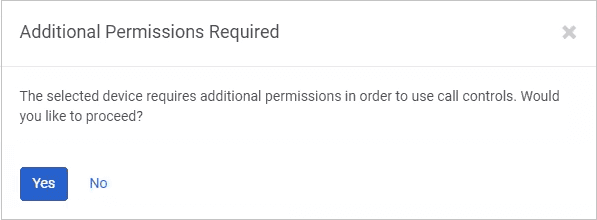
- When the Additional Permissions Required prompt appears, click Yes.
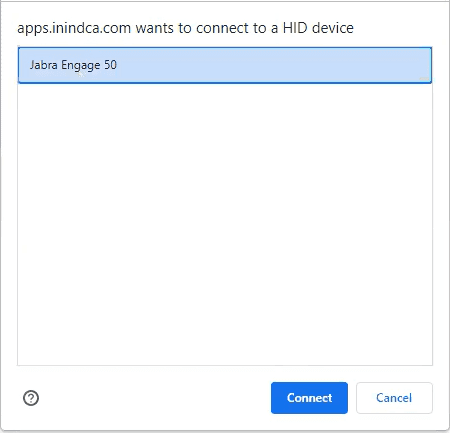
- When your Chromium based web browser displays the WebHID connection prompt, select your device and click Connect.
- When Genesys Cloud prompts you to create a device profile, click Yes.
- In the microphone and speaker boxes, verify that your headset appears as the default selection.
- In the Audio Controls – Profile Name box, enter a name for the headset.
- Click Save.
You can now use the call controls built into your Jabra headset.
[NEXT] Was this article helpful?
Get user feedback about articles.