Add knowledge to your bot flow
Add knowledge to your bot flows or digital bot flows to create FAQ-style bots or context-aware Virtual Agents.
The knowledge workbench allows a knowledge author to create and manage knowledge documents, train the search algorithms, and view the performance of knowledge bases. Knowledge bases are sets of predefined knowledge documents that respond to questions by agents and customers. For more information, see About knowledge workbench V2.
Similarly, the knowledge fabric allows administrators to add content sources and knowledge configurations to their Virtual Agent-enabled flows. The knowledge configurations enable the Virtual Agents to understand and respond to conversations, and ensure that customers get the answers they need. For more information, see About the knowledge fabric.
To add knowledge, follow one of these methods:
- Using the knowledge workbench, create a knowledge base and then link it to your flow with or without Virtual Agent enabled. You can also use an existing knowledge base with a bot flow in Architect or open the knowledge workbench from Architect and then create and build a new knowledge base.
- Using the knowledge fabric, create a knowledge configuration and then link it to your flow with Virtual Agent enabled. You can also use an existing knowledge configuration with a bot flow in Architect or open the knowledge fabric from Architect and then create and build a new knowledge configuration.
Find the Knowledge section from Architect’s Natural Language Understanding menu.
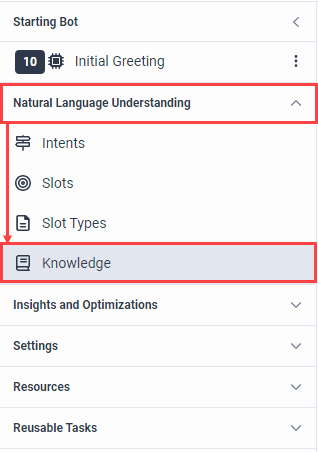
Knowledge view
The Knowledge view contains the following information depending on whether Knowledge Base or Configuration is selected:
Knowledge overview
When you select a knowledge base or knowledge configuration, the system displays information about it. After you select a knowledge base or configuration, you can enable Ask for Intent actions. You can only select published knowledge bases or configurations that you configure with the flow’s supported language.
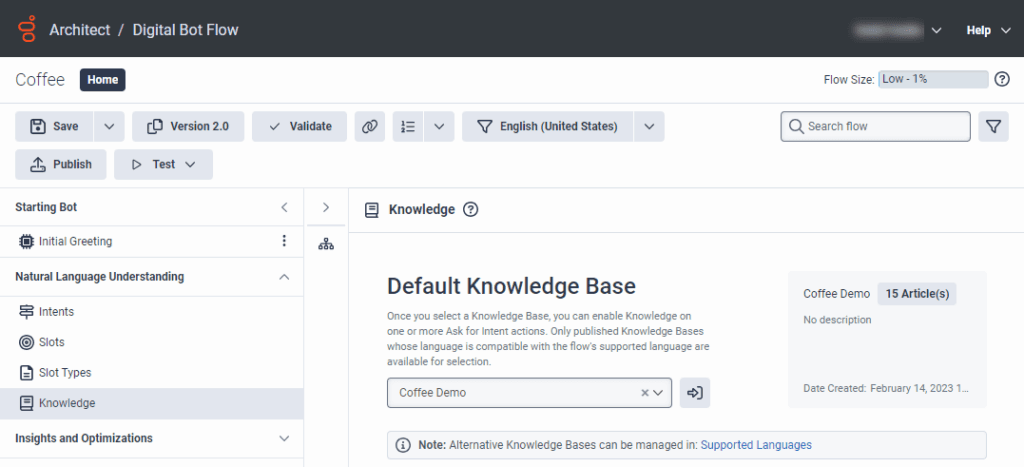
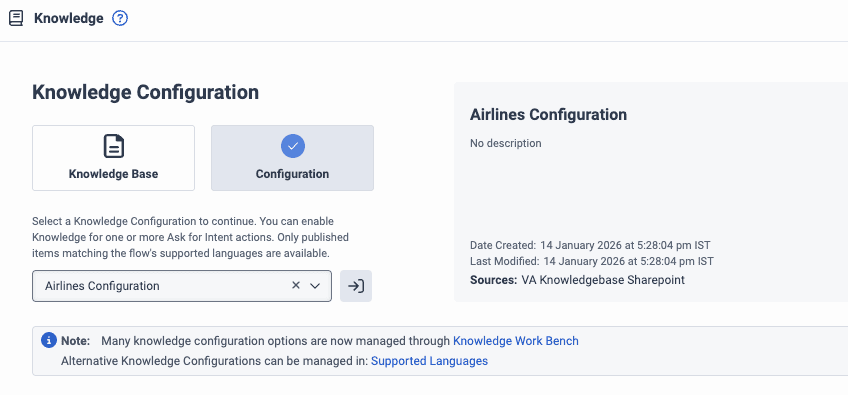
| Field | Description |
|---|---|
| Default Knowledge Base | The name and language of the current knowledge base. |
| Details section | For knowledge base:
For knowledge configuration:
|
General tab
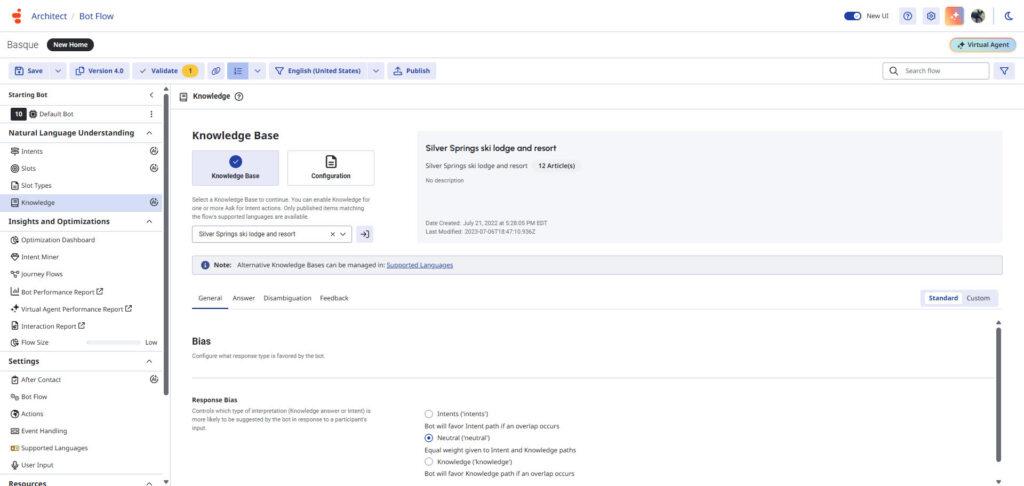
Control the intent type that the bot is more likely to suggest in response to a participant’s input during response bias.
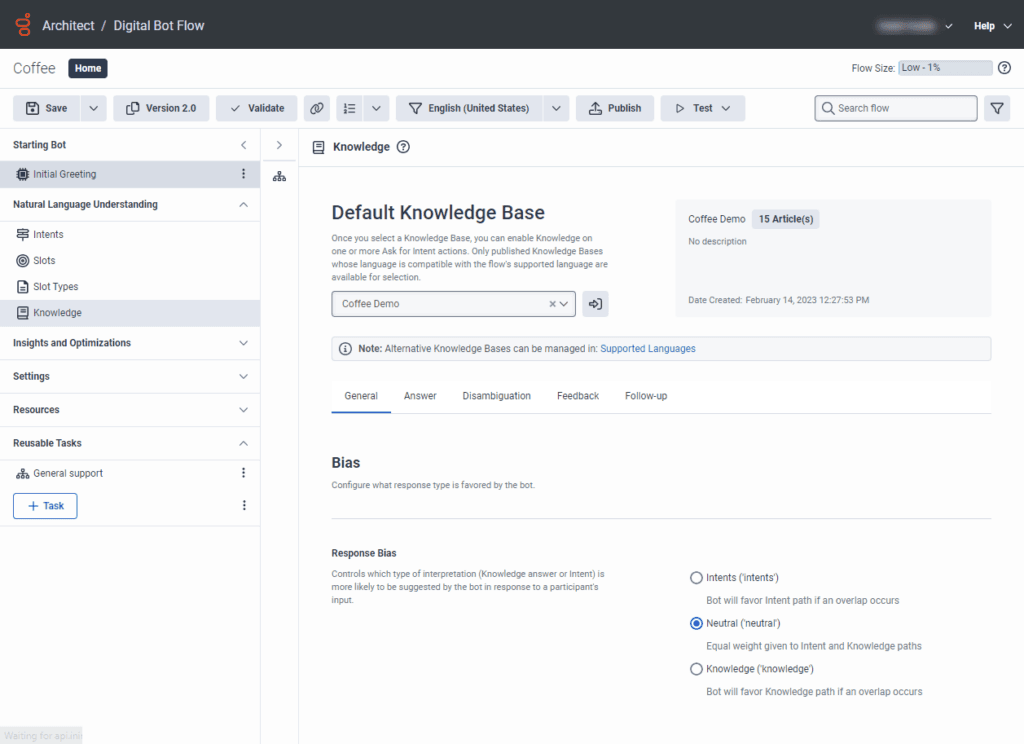
| Field | Description |
|---|---|
| Response Bias |
|
Answer tab
Choose how the bot presents the knowledge answer. For example, “I think this is what you’re looking for.” or “I found this information for you.” Add a word or phrase that the bot uses before it presents the surfaced answer to the participant.
Virtual Agent and answer highlight
If you upgrade your voice or digital bot flow to add Virtual Agent functionality, you can use the large language model (LLM) to help your customers reach the correct answer within an article quickly and with higher accuracy. In Virtual Agent, when a customer asks a question, your bot matches the question to an article and also displays the highlighted answer natively so that the customer does not need to search through or read the entire article. For more information, see About Genesys Virtual Agent.
- Answer highlight is useful if you have a well-structured, defined knowledge base.
- Answer generation is useful if your articles are not well-structured or well-edited.
- Feedback is unavailable with answer generation.
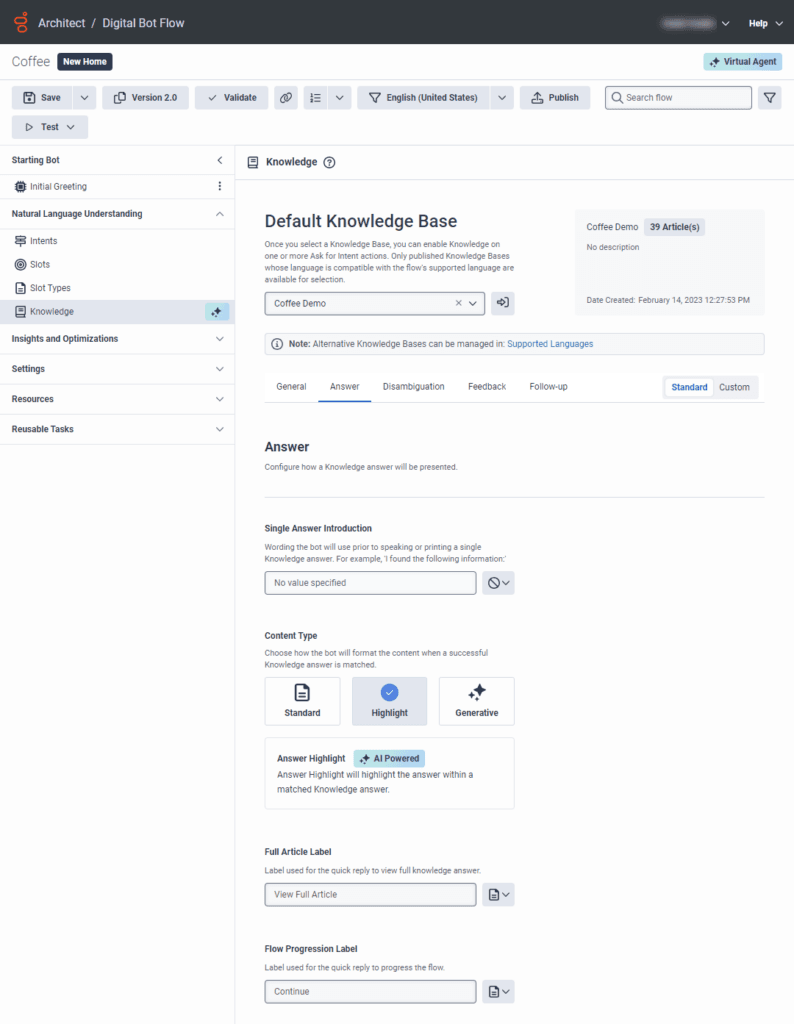
| Field | Description |
|---|---|
| Single Answer Introduction | The wording that the bot uses before returning a single knowledge answer. For example, “I found the following information.” To add a word or phrase to introduce a single answer to the participant, follow these steps:
|
| Search with context | Turn Search with context on or off depending on whether you want to keep context throughout different queries or not. Contextual answers are especially useful in multi-turn conversations while non-contextual search includes only the latest user query. Notes:
|
| Content Type: Select from Standard, Highlight, or Generative. | Standard: Select this option if you want to present the full article that best matches the customer query. Note: The Standard type is not available when the flow uses a knowledge fabric configuration. |
Highlight: Select this option if you want to match the question to an article and display the highlighted answer within the article.
Note: The Highlight type is not available when the flow uses a knowledge fabric configuration. | |
Generative: Select this option if you want to create an AI-generated answer based on the article that best matches the customer query.
| |
| Multiple Article Generation | If you choose Generative as the Content Type, you can also direct the bot to generate a single answer from multiple knowledge articles. To collect content from more than one source, when available, click Multiple Sources enabled. Notes:
|
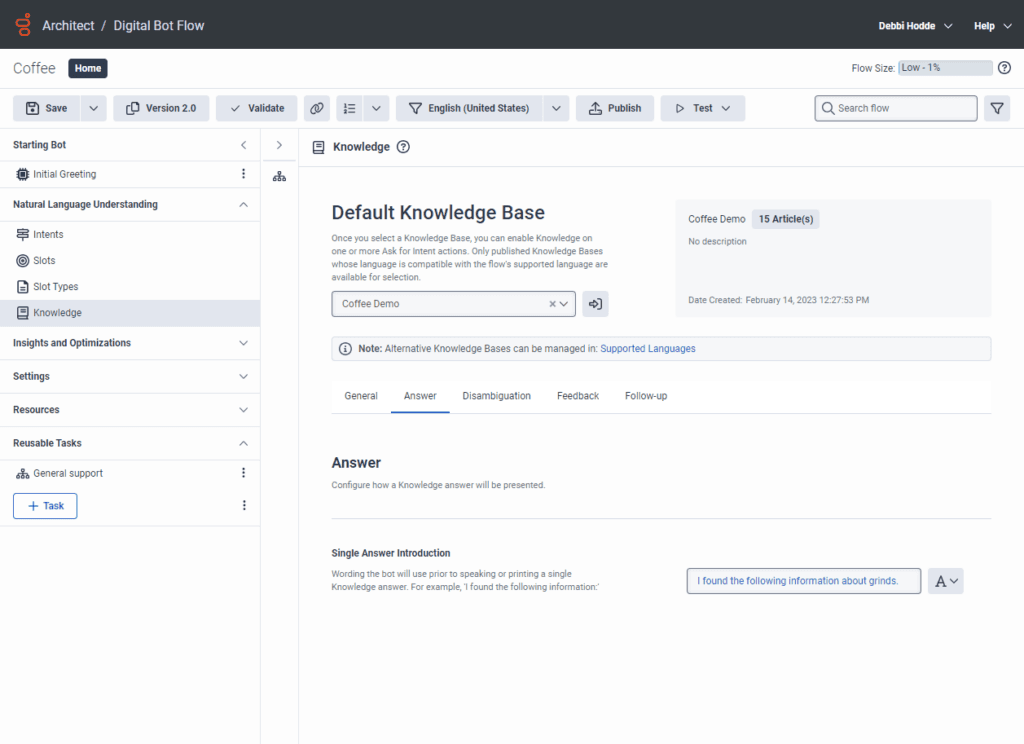
| Field | Description |
|---|---|
| Single answer introduction | The wording that the bot uses before returning a single knowledge answer. For example, “I found the following information.” To add a word or phrase to introduce a single answer to the participant, follow these steps:
|
Disambiguation tab
Use this tab to determine how the bot resolves uncertainty about the knowledge that it surfaces. For example, the bot can ask the participant for clarification, repeat the available options, or give the participant the option to reject all options that the bot presents.
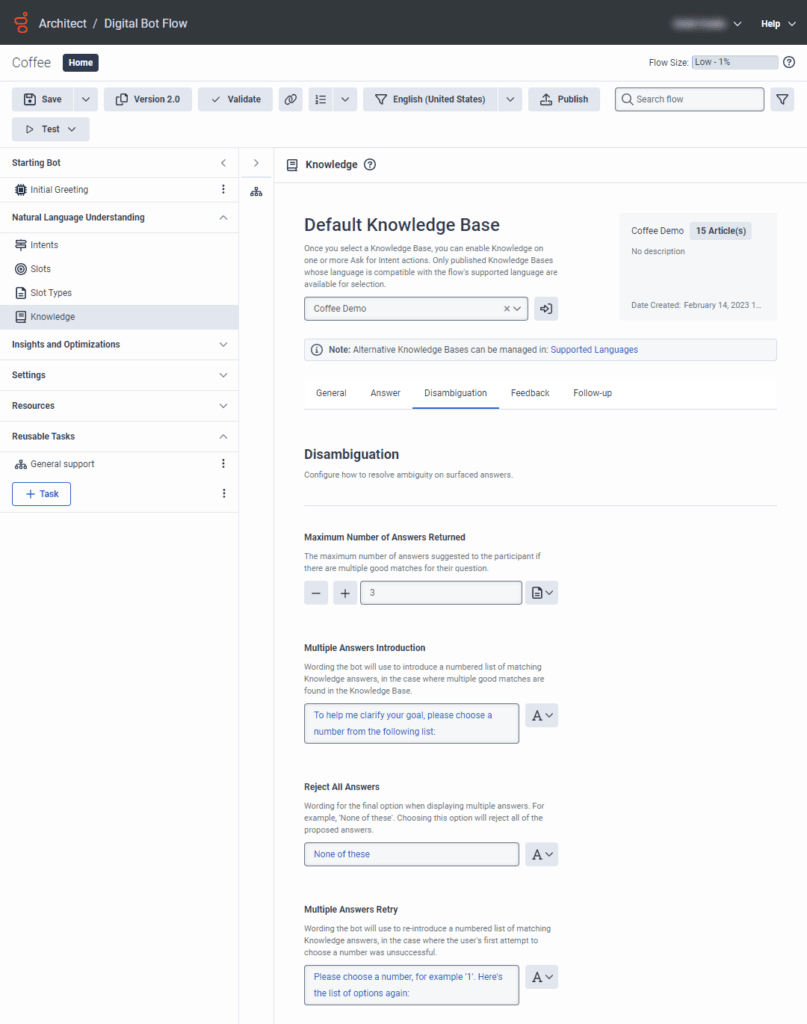
| Field | Description |
|---|---|
| Maximum Number of Answers Returned | The maximum number of answers given for the caller’s question, when multiple possible matches exist.
|
| Multiple answers introduction | The wording that the bot uses to introduce a numbered list of matching knowledge answers. Use this option for cases when multiple potential matches exist. To add an answer for multiple answers, follow these steps:
|
| Reject all answers | The wording that the bot uses as the final option when it displays multiple answers; for example, “None of these.” When you choose this option, the system rejects all other proposed answers. To add an answer that enables the participant to reject all proposed answers, follow these steps:
|
| Multiple answers retry | The wording that the bot uses to reintroduce a numbered list of matching knowledge answers. Use this option for cases when the user’s first try to choose a number was unsuccessful. To add an answer for when the participant’s first attempt to choose an option is not successful, follow these steps:
|
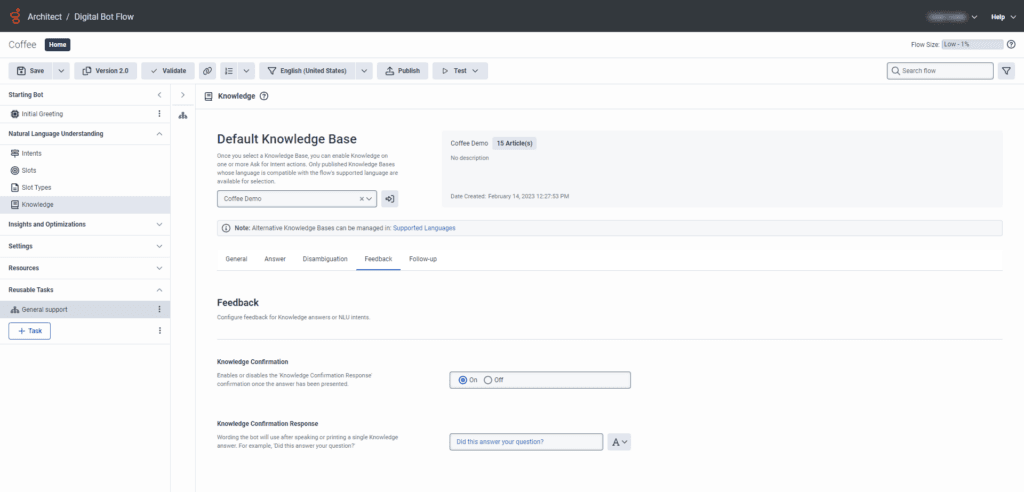
Feedback tab
Select whether to use a knowledge confirmation response after the bot presents an answer to the participant. Then, when applicable, add the wording that the bot must use. For example, “Did I answer your question?” If you enable Virtual Agent, then the Feedback tab is available for Standard and Answer Highlight.
| Field | Description |
|---|---|
| Knowledge confirmation | Enable or disable the knowledge confirmation response after the system presents an answer. The default setting is “true.” |
| Knowledge confirmation response | When you enable knowledge confirmation, this section enables you to enter the wording that the bot uses after it provides a single knowledge answer. To add a confirmation request that the bot asks the participant with a single knowledge answer, follow these steps:
|
Digital bots only: Follow-up tab
When you want the bot to follow up with the participant, you can control the customer experience by customizing the knowledge behavior. You can choose between a statement or task for the next steps. A statement gives wording to prompt the participant about what to do next, based on their last communication. For example, “How can I help you further?” or “What would you like to do next?” A task includes logic that can direct the customer to a new location, a digital menu, and other “next steps” to guide them to the proper path. This behavior enables you to take control of the conversation and how the customer moves through the bot flow.
| Field | Description |
|---|---|
| Knowledge Follow-up | Select either Statement or Task. The next options that appear depend on the option that you select here. |
| Follow-up Statement | Enter the wording that you want the bot to use as a follow-up question. Use a follow-up statement to prompt the caller for what to do next. For example, “How can I help you further?” or “What would you like to do next?” |
| Follow-up Task | Use a follow-up task to guide the participant to their preferred next steps. For example, a new location, a digital menu, or another flow. Perform one of these steps:
|
Use a knowledge base in a bot flow
To use a knowledge base in a bot flow, follow these steps:
- Create a bot flow or open an existing one. The Bot Flow page opens.
- Under Natural Language Understanding, click Knowledge.
- Under Knowledge Base, create a new knowledge base or select an existing one:
- To create a new knowledge base, click the open button to open the knowledge workbench V2 in a new tab, and then add your knowledge base.
- To use an existing knowledge base, select it from the list.
- On the General tab, in the Response Bias section, select the type of interpretation that you want the bot to most likely suggest in response to the participant’s input:
- Intents
- Neutral
- Knowledge
- Click the Answer tab and under Single answer introduction, click the output value button and create the response. The default setting is No Value.
- Click the Disambiguation tab and choose how the bot resolves uncertainty with the answers it finds for the participant:
- For Maximum Number of Answers Returned, enter the maximum number of answers given for the caller’s question, if multiple possible matches exist.
- For Multiple answers introduction, click statement and create the response.
- For Reject all answers, click statement and create the response.
- For Multiple answers retry, click statement and create the response.
- Click the Feedback tab and select feedback configuration for knowledge answers or NLU intents:
- Under Knowledge confirmation, click statement and create the response.
- Click the Follow-up tab and choose how to guide the participant to the next step.
- Under Knowledge Follow-up, to determine how the bot responds after the participant receives a knowledge answer, select either Statement or Task.
- If you choose to follow up with a statement, then in the Follow-up Statement box, configure the wording that the bot uses to reply to the participant. Note: You can enter an expression or use the Communication Sequence Builder.
- If you choose to follow up with a task, then in the Follow-up Task box, do one of these steps:
- Click the task list and select an existing task.
- Click Go to Task to open the task and review or edit it.
- Click Create New Task to create a new task and, after you add a name, click Create New Task. To open the task and configure it, expand Reusable Tasks and click the new task.
- Continue to build your bot flow according to your organization’s specifications.Note: Knowledge appears under the Ask for Intent action paths.
Use a knowledge configuration in a Virtual Agent-enabled flow
To use a knowledge configuration in a Virtual Agent-enabled flow, follow these steps:
- Create a bot flow or open an existing one. The Bot Flow page opens.
Upgrade the bot flow to Virtual Agent. For more information, see Add Virtual Agent to your voice or digital bot flow.
Under Natural Language Understanding, click Knowledge.
- To switch to knowledge fabric configuration, click Configuration. Then, click Switch to confirm it.
- Under Knowledge Configuration, create a new knowledge configuration or select an existing one:
- To create a new knowledge configuration, click the open button to open the knowledge fabric in a new tab, and then add your knowledge configuration.
- To use an existing knowledge configuration, select it from the list.
- On the General tab, in the Response Bias section, select the type of interpretation that you want the Virtual Agent to most likely suggest in response to the participant’s input:
- Intents
- Neutral
- Knowledge
- Click the Answer tab and under Single answer introduction, click the output value button and create the response. The default setting is No Value.
- Turn Search with context on or off depending on whether you want to keep context throughout different queries or not.
- Click the Follow-up tab and choose how to guide the participant to the next step.
- Under Knowledge Follow-up, to determine how the bot responds after the participant receives a knowledge answer, select either Statement or Task.
- If you choose to follow up with a statement, then in the Follow-up Statement box, configure the wording that the Virtual Agent uses to reply to the participant. Note: You can enter an expression or use the Communication Sequence Builder.
- If you choose to follow up with a task, then in the Follow-up Task box, do one of these steps:
- Click the task list and select an existing task.
- Click Go to Task to open the task and review or edit it.
- Click Create New Task to create a new task and, after you add a name, click Create New Task. To open the task and configure it, expand Reusable Tasks and click the new task.
- Continue to build your bot flow according to your organization’s specifications.Note: Knowledge appears under the Ask for Intent action paths.
[NEXT] Was this article helpful?
Get user feedback about articles.