Add a grammar for a bot flow in Architect
AI-generated summary
Genesys Cloud's Architect platform integrates grammar-based automatic speech recognition through Nuance Recognizer as a Service, supporting both DTMF and voice grammar implementations via GRXML format. The system requires CX 2, CX 3, or CX 4 licensing and specific permissions for integration management. Through the Grammar Editor interface, users can create custom grammars for bot flows with multiple language support, allowing both manual GRXML entry and precompiled .gram file imports. The platform validates XML content, identifies errors, and enables comprehensive language configuration. Key functionalities include customizable grammar names and descriptions, support for natural language patterns with optional words, and separate management of DTMF and voice grammar files. The technical implementation follows a structured workflow from grammar creation through language configuration to final validation and saving, with all files subject to size limitations specified in the Developer Center.
In Architect, you can use a grammar-based automatic speech recognition (ASR) third-party engine, for example Nuance Recognizer as a Service integration, to customize grammar recognition and capture the result. Currently, you can use Nuance only.
Add the grammar-based Nuance Recognizer as a Service integration and then choose from the Nuance voice and language options in Architect’s Ask for Slot action for Genesys Dialog Engine Bot Flows.
GRXML for DTMF
<?xml version="1.0" encoding="UTF-8"?><grammar xmlns="http://www.w3.org/2001/06/grammar"
	 xmlns:xsi="http://www.w3.org/2001/XMLSchema-instance"
	 xsi:schemaLocation="http://www.w3.org/2001/06/grammar http://www.w3.org/TR/speech-grammar/grammar.xsd"
	 version="1.0"
 	 mode="dtmf"
	 xml:lang="en-US"
	 tag-format="semantics/1.0"
	 root="ROOT">

   <rule id="ROOT" scope="public">
      <one-of>

         <!-- checking-->
         <item>
            <one-of>
               <item>1</item>
            </one-of>
            <tag> out = "checking" </tag>
         </item>

         <!-- savings-->
         <item>
            <one-of>
               <item>2</item>
            </one-of>
            <tag> out = "savings" </tag>
         </item>

      </one-of>
   </rule></grammar>
GRXML for Voice
<?xml version="1.0" encoding="UTF-8"?><grammar version="1.0"
   xmlns="http://www.w3.org/2001/06/grammar"
   mode="voice"
   xml:lang="en-US"
   tag-format="swi-semantics/1.0"
   root="ROOT">

   <rule id="ROOT" scope="public">
      <one-of>

         <!-- checking-->
         <item>
            <one-of>
               <item>
                  <item repeat="0-1">
                     <one-of>
                        <item>a</item>
                        <item>the</item>
                        <item>my</item>
                     </one-of>
                  </item>
                  <item>
                     <one-of>
                        <item>checking</item>
                        <item>check</item>
                     </one-of>
                  </item>
                  <item repeat="0-1">account</item>
                  <item repeat="0-1">please</item>
               </item>
            </one-of>
            <tag> SWI_meaning = "checking" </tag>
         </item>

         <!-- savings-->
         <item>
            <one-of>
               <item>
                  <item repeat="0-1">
                     <one-of>
                        <item>a</item>
                        <item>the</item>
                        <item>my</item>
                     </one-of>
                  </item>
                  <item>
                     <one-of>
                        <item>savings</item>
                        <item>saving</item>
                     </one-of>
                  </item>
                  <item repeat="0-1">account</item>
                  <item repeat="0-1">please</item>
               </item>
            </one-of>
            <tag> SWI_meaning = "savings" </tag>
         </item>
      </one-of>
</rule></grammar>Click the image to enlarge.
Grammar Editor for DTMF
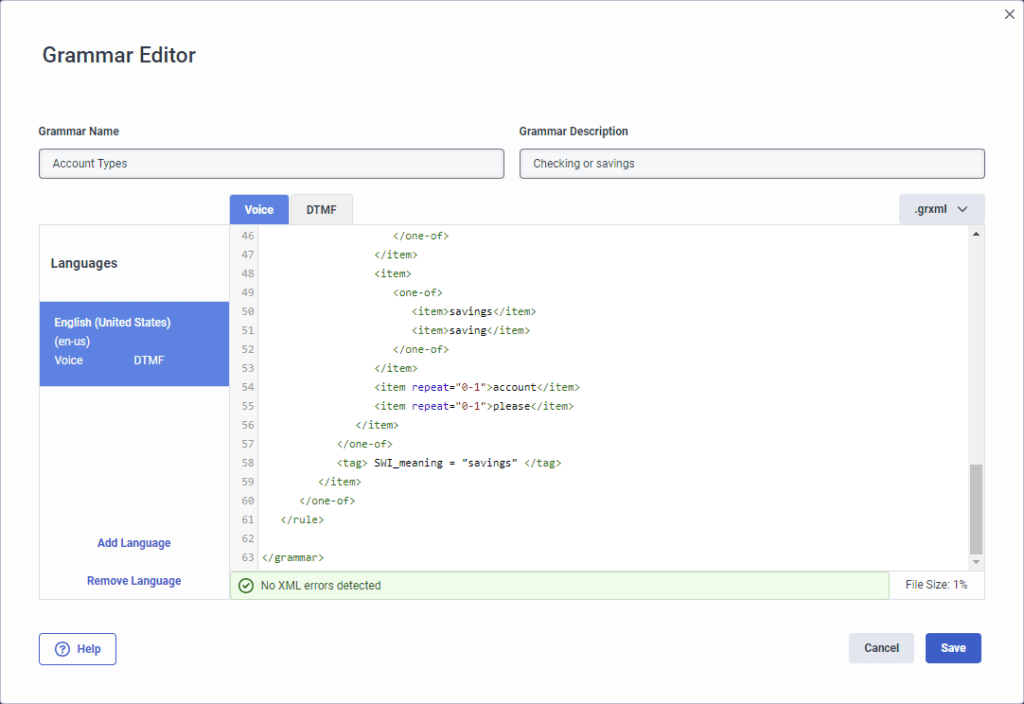
Grammar Editor for voice
To add an uncompiled grammar to Architect, follow these steps:
Note: For more information about size limits for grxml files, see the limit
grammars.grxml.upload.bytes.max in Limits in the Genesys Cloud Developer Center.- Click Admin.
- Under Architect, click Architect. Architect opens in a new tab.
- Click Menu > Orchestration > Architect. Genesys Cloud opens Architect in a new tab.
- Click Grammars.
- Click Add. The Create New Grammar dialog box opens.
- Under Grammar Name, give your grammar a meaningful name.
- (Optional) Under Grammar Description, add descriptive details about the grammar. For example, “recognize 4 to 8 digits.”Note: You can add descriptive language here or you can add it later in the Grammar Editor.
- (Optional) Click the Starting Language and select the initial language that you want the grammar to use.Note: You can leave the starting language set to None, but you must add at least one language in the Grammar Editor before you can use the editor.
- Click Create. The Grammar Editor opens.
- To add one grammar language at a time, follow these steps:
- Click Add Language.
- From the Select Language dialog box, choose another language for the grammar to use.
- Repeat steps a-b to add another language.
- Depending on the type of grammar that you want to add, click one of the following tabs. You can have both voice and DTMF configured for a language:
- DTMF
- Voice
- Add the GRXML content from Nuance Recognizer ASR grammar into the editor.Note: If the grammar passes XML validation, then a green message appears, letting you know that the grammar is free of errors. If a red message appears, then Architect lets you know the location in the GRXML that the error or errors exist. Architect only indicates whether a supplied GRXML file is valid XML without syntactical XML issues, which does not guarantee that the file is a valid grammar file.
- Click Save. Note: If you attempt to save the grammar without correcting errors, the XML Error dialog box opens and asks you to confirm that you want to proceed.
To add a precompiled grammar to Architect, follow these steps:
Notes:
- For more information about size limits for gram files, see the limit
grammars.gram.upload.bytes.maxin Limits in the Genesys Cloud Developer Center. - You can upload one grammar file for each mode (DTMF and voice).
- You cannot edit the precompiled grammar file in the Grammar Editor.
- Click Admin.
- Under Architect, click Architect. Architect opens in a new tab.
- Click Menu > Orchestration > Architect. Genesys Cloud opens Architect in a new tab.
- Click Grammars.
- Click Add. The Create New Grammar dialog box opens.
- Under Grammar Name, give your grammar a meaningful name.
- (Optional) Under Grammar Description, add descriptive details about the grammar. For example, “recognize 4 to 8 digits.”Note: You can add descriptive language here or you can add it later in the Grammar Editor.
- (Optional) Click the Starting Language and select the initial language that you want the grammar to use.Note: You can leave the starting language set to None, but you must add at least one language in the Grammar Editor before you can use the editor.
- Click Create. The Grammar Editor opens.
- To add one grammar language at a time, follow these steps:
- Click Add Language.
- From the Select Language dialog box, choose another language for the grammar to use.
- Repeat steps a-b to add another language.
- Depending on the type of grammar that you want to add, click one of the following tabs:
- DTMF
- Voice
- Select .gram and click Select File to import a precompiled grammar file that you generated externally.
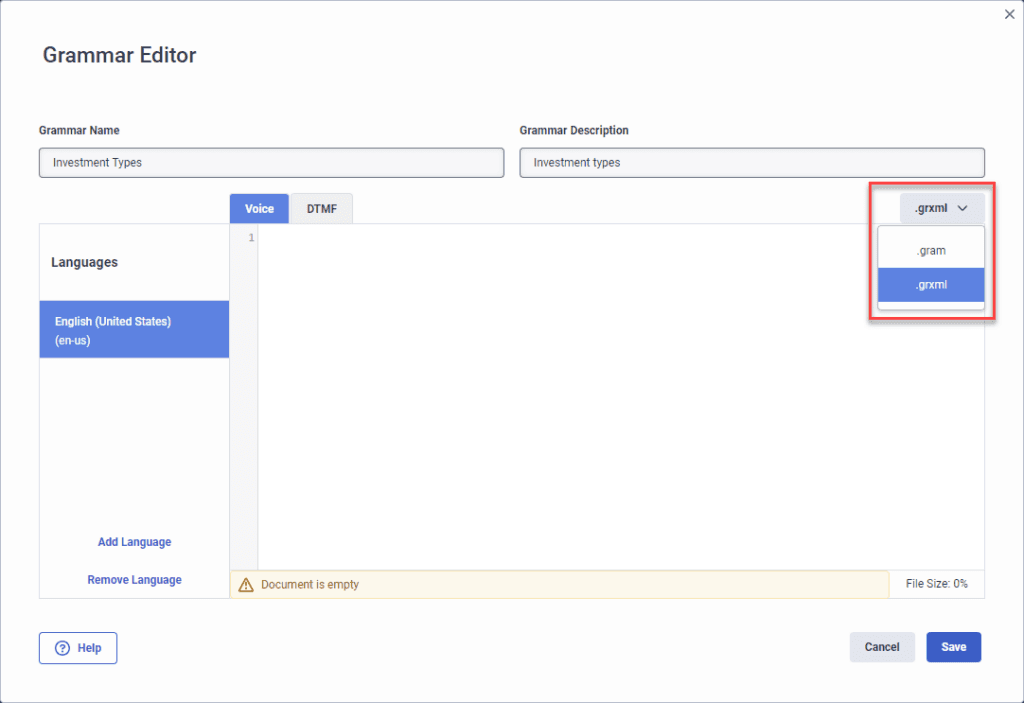
- The Add A Grammar File dialog box opens. To select the file that you want to import, click the example file field.
- Click Remove File to remove the imported grammar file or click Save to save the imported grammar file.
[NEXT] Was this article helpful?
Get user feedback about articles.