Work with ACD voicemail interactions
You receive voicemail interactions when your administrator configures a call flow to give callers an option to leave a voicemail instead of connecting with an agent. Some examples include a closed queue or a busy queue with a long wait time. After a caller records a voicemail, Genesys Cloud routes it to an available agent on the specified queue.
Accept an ACD voicemail interaction
- Log in as an agent and go on queue. The Agent Workspace opens. ACD voicemail interactions appear in the Active Interactions list.
- To accept the interaction, click Answer. The voicemail interaction appears.
- Perform one of the following steps:
- To listen to the voicemail, on the Playback tab, click Play . The voicemail plays on your computer’s default speakers.
- To view the transcription of the voicemail, click the Transcription tab.
Respond to the voicemail
You can handle some voicemail interactions without returning the contact’s call. Most, however, require a callback.
If your admin configured the ACD call flow to capture the caller’s phone number, the number appears above the voicemail. If the voicemail indicates that the caller prefers a different callback number, click Update callback number and enter the number.
- To return the call, click Begin Call.
- End the call and complete after contact work (ACW).
- To complete the interaction, click Done.
Adjust playback volume
To adjust the voicemail playback sound level, use the volume control .
Adjust playback speed
To adjust the voicemail playback speed with the speed toggle.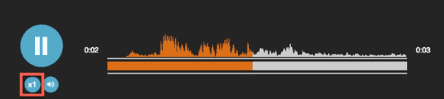
[NEXT] Was this article helpful?
Get user feedback about articles.