Set up Genesys Cloud digital messaging in Unified Experience
- Install and configure the Unified Experience from Genesys application in ServiceNow
- Set up the integration in ServiceNow
With the Unified Experience from Genesys Cloud and ServiceNow integration, agents can handle Genesys Cloud digital messaging interactions directly in the ServiceNow ITSM, HRSD, and CSM workspaces, using the native controls for ServiceNow chats and cases.
Agents can handle inbound customer interactions from the following Genesys Cloud digital channels:
- Web Messaging
- SMS
- Line
- Open Messaging
- Apple Messaging
- Facebook Messenger
- X Direct Messaging
Genesys Cloud routes the inbound customer messages and the messages appear alongside ServiceNow chats and cases in the standard agent inbox. Agents can receive and accept or decline digital interactions, see alerts for new messages, respond using ServiceNow’s chat user interface, place interactions on hold and resume them, disconnect when an interaction completes, and transfer active messaging sessions to other agents or queues.
Genesys Cloud provides routing, presence, utilization, and messaging APIs; ServiceNow provides the agent-facing experience. This unified desktop simplifies setup and ongoing operations, improves agent efficiency and experience, and enables organizations to expand their use of Genesys Cloud digital channels within their existing ServiceNow environment.
For the agents to receive digital messages in their ServiceNow workspace, follow these steps to set up the integration in Genesys Cloud and ServiceNow:
com.glide.messaging.awasn_openframesn_cwf_wrkspcsn_va_as_servicecom.glide.awa.external
- In ServiceNow, navigate to All > Scripted REST APIs.
- Search and open VA Bot Integration record.
- Edit the record and navigate to the Resources tab and click BOT Integration.
- Under the Security section, select Requires authentication.
- Click Update.
Token Verification record
- In ServiceNow, navigate to All, and then enter token_verification.list in the filter.
- Click New.
- Enter the following details in the form:
- Name – Name of the authentication token, such as Genesys.
- Description – Description of the authentication token, such as Genesys Digital Messaging Token.
- Token – Enter an authentication token that you generated using any general programming or script, or click Generate Secure Token in the Related Links.
- Click Submit.
Message authentication record
- In ServiceNow, navigate to All, and then enter message_auth.list in the filter.
- Click New.
- Enter the following details in the form:
- Name – Name of the message authentication, such as Genesys.
- Provider – Name of the provider, for example Genesys Provider.
- Inbound message verification – Select the token that you created previously.
- Outbound message creation – Select the token that you created previously.
- Click Submit.
- In ServiceNow, navigate to All, and then enter sys_cs_provider_application.list in the filter.
- Select and edit the Genesys Cloud Digital Messaging record.
- Update the following fields:
- Message Auth – Select the Message Authentication created previously.
- InboundID – Enter the inbound ID for the messaging platform that you want to use. The inbound ID value must match the value defined in the Unified Experience integration configuration.
Add the following JSON block to the integration configuration:
{
  "serviceNowInboundAppIds": {
    "voice": "inbound app ID for voice",
    "messaging": {
      "default": "<fallback inbound app ID for all messaging types>",
      "sms": "<optional> inbound app ID for SMS",
      "line": "<optional> inbound app ID for Line",
      "facebook": "<optional> inbound app ID for Facebook",
      "twitter": "<optional> inbound app ID for X",
      "whatsapp": "<optional> inbound app ID for WhatsApp",
      "instagram": "<optional> inbound app ID for Instagram",
      "webmessaging": "<optional> inbound app ID for Web Messaging",
      "apple": "<optional> inbound app ID for Apple Messaging",
      "open": "<optional> inbound app ID for Open Messaging"
    }
  }
}
For example, the following illustration shows the attribute mapping configuration in the integration for web messaging. The value of
serviceNowInboundAppIds.messaging.webmessagingisappId2. EnterappId2as the value for InboundID field.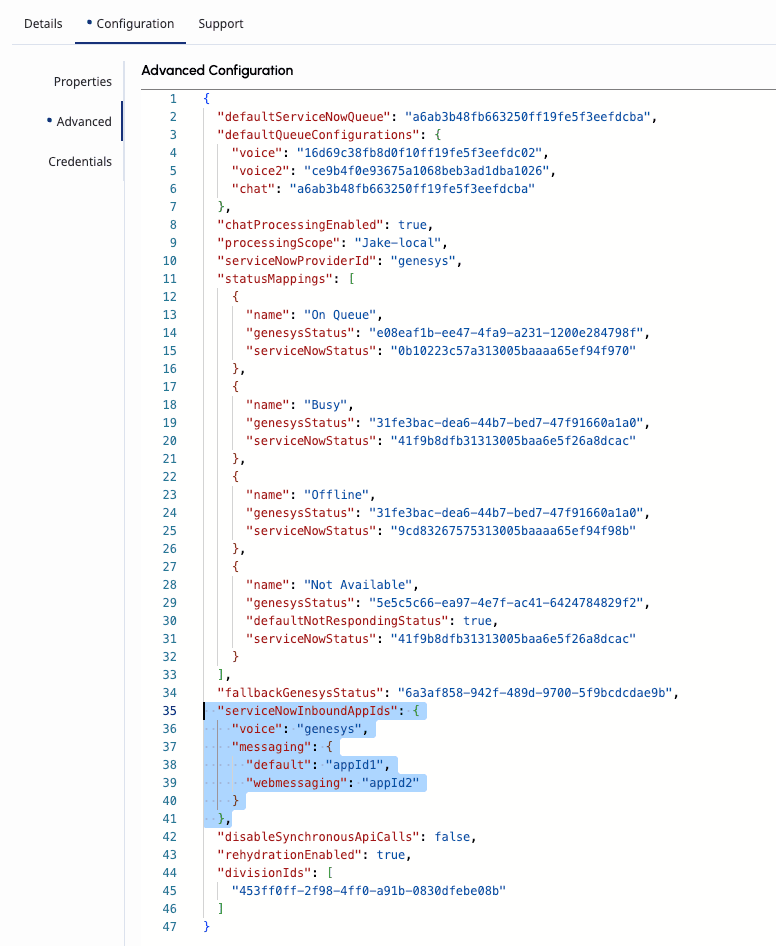 Note: You must define a value for
defaultin the attribute configuration to use when no messaging type is configured. If neither adefaultvalue nor a messaging type is specified,ServiceNowis the value used by default.
Set up and activate the service channel for messaging in ServiceNow. For more information, see Create or configure a service channel.
- Log in to ServiceNow.
- Navigate to All > Service Channels.
- Click New.
- Enter the following information for the service channel:
- Name – Name of the service channel to be configured.
- Inbox Order – The order in which the service channel items appear in the agent inbox.
- Active – Select the option.
- Table – Select Interaction [interaction] from the list.
- Assign to field – Select Assigned to from the list.
- Assignment group field – Select Assignment group from the list.
- Type – Select Messaging from the list.
- Under the Capacity and Utilization section, enter the following details:
- Default work item size – Enter 1 as the value.
- Default capacity – Enter 4 as the value.
- Utilization condition – Add the following conditions:
- State is not one of Closed Complete and Closed Abandoned
- Type is Messaging
- Click Submit.
Before you create external queues:
- Create and configure queues in Genesys Cloud.
Set up external queues in ServiceNow that correspond to Genesys Cloud queues. With the setup of Unified Experience from Genesys and ServiceNow integration, administrators can now create queues in ServiceNow that are externally routed to Genesys Cloud. When you create a queue in ServiceNow, select the following options:
- Service channel – Select the service channel created for the Messaging type.
- Condition mode – Select Simple.
- External – Select this option. Under the External third-party routing section, enter the Genesys Cloud queue ID for Provider queue ID field. For more information, see How can I get the queue ID for my queue in Genesys Cloud?
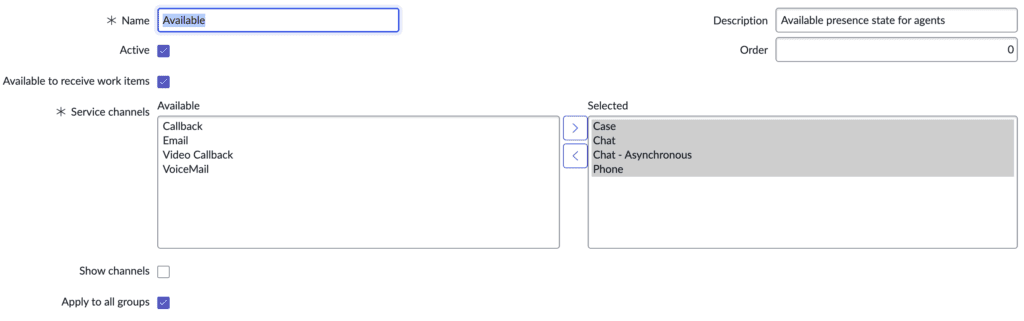
When integrating Genesys Cloud with ServiceNow, it is important to align agent availability states between the two systems. For more information, see Create presence states in ServiceNow.
For the presence states that match with the Genesys Cloud status, ensure that the service channel created for the Messaging type is added. In the following example, the Chat – Asynchronous is the service channel created for messaging.
Third-party messaging shares the features and capabilities as the other Genesys Cloud messaging channels that use ACD messaging to enable agents to respond to customer interactions. To create and set up the necessary third-party platform integration, perform the following in Genesys Cloud:
- Create a Messaging Platform Integration in Genesys Cloud. Select the messaging platform for which you want to create an integration. For more information, see Create a platform integration.
- Create an inbound messaging flow in Architect. The flow defines the routing logic and queue assignment. For more information, see Add an inbound message flow and Transfer to ACD action.
- Create a message routing entry and associate inbound numbers or addresses with an inbound message flow. Select the Messaging Platform integration created for the third-party messaging platform as the inbound address for the inbound message flows. For more information, see Add an inbound message route.
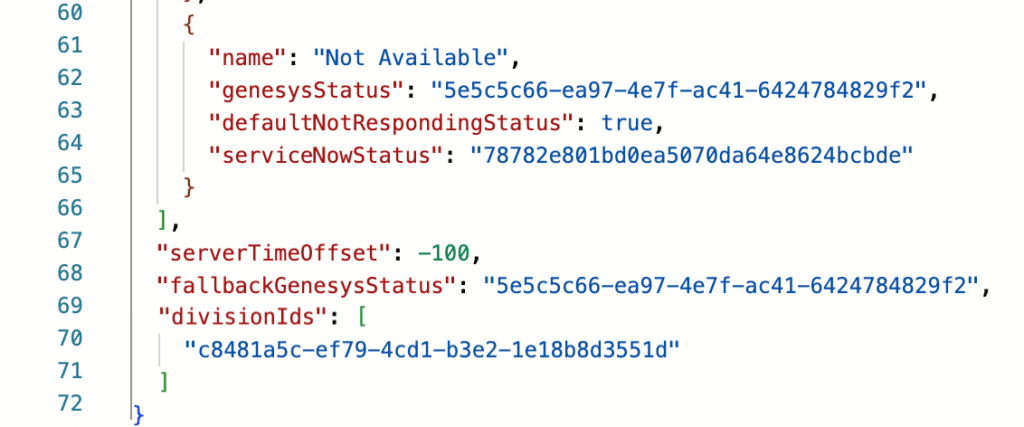
Before configuring the integration, you must set up the necessary divisions in Genesys Cloud based on your organizational structure and routing needs. After you create the divisions, add the relevant division Id to the Unified Experience from Genesys and ServiceNow integration’s advanced configuration.
When you set up the integration in Genesys Cloud, include the divisionIds and specify the appropriate divisions in JSON format. This addition ensures that incoming messages are properly scoped, authenticated, and routed according to the correct division, aligning with queue mappings and agent assignments.
Proper configuration of division Ids is essential for maintaining accurate access control, consistent routing logic, and reliable integration behavior between Genesys Cloud and ServiceNow.
When you set up the Unified Experience from Genesys and ServiceNow integration, you must provide the ServiceNow Digital Messaging Token in the Credentials of the integration. The token is assigned or generated when you set the Message Auth while enabling authentication on the VA Bot Integration API. For more information, see Set up the integration for ServiceNow in Genesys Cloud and Message authentication.
[NEXT] Was this article helpful?
Get user feedback about articles.