View and create charts in Journey Management
You can build charts to investigate, evaluate, and review journey metrics. With the help of charts, you can analyze trends over time, compare data points, track progress, and understand your customers’ behaviour. You can create charts with data from your previously constructed journey. Charts are enabled once you have at least one event in the journey.
View and edit existing charts
- To view and calculate charts, click the charts icon on the right panel.
- Use the Expand icon to expand the charts panel to two or three columns.
- Calculated charts display a visual thumbnail; charts that still need calculation display the Requires calculation message. The Calculate functions govern both the journey canvas and the chart editor. You cannot perform a calculation on a chart without performing a calculation on the entire journey. Therefore, Genesys Cloud recommends that you create the journey, save it, and then create a couple of corresponding charts before you perform a calculation. Similarly, the Edit and Save options apply to both journey and charts.
- To open a chart, click the Charts icon in the upper right corner of the journey canvas.
To understand the chart results, see Calculate and understand chart results.
Post chart calculations
- If your journey is in View mode, click View Chart Details to see the chart configuration. You cannot edit your chart in this state.
- If your journey is in Edit mode, click Edit chart to open the chart editor.
- To work with individual charts, enter edit mode, and click alongside the chart title, and choose the required option such as Duplicate, Delete, and Move Up or Down. To reorder the charts within the charts pane, drag and drop the required chart to the target position.
Create a new chart
- Click New chart. Genesys Cloud navigates you to the chart configuration screen. Your journey must be in Edit mode for you to edit the charts as well.
- On the left side of the chart configuration screen, you can edit your chart; the right side shows the visual representation of the chart and your journey for reference. If you don’t want to see the journey, click Hide journey. Configure the chart in the Data and Settings tab.
- In the Data tab, set the chart type and define chart data. Set the following details:
- Enter a name for the chart in the Chart title.
- Set the Chart Type. You can select from three chart types: Column, Bar, Line.
- Genesys Cloud recommends that you use bar charts for categorical data, such as labels.
- If you have more than two variables and more than 30 values, Genesys Cloud recommends that you use a line chart.
- Enter the Chart Data. Journey Management charts enable you to count event data by time and attribute values. You can show customers or events. Customers are the unique customers that fit the chart criteria. Events are the total number of interactions that fit the chart criteria.
- Set the X-axis data points under the Data tab. You can choose either Time or Attributes.
- Time series include: day, week, month, or year. Default values for Time:Note: You can select up to 50 items to display, so you can increase any of the time values to 50.
- Attribute values include: default and organization-defined values. Genesys Cloud lists the top 50 labels. If you create a chart on event:attribute selection on the X-axis of an event, you can only set up the chart on that specific event, or on events that come after that specific event in the journey path. It is not possible to create a chart on events that have preceded that specific event, or are not on its path. Examples for default values: direction, message types, disconnect reasons, transfer type.
Examples for organization-defined values: QueueID, flowID, userID (agents), intents, botID, wrapupCode. - Note: Not all attribute values have data. For more information, see Filters in charts.
- Time series include: day, week, month, or year. Default values for Time:
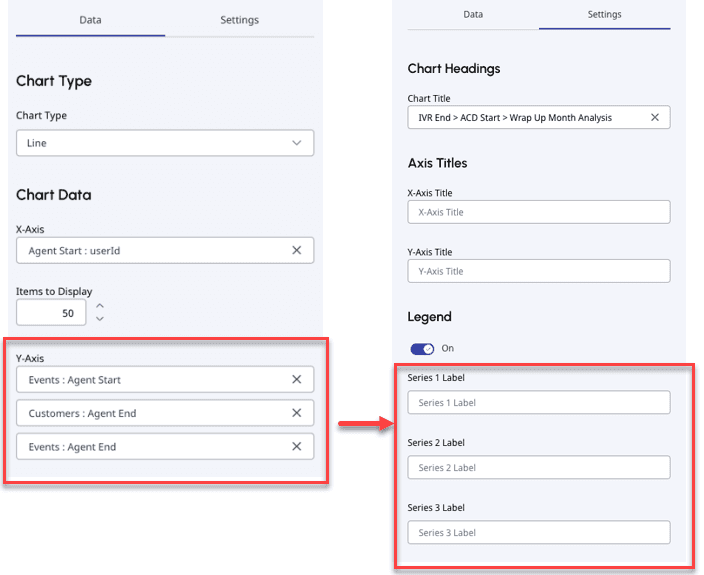
Set the Y-axis data points. Select Customers, Events, or Numeric attributes from the dropdown list, and then select the corresponding event. Numeric metrics can be plotted over time (line, bar, column charts) with day/week/month/year intervals, enabling performance trend analysis. If you choose numeric charts, you can choose one attribute at a time in one chart. If you choose customer or event charts, you can choose up to three attributes.
Note: Duration-based attributes (like hold time and wrap-up time) are automatically converted from milliseconds to minutes for easier interpretation.- If you selected numeric attribute for Y-axis data point, you can plot the chart for the following values: Average, Sum, Minimum, or Maximum.
- If you define Y-axis data points, you can go back to Settings and update their labels. Select the label names for the Series labels. You have the same number of Series labels as many Y-axis data points that you have defined.
- Set the X-axis data points under the Data tab. You can choose either Time or Attributes.
- In the Settings tab, configure the following:
- Enter the axis titles in X-axis title and Y-axis title.
- Toggle Legend on or off.
- If you define Y-axis data points under the Data tab, you can update their labels in Settings. Set the label names for the Series labels. You have the same number of Series labels as many Y-axis data points that you define under the Data tab.
- Click Create chart. Genesys Cloud takes you back to the journey canvas.
You can choose to create another chart or run a calculation.
[NEXT] Was this article helpful?
Get user feedback about articles.