Add a grammar for a bot flow in Architect
AI-generated summary
Genesys Cloud enables users to add grammar-based automatic speech recognition (ASR) through third-party engines, specifically Nuance Recognizer as a Service integration, to customize grammar recognition in bot flows within Architect. This functionality requires appropriate licensing (Genesys Cloud CX 2, CX 3, or CX 4) and specific permissions for Integrations and Architect Grammar management.
Users can implement grammars in two modes: DTMF (dual-tone multi-frequency) for numeric keypad input and voice mode for natural language recognition. GRXML (Grammar XML) format defines the grammar rules, with DTMF grammars mapping numeric inputs to semantic values and voice grammars supporting flexible phrase variations with optional elements. The Grammar Editor provides a visual interface for grammar configuration, accessible through Menu > Orchestration > Architect by selecting Grammars and clicking Add, with file size constraints documented in the Genesys Cloud Developer Center.
The Grammar Editor supports grammar creation and management through a Create New Grammar dialog where users enter a meaningful name and optionally add descriptions and select a starting language. The system supports multiple languages, which can be added individually through the Add Language feature, with the requirement that at least one language must be configured before use. Grammar types include DTMF and Voice modes, which can be configured simultaneously for a single language.
Users can add GRXML content from Nuance Recognizer ASR grammar, with built-in XML validation that displays green confirmation messages for valid grammar or red error messages indicating specific error locations. Precompiled grammar files (.gram) can be imported externally through the Select File option, with individual file uploads supported for each mode. Precompiled grammar files cannot be edited within the Grammar Editor after import. The Save function persists grammar configurations, with error confirmation dialogs available if saving is attempted with unresolved XML errors.
Grammars integrate with Architect's Ask for Slot action for Genesys Dialog Engine Bot Flows, allowing selection from available Nuance voice and language options. The platform includes a feedback collection interface for documentation, enabling users to rate article helpfulness, specify their organizational role, and provide follow-up contact information to support continuous improvement of Genesys Cloud resources.
- Genesys Cloud CX 2, Genesys Cloud CX 3, or Genesys Cloud CX 4 license
- Integrations > Integration – Add, Delete, Edit, View permission
- Architect > Grammar – Add, Delete, Edit, View permissions
In Architect, you can use a grammar-based automatic speech recognition (ASR) third-party engine, for example Nuance Recognizer as a Service integration, to customize grammar recognition and capture the result. Currently, you can use Nuance only.
Add the grammar-based Nuance Recognizer as a Service integration and then choose from the Nuance voice and language options in Architect’s Ask for Slot action for Genesys Dialog Engine Bot Flows.
GRXML for DTMF
<?xml version="1.0" encoding="UTF-8"?><grammar xmlns="http://www.w3.org/2001/06/grammar"
	 xmlns:xsi="http://www.w3.org/2001/XMLSchema-instance"
	 xsi:schemaLocation="http://www.w3.org/2001/06/grammar http://www.w3.org/TR/speech-grammar/grammar.xsd"
	 version="1.0"
 	 mode="dtmf"
	 xml:lang="en-US"
	 tag-format="semantics/1.0"
	 root="ROOT">

   <rule id="ROOT" scope="public">
      <one-of>

         <!-- checking-->
         <item>
            <one-of>
               <item>1</item>
            </one-of>
            <tag> out = "checking" </tag>
         </item>

         <!-- savings-->
         <item>
            <one-of>
               <item>2</item>
            </one-of>
            <tag> out = "savings" </tag>
         </item>

      </one-of>
   </rule></grammar>
GRXML for Voice
<?xml version="1.0" encoding="UTF-8"?><grammar version="1.0"
   xmlns="http://www.w3.org/2001/06/grammar"
   mode="voice"
   xml:lang="en-US"
   tag-format="swi-semantics/1.0"
   root="ROOT">

   <rule id="ROOT" scope="public">
      <one-of>

         <!-- checking-->
         <item>
            <one-of>
               <item>
                  <item repeat="0-1">
                     <one-of>
                        <item>a</item>
                        <item>the</item>
                        <item>my</item>
                     </one-of>
                  </item>
                  <item>
                     <one-of>
                        <item>checking</item>
                        <item>check</item>
                     </one-of>
                  </item>
                  <item repeat="0-1">account</item>
                  <item repeat="0-1">please</item>
               </item>
            </one-of>
            <tag> SWI_meaning = "checking" </tag>
         </item>

         <!-- savings-->
         <item>
            <one-of>
               <item>
                  <item repeat="0-1">
                     <one-of>
                        <item>a</item>
                        <item>the</item>
                        <item>my</item>
                     </one-of>
                  </item>
                  <item>
                     <one-of>
                        <item>savings</item>
                        <item>saving</item>
                     </one-of>
                  </item>
                  <item repeat="0-1">account</item>
                  <item repeat="0-1">please</item>
               </item>
            </one-of>
            <tag> SWI_meaning = "savings" </tag>
         </item>
      </one-of>
</rule></grammar>Click the image to enlarge.
Grammar Editor for DTMF
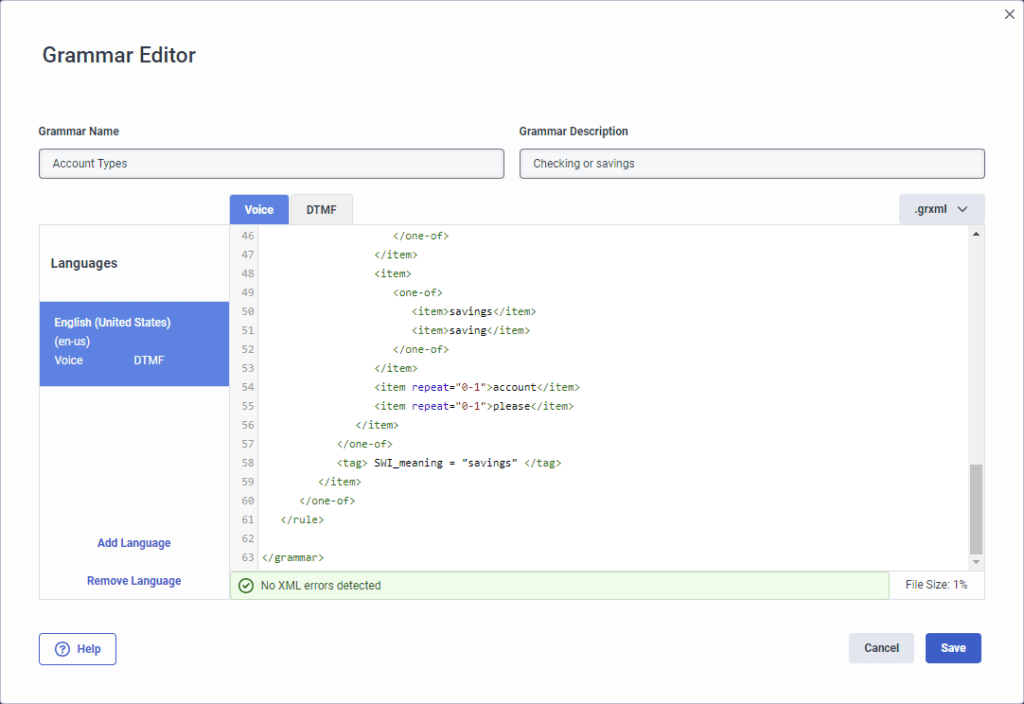
Grammar Editor for voice
To add an uncompiled grammar to Architect, follow these steps:
Note: For more information about size limits for grxml files, see the limit
grammars.grxml.upload.bytes.max in Limits in the Genesys Cloud Developer Center.- Click Admin.
- Under Architect, click Architect. Architect opens in a new tab.
- Click Menu > Orchestration > Architect. Genesys Cloud opens Architect in a new tab.
- Click Grammars.
- Click Add. The Create New Grammar dialog box opens.
- Under Grammar Name, give your grammar a meaningful name.
- (Optional) Under Grammar Description, add descriptive details about the grammar. For example, “recognize 4 to 8 digits.”Note: You can add descriptive language here or you can add it later in the Grammar Editor.
- (Optional) Click the Starting Language and select the initial language that you want the grammar to use.Note: You can leave the starting language set to None, but you must add at least one language in the Grammar Editor before you can use the editor.
- Click Create. The Grammar Editor opens.
- To add one grammar language at a time, follow these steps:
- Click Add Language.
- From the Select Language dialog box, choose another language for the grammar to use.
- Repeat steps a-b to add another language.
- Depending on the type of grammar that you want to add, click one of the following tabs. You can have both voice and DTMF configured for a language:
- DTMF
- Voice
- Add the GRXML content from Nuance Recognizer ASR grammar into the editor.Note: If the grammar passes XML validation, then a green message appears, letting you know that the grammar is free of errors. If a red message appears, then Architect lets you know the location in the GRXML that the error or errors exist. Architect only indicates whether a supplied GRXML file is valid XML without syntactical XML issues, which does not guarantee that the file is a valid grammar file.
- Click Save. Note: If you attempt to save the grammar without correcting errors, the XML Error dialog box opens and asks you to confirm that you want to proceed.
To add a precompiled grammar to Architect, follow these steps:
Notes:
- For more information about size limits for gram files, see the limit
grammars.gram.upload.bytes.maxin Limits in the Genesys Cloud Developer Center. - You can upload one grammar file for each mode (DTMF and voice).
- You cannot edit the precompiled grammar file in the Grammar Editor.
- Click Admin.
- Under Architect, click Architect. Architect opens in a new tab.
- Click Menu > Orchestration > Architect. Genesys Cloud opens Architect in a new tab.
- Click Grammars.
- Click Add. The Create New Grammar dialog box opens.
- Under Grammar Name, give your grammar a meaningful name.
- (Optional) Under Grammar Description, add descriptive details about the grammar. For example, “recognize 4 to 8 digits.”Note: You can add descriptive language here or you can add it later in the Grammar Editor.
- (Optional) Click the Starting Language and select the initial language that you want the grammar to use.Note: You can leave the starting language set to None, but you must add at least one language in the Grammar Editor before you can use the editor.
- Click Create. The Grammar Editor opens.
- To add one grammar language at a time, follow these steps:
- Click Add Language.
- From the Select Language dialog box, choose another language for the grammar to use.
- Repeat steps a-b to add another language.
- Depending on the type of grammar that you want to add, click one of the following tabs:
- DTMF
- Voice
- Select .gram and click Select File to import a precompiled grammar file that you generated externally.
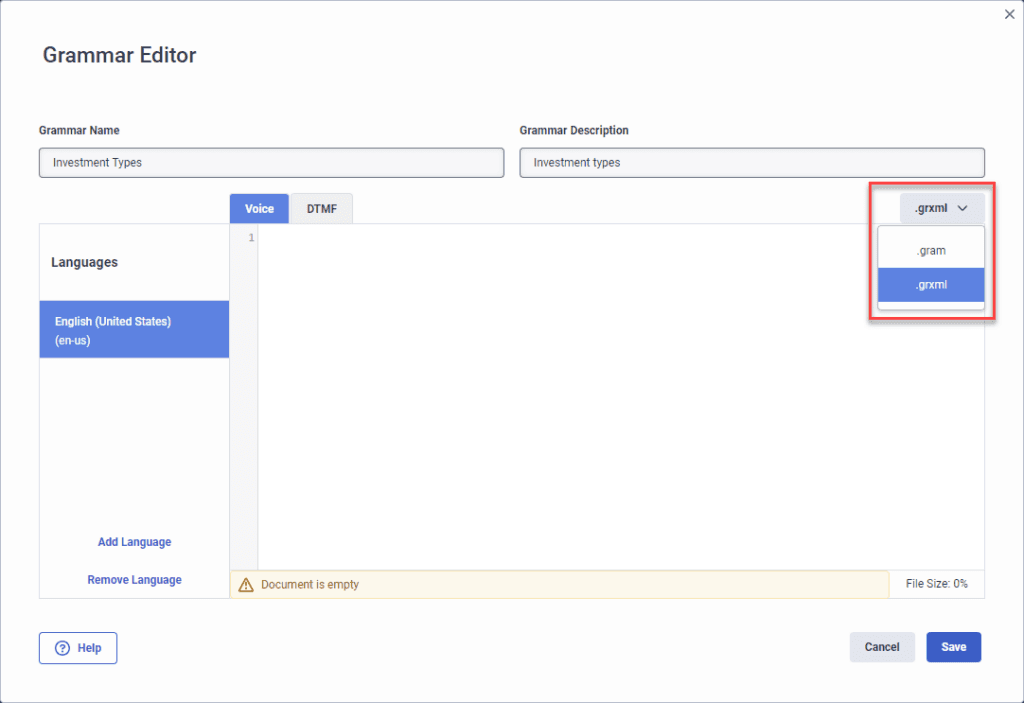
- The Add A Grammar File dialog box opens. To select the file that you want to import, click the example file field.
- Click Remove File to remove the imported grammar file or click Save to save the imported grammar file.
[NEXT] Was this article helpful?
Get user feedback about articles.