Call controls in Omni-Channel
Agents can answer inbound calls and make outbound calls in the Omni-Channel. The Omni-Channel widget in Salesforce Service Cloud Voice unifies voice calls with other service channels, enabling agents to manage all interactions in one place. It optimizes call routing, presence management, and integrates with Service Cloud features, improving agent efficiency and customer experience.
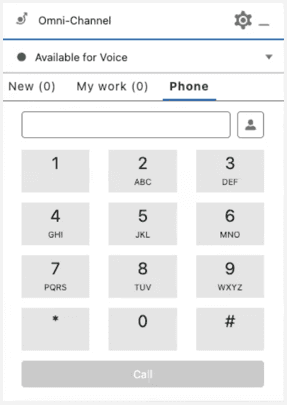
The Phone tab in the Omni-Channel offers the following common functions to manage the calls:
- Phone Book
- Hold
- Mute
- Blind Transfer
- Resume
- Add Caller
- Keypad
- End Call
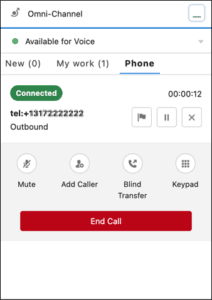
For more information about using the Omni-Channel, see Help Customers on the Phone in the Salesforce documentation.
Ensure that you follow these procedures when you use desk phone to handle the calls:
- The incoming call must appear in the Omni-Channel before you answer it on the desk phone. This sequence is necessary because the call record must be created in Salesforce before the call can be marked as connected.
- Always initiate the call transfer from the Omni-Channel and not from the desk phone. This action ensures that the voice call record is created in Salesforce.
Answer an incoming call
When an incoming call routes to you in the Omni-Channel, you can accept it manually or the system can connect it automatically if auto answer is configured.
Manual answer
When an incoming call alerts in the Omni-Channel, click Accept to connect the call.
Auto answer
If your administrator has configured auto answer for your queue, outbound campaign, or user level:
- The call connects automatically without requiring you to click Accept in the Omni-Channel.
- A notification appears immediately at the top of your console that displays the caller details:
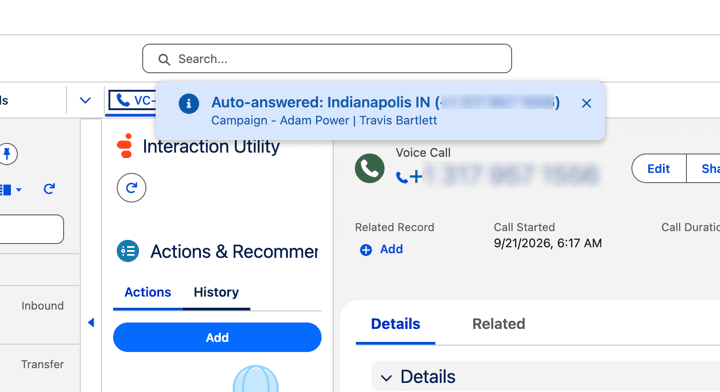
- You can begin speaking with the customer right away while the Salesforce Voice Call record and screen pop finish loading.
- To dismiss the alert banner, click Close on the notification.
Phone Book overview
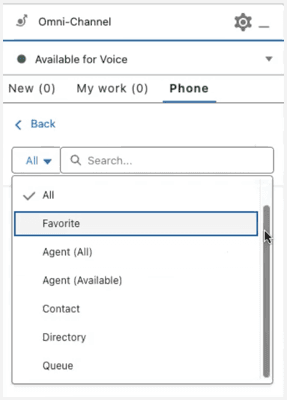
The Phone Book option available in the Omni-Channel widget for the contact center Lightning app helps agents to save time and effort by making quick calls to other agents or queues. The phone book facilitates smooth internal communication and allows agents to collaborate more effectively. The agents must have one of the following permissions to view the Phone Book option:
- External Contacts > Contact – View
- Routing > Queue – Search
- Conversation > Communication – Target
The phone book allows agents to make calls to other agents or queues using speed dial lists without needing a Direct Inward Dialing (DID) number and improves agent-to-agent communication.
The phone book displays a directory of agent and queue contacts. Agents can select and dial contacts directly.
[NEXT] Was this article helpful?
Get user feedback about articles.