Use an AWS KMS symmetric key for conversations
AI-generated summary
Genesys Cloud supports encryption of customer secured conversation data using AWS KMS symmetric keys managed within customer AWS accounts. The encryption implementation requires customers to create a customer-managed symmetric key in AWS KMS configured for encryption and decryption operations, with a key policy granting Genesys Cloud access using the account ID 765628985471 for Core/Satellite regions (or the appropriate FedRAMP region account ID) and including a condition restricting requests to specified Genesys Cloud organization IDs.
Configuration is performed through the Genesys Cloud interface by navigating to Menu > Conversation Intelligence > Recording and Policies > Encryption Keys, selecting the Conversations tab, and choosing AWS KMS Symmetric as the Key Configuration Type. Users must enter the key alias ARN in the specified format (arn:aws:kms:{region}:{accountId}:alias/{your-alias}). The system includes a test function that validates configuration by generating a data key pair, encrypting test data, decrypting it, and verifying data integrity before saving.
Key operational considerations include: key rotation requires up to 2 hours for new keys to take effect in Genesys Cloud; previous keys must be retained for at least 31 days to maintain decryption capability for existing encrypted conversation data; and encryption can be disabled by selecting None from the Key Configuration Type list. Required permissions include Conversation > Encryption key – Edit and Conversation > Encryption key – View permissions.
Genesys Cloud provides a feedback mechanism for documentation quality assessment, allowing users to report issues such as inaccurate, incomplete, or outdated content, as well as positive feedback regarding clarity and usefulness. The feedback form captures user role information and requires acknowledgment of the Genesys Cloud privacy policy. The system offers suggested related articles covering quality management, Architect functionality, data security actions, script management, script variables, and JSON value handling, enabling continuous documentation improvement while maintaining privacy compliance.
- Conversation > Encryption key – Edit permission
- Conversation > Encryption key – View permission
Symmetric keys managed in AWS KMS can be configured to encrypt and decrypt customer secured conversation data. Genesys Cloud generates data keys from your symmetric key in KMS. Customer secured conversation data is encrypted with these data keys. To decrypt conversation data, Genesys Cloud makes a request to KMS to decrypt the relevant data key. After the request is authorized, the data is decrypted.
- Create a customer managed key in your AWS account.
- Set the key type to Symmetric.
- Set the key usage to Encrypt and decrypt.
- Edit the key policy to grant access to Genesys Cloud, so Genesys Cloud can access your KMS keys. Use 765628985471 (Core/Satellite regions) for the account ID. If needed, please contact your Genesys representative for the FedRAMP region [US-East-2] account ID.
- Edit the key policy to include a statement to only allow requests that initiate from your Genesys Cloud organizations.
The following is an example of the key policy statement:
{
     "Sid": "Allow use of the key",
     "Effect": "Allow",
     "Principal": {
         "AWS": [
              "arn:aws:iam::765628985471:root"
         ]
     },
     "Action": [
         "kms:Encrypt",
         "kms:Decrypt",
         "kms:GenerateDataKey*",
         "kms:DescribeKey"
     ],
     "Resource": "*",
     "Condition": {
          "StringEquals": {
                 "kms:EncryptionContext:genesys-cloud-organization-id": ["orgId1", "orgId2", ...]
        }
     }
}- Click Admin > Quality > Encryption Keys.
- Click Menu > Conversation Intelligence > Recording and Policies > Encryption Keys.
- Select the Conversations tab and click Edit.
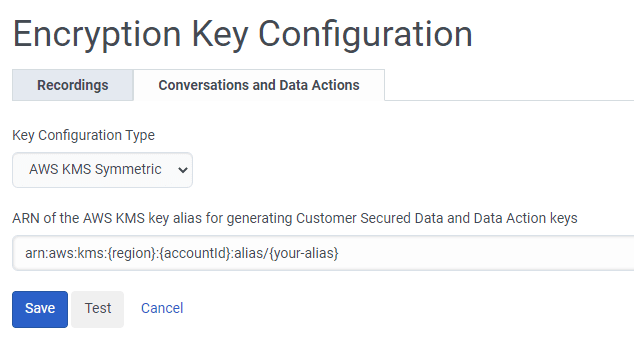
- From the Key Configuration Type list, select AWS KMS Symmetric.
- Enter the alias ARN associated with your KMS key in the ARN of the AWS KMS key alias for generating Customer Secured Data key text box.
The key alias ARN can be found in the AWS KMS console. It should look like “arn:aws:kms:{region}:{accountId}:alias/{your-alias}”. - Click the Test button to validate your configuration without saving it. The test generates a data key pair from your specified KMS key, encrypts the test data, decrypts it, and then asserts that test data came out the same as it started. This test helps to ensure that the configuration is safe to use.
- Click Save to save your configuration.
Click the image to enlarge.
Note:
- To stop encrypting sensitive conversation data, select None from the Key Configuration Type list and click Save.
This action removes your encryption key configuration for conversations. - When you rotate to a new key, it takes up to 2 hours for the new key to take effect in Genesys Cloud.
- Save the old key for at least 31 days, so that existing customer secured conversation data can continue to be decrypted.
[NEXT] Was this article helpful?
Get user feedback about articles.