Configure bot flow settings
AI-generated summary
Genesys Cloud's bot flow settings enable configuration of confirmation messages and management of dynamic elements within bot conversations through three key functional areas: intent confirmations, dynamic list slot types, and dynamic timeslots. The Voice Processing feature allows administrators to configure audio prompts that fill silence while the large language model generates bot responses, with configurable initial playback delay and minimum playback time parameters measured in seconds or milliseconds. Intent confirmations can be set up for each configured intent using existing audio prompts, text responses, or custom communication sequences to acknowledge user inputs. Dynamic list slot types and dynamic timeslot configurations can be viewed and modified through dedicated interface sections. Voice processing prompts configured in bot flow settings override those specified in Call Guide actions. All settings are accessible through the Bot Flow menu in the Settings interface, providing flexible management of bot response behavior and user communication sequences.
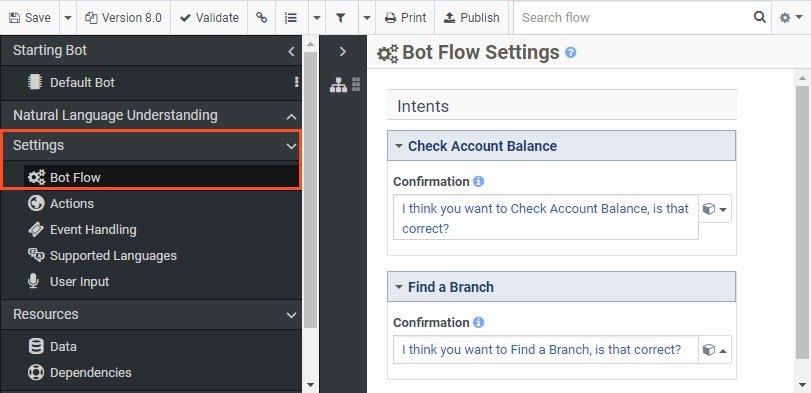
In the Settings menu, click Bot Flow to view and edit the available confirmation messages for intents, dynamic list slot types, and dynamic timeslots.
Use a voice processing prompt to fill any silence that the participant hears while waiting for the large language model (LLM) to generate the bot prompts. These prompts provide audio during long periods of silence in the conversation and are similar to the typing indicators that participants see in digital bots.
Configure the default voice processing prompt
- In the Bot Flow Settings view, click the arrow next to Voice Processing.
- In the Voice Processing Prompt field, select the Literal expression mode and then select one of the available system or user prompts. For more information about prompts in Architect, see Prompts overview.
- (Optional) Click Add new prompt if you want to add a new prompt to the list. For more information about prompt creation, see Configure prompt resources.
- In the Initial Playback Delay field, set the delay duration until which the bot waits before playing the prompt, in seconds or milliseconds depending on the selected time unit.
- In the Minimum Playback Time field, set the minimum length of time that the bot must play the voice prompt, in seconds or milliseconds depending on the selected time unit.
Note: The voice processing prompt that you configure in the bot flow settings overrides the voice processing prompt that is specified in the Call Guide action.
Set up or select the confirmation message for each configured intent. A confirmation is the message a bot sends to confirm that it understands the user’s intent. For each intent, in the Confirmation field select an existing audio prompt or text, or create a communication sequence that the bot sends to confirm that it understands the user’s intent.
Click the image to enlarge.
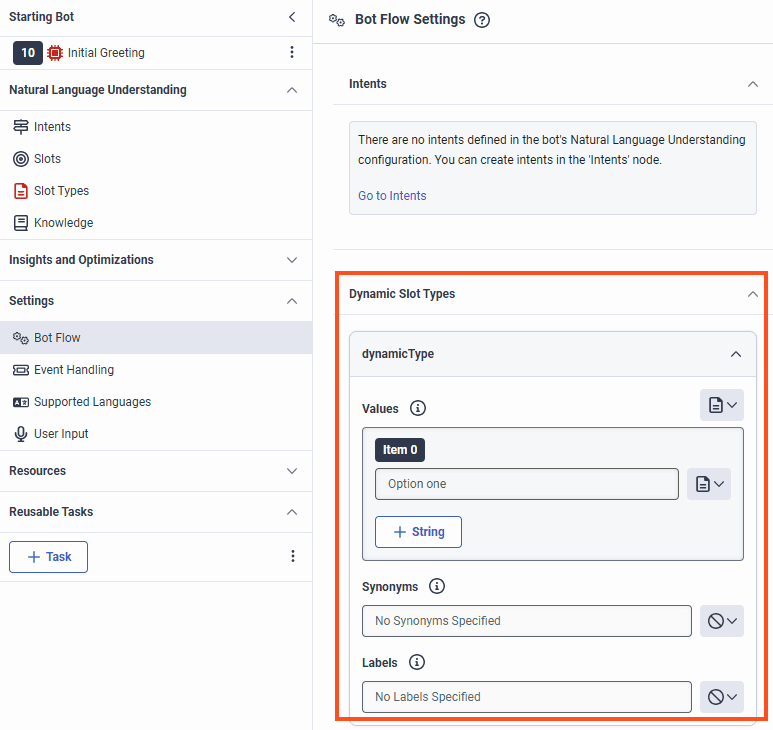
View and update the available dynamic list slot types.
Click the image to enlarge.
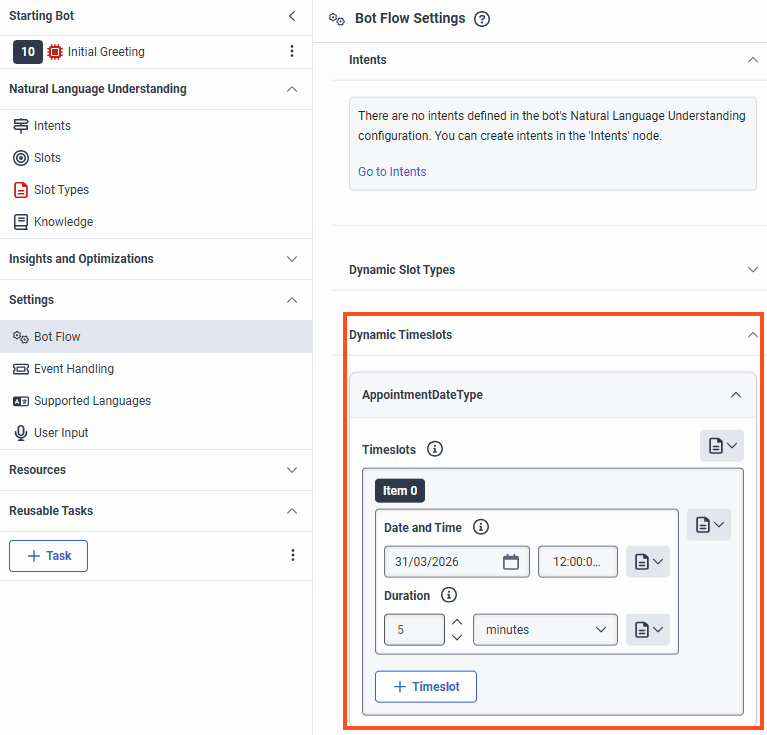
View and update the available timeslot slot types.
Click the image to enlarge.
[NEXT] Was this article helpful?
Get user feedback about articles.