Configure ACD messaging for X (Twitter) Direct Messaging
AI-generated summary
Genesys Cloud ACD messaging enables customers to interact with agents through X (Twitter) Direct Messages, requiring a Genesys Cloud CX license (versions 2, 3, or 4, or Digital Add-on II) and appropriate Messaging > Twitter permissions. Users must configure both their X business account and Genesys Cloud to enable this functionality.
X account configuration requires accessing Settings and Privacy, then Privacy and Safety settings, and modifying Direct Messages to allow message requests from everyone. Within Genesys Cloud, users navigate to Menu > Digital and Telephony > Message > Platform Integrations to create a new X integration, assigning an integration name and selecting an integration size that determines daily outbound message capacity: Entry (200 messages/day, single integration only), Small (1,000 messages/day), Medium (3,000 messages/day), or Large (9,000 messages/day). Users may optionally specify a content profile and platform configuration before saving the integration and providing X account credentials for authorization.
X integration configuration, message flows can be configured within Architect. The documentation acknowledges that third-party application configurations are subject to change by the provider and recommends reviewing third-party official documentation to ensure compliance with current processes. A feedback mechanism is available for users to report issues such as inaccurate or incomplete information, outdated content, or unclear presentation, as well as provide positive feedback regarding task completion and content quality. The feedback form requires users to specify their role and includes email contact and privacy policy acknowledgment options. Related topics encompass messaging capabilities, third-party messaging integration, messaging pricing, messaging , conversation management for inactive sessions, platform integration creation, and message interaction handling
- Genesys Cloud CX 2, Genesys Cloud CX 3, Genesys Cloud CX 4, Genesys Cloud CX 2 Digital, Genesys Cloud CX 3 Digital, or Genesys Cloud CX 1 Digital Add-on II license.
- All permissions under Messaging > TwitterIntegration
- An X account set to allow direct messages from everyone.
Genesys Cloud ACD messaging provides a way for your customers to use X (Twitter) Direct Message to interact with agents who are using Genesys Cloud. To configure ACD messaging for X (Twitter), perform the following steps:
Before you can configure ACD messaging for X, you must have an X account for your business and it must be set to receive direct messages from everyone.
To set your X account to receive direct messages from everyone, perform the following steps:
- Log in to your X business account.
- Select More in the on the left side menu to access Settings and Privacy option.
- From the menu, select Settings and privacy.
- And then, select Privacy and safety.
- Under Privacy and Safety, click Direct Messages.
- Under Direct Messages, in the Allow message requests from field, select Everyone.
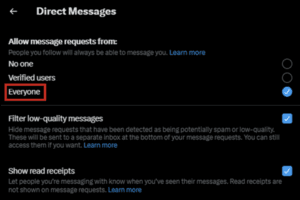
To configure ACD messaging, perform the following steps:
- Click Admin.
- Under Message, click Platforms.
- Click Menu > Digital and Telephony > Message > Platform Integrations.
- Click the Create New Integration button.
- Click the X tile.
- In the Name box, type a name that you want to assign to your integration.
- In the Integration Size section, select the integration size. You can choose any one of the following integration sizes:
- Entry – If you select this option, there is a cap of 200 outbound direct messages a day per X integration. You can select only one integration at entry level.
- Small – If you select this option, there is a cap of 1000 outbound direct messages a day per X integration.
- Medium – If you select this option, there is a cap of 3000 outbound direct messages a day per X integration.
- Large – If you select this option, there is a cap of 9000 outbound direct messages a day per X integration. Note: Select the appropriate size for your integration as the pricing differs based on the selection you make.
- (Optional) In the Supported Content Profile field, select the content profile.
- (Optional) In the Platform Config field, select the configuration.
- Click Save.
- The X login dialog box appears. Enter your credentials.
- Click Log In. Note: If there is an authorized account already available and it is the account that you want to use for integration, continue to the next step. If it’s not the account you want to authorize, click the account name, which will redirect to x.com and log out of the account. Navigate back to Genesys Cloud and start at step 1 to create the integration.
- Click Authorize app.
After you configure the X integration, you can configure message flows in Architect. For more information, see Inbound message flows overview.
Disclaimer: The third-party application configuration information in this article is provided as general instruction and is subject to change by the third party. Best practice recommends that you review the third-party’s official documentation to confirm that you follow the most recent process.
[NEXT] Was this article helpful?
Get user feedback about articles.