Genesys Tempo for Android running late requests
How do I create a late explanation?
To notify your manager that you are running late, to the upper right, tap Running late .
What are the categories under which I can submit a running late request?
You can submit a running late request for your next work activity, such as Meeting, On Queue, Off Queue or Training Activity categories. If you submit a running late request before an activity of Category Break or Meal, the request takes effect at the beginning of the next scheduled work activity.
Why is the running late icon unavailable after submitting a request?
After you submit a running late request, you cannot submit another one for the same activity. The icon is enabled when a work-time activity occurs within the next four hours and the activity will not have a running late request applied. After you submit five late explanations in a single day, the icon is unavailable.
How do I know the status of my running late request?
- Pending requests appear in gray.
- Accepted requests appear in green.
- Rejected requests appear in red.
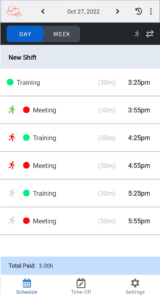
Explanations can be in between:
- One and 240 minutes long.
- Four hours in the past and up to 24 hours into the future.
[NEXT] Was this article helpful?
Get user feedback about articles.