FAQs: Unified Experience from Genesys and ServiceNow
Does Unified Experience from Genesys and ServiceNow support voice transcription?
Yes. When your Genesys Cloud organization is configured for voice transcription, live transcripts of voice interactions are published to ServiceNow automatically. During a call, utterances from both the agent and the customer appear in the active call viewer in the ServiceNow agent workspace within a few seconds. Each utterance is labeled with the speaker.
Transcription starts for all calls, with no action from the agent. When the call disconnects, the transcription ends and the interaction record in ServiceNow closes. After the call, the transcript is available in the Internal Transcript section of the interaction record.
In your Genesys Cloud organization, configure voice transcription with the Low Latency Transcription option enabled. For more information, see Speech and text analytics and Configure voice transcription.
- When a call is transferred, anything that the first agent says just before the transfer appears in the transcript as spoken by the agent who receives the call.
- After the call ends, the Internal Transcript section can display a ‘-‘ while the transcript loads. To view the post call transcript in such scenario, refresh the page.
How can I use the test values in ServiceNow UI Builder to allow record pages to be edited?
To allow the record paged to be edited in ServiceNow:
- In ServiceNow, navigate to All > Now Experience Framework > UI Builder.
- Select the Experience tab and click CSM/FSM Configurable Workspace.
- Under the Record page, click the interaction record page to open.
- Click the Edit parameter test values icon.
- In the Edit test values for URL parameters, enter the following information:
- table – Select interaction from the list.
- sysid – Select a record from the interaction list.Note: You can select any interaction from the list. If there are no interactions to select from, then click Use new record to create a placeholder record. For more information, see Test values in a page.
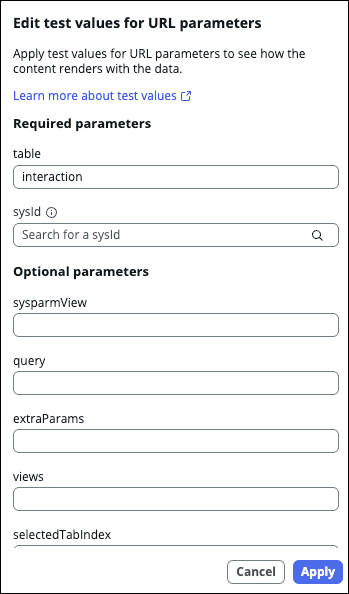
- Click Apply.
Can I record an agent’s screen when they handle interactions in ServiceNow using Unified Experience from Genesys and ServiceNow?
Yes, as an administrator you can deploy the Genesys Cloud Background Assistant (GCBA) for screen recording that supports the Unified Experience from Genesys and ServiceNow integration.
To enable screen recording, you must install and configure the Unified Experience from Genesys and ServiceNow integration as documented here. This configuration is necessary regardless of whether the interaction is voice-only, voice and digital, or digital-only.
For more information, see About Unified Experience from Genesys and ServiceNow.
For more information about screen recording, see Genesys Cloud Background Assistant (GCBA) overview and About screen recording.
How can I get the queue ID for my ServiceNow integration in Genesys Cloud?
To obtain the queue Id for your Genesys Cloud integration with ServiceNow:
- In Genesys Cloud, navigate to Admin > Contact Center > Queues Menu > User Management > Queues .
- Select the queue for which you want to get the queue Id.
- Examine the URL in your browser’s address bar. The URL is of the format:
https://<Genesys_Cloud_region>.com/directory/#/admin/organization/queues/bc28aed5-1159-4204-95b1-58c81acd5f3b/general
- Locate the queue Id which is a unique string of characters. For example, bc28aed5-xxxx-4204-95b1-xxxx1acd5f3b is the queue Id in the given URL.
For more information, see Set up the integration for ServiceNow.
Where can I find the integration ID for my ServiceNow integration in Genesys Cloud?
To obtain the integration Id for your Genesys Cloud integration with ServiceNow:
- In Genesys Cloud, navigate to Admin > Integrations Menu > IT and Integrations > Integrations .
- Search for the Unified Experience from Genesys and ServiceNow integration and open it.
- Examine the URL in your browser’s address bar. The URL is of the format:
https://<Genesys_Cloud_region>.com/directory/#/admin/integrations/apps/unified-experience-from-genesys-and-servicenow/72b501eb-xxxx-4d07-a9d2-xxxxca0271b0/details/properties
- Locate the integration Id which is a unique string of characters. For example, 72b501eb-xxxx-4d07-a9d2-xxxxca0271b0 is the integration Id in the given URL.
For more information, see Set up the integration for ServiceNow.