View your clients
AI-generated summary
Genesys Cloud provides a Clients viewing feature accessible through the platform's menu system for authorized users. To access this functionality, users must possess specific permissions including Affiliate Organization > Clients > View, External Contacts > External Organization > View, and Authorization > Org Trustee > View permissions. Additionally, users must be authorized Genesys Cloud resellers or technology partners with the Partner product enabled in their organization, and must maintain authorized user status in at least one Genesys Cloud organization. The Clients feature is accessed by navigating to Menu > IT and Integrations > Clients within the Genesys Cloud interface. This capability enables viewing of client information and is part of a broader set of client management features that include viewing, editing, deleting, and restoring OAuth clients, as well as accessing the Clients dashboard and viewing authorized OAuth clients
- You must have a role with the following permissions:
- Affiliate Organization > Clients > View
- External Contacts > External Organization > View
- Authorization > Org Trustee > View
- You must be an authorized Genesys Cloud reseller or technology partner.
- The Genesys Cloud organization must have the Partner product enabled for the organization.
- You must be an authorized user in at least 1 Genesys Cloud organization.
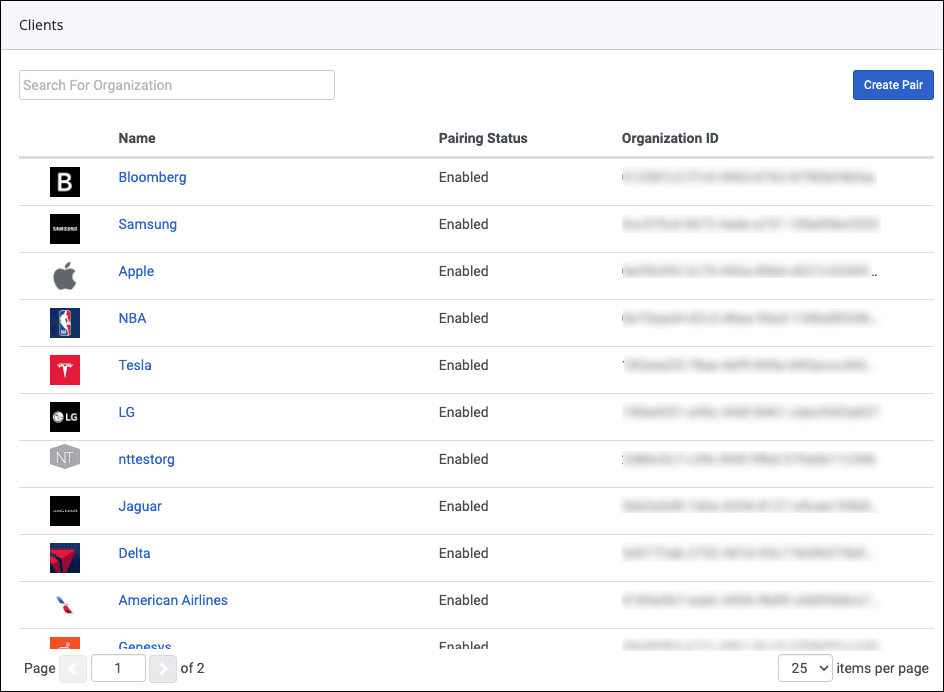
From the Genesys Cloud menu, click Clients.
In Genesys Cloud, navigate to Menu > IT and Integrations > Clients.
[NEXT] Was this article helpful?
Get user feedback about articles.