View Genesys Cloud object dependencies for integrations, data actions, and flows
Genesys Cloud objects such as integrations, data actions, and Architect flows often depend on one another. Before you modify or remove an object, you need to understand what else it affects. Object dependency tracking lets you view the relationships and downstream dependencies of a specific object, including indirect, multi-level connections, so you can determine whether it is safe to change or delete.
For example, an integration can be associated with several data actions, which in turn are referenced in Architect flows. From the integration, you can trace the full chain of dependent objects to confirm that nothing active relies on it before you remove it.
The key benefits are:
- Prevent service disruption – Identify all downstream objects that rely on a specific integration or data action before you delete or modify it.
- Multi-level visibility – See not only direct dependencies (first-order) but also indirect dependencies (second-order and beyond). For example, view the Architect flows that depend on a data action, which in turn depends on a specific integration.
- Confident cleanup – Confirm that unused integrations, data actions, or other objects are not referenced anywhere in your configuration.
To view dependencies for any integration:
- Click Menu > IT and Integrations > Integrations.
- Select the integration that you want to inspect.
- Click the Connections tab.
- The Connections tab displays the following information:
- Supported object types – Displayed at the top of the tab that indicates the object types shown in the connections view. For example, Data Action, Integration, Credential.
- Requires – Objects that this integration depends on (for example, a credential it uses). The count of direct dependencies is shown in parentheses.
- Required by – Objects that depend on this integration (for example, data actions that use this integration). The count of dependents is shown in parentheses.
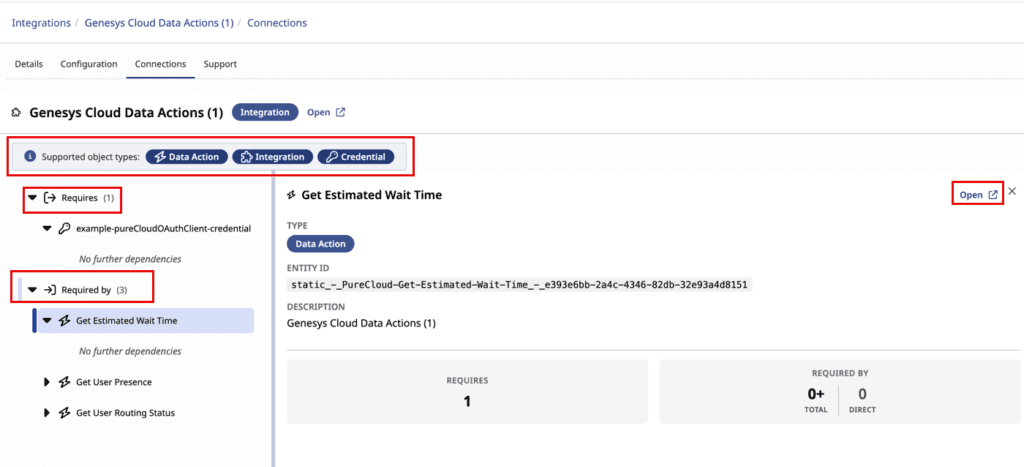
- Expand any item in either of the sections to view further details.
- Click an object in the list to open its detail panel on the right side. The panel shows:
- Type – The object type (for example, Credential, Data Action, Integration).
- Entity ID – The unique identifier of the object.
- Description – A brief description of the object.
- Requires / Required by summary – A count of how many objects this dependent object itself requires or is required by (Total and Direct counts).
- Click Open in the detail panel to navigate directly to that object.
Check connections before deleting an integration
Before deleting an integration:
- Click Menu > IT and Integrations > Integrations.
- Open the integration and click the Connections tab.
- Review the Required by section. If active data actions or other objects are listed, they will be impacted if you delete the integration.
- Expand each dependent object to check whether it is still in use.
- Either reassign those dependent objects to a different integration, or confirm that they are no longer needed.
- After the Required by list is empty or all references have been addressed, proceed with the deletion.
[NEXT] Was this article helpful?
Get user feedback about articles.