Use a supplemental schema to build trigger conditions
When you define conditions for an event based trigger, you can select fields in the Event Schema section to generate the JSON Path for each condition. Some event topic schemas might define part of the event only as a generic object, with no information about the fields it contains. For example, in the v2.integrations.inbound.webhook.{id}.invocation topic, the body, headers, and query objects have no defined fields, because their content depends on what each webhook sends.
To select fields under an undefined object, load a supplemental schema. A supplemental schema is a JSON schema that describes the structure of one object in the event. After you apply it, its fields appear in the Event Schema section under that object, and you can select them to build conditions.
To load a supplemental schema:
- Click Menu > Orchestration > Triggers.
- Select the Event Based Triggers tab.
- Click Add Trigger.
- Enter a name and description for the trigger, and then click Add.
- Under Topic Name, select a topic. The schema of the selected topic appears in the Event Schema section.
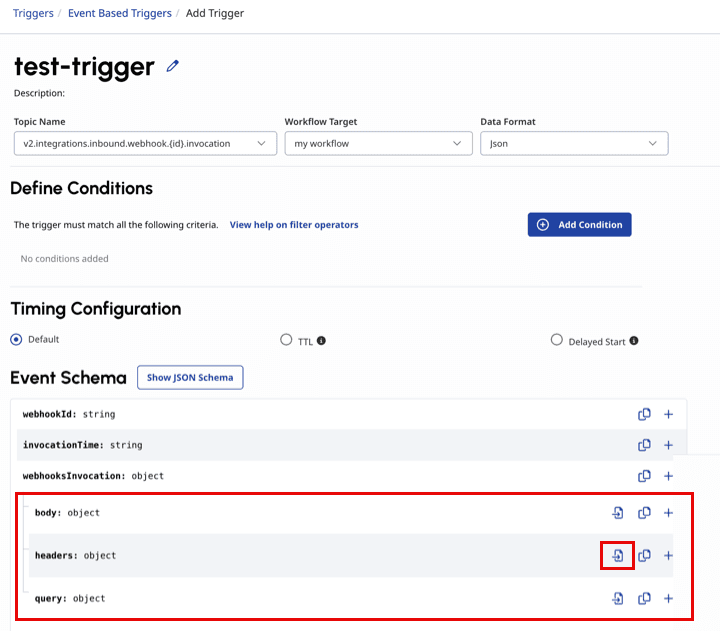 Load supplemental schema option while creating a trigger." class="alignnone size-full wp-image-435786" srcset="https://help.mypurecloud.com/wp-content/uploads/2026/10/event-schema-sup.png 720w, https://help.mypurecloud.com/wp-content/uploads/2026/10/event-schema-sup-300x263.png 300w" sizes="auto, (max-width: 720px) 100vw, 720px">
 - In the Event Schema section, locate the object whose fields you want to use. Objects without defined fields display the Load schema icon.
- Click the Load schema icon next to the object. The Load supplemental schema dialog box opens.
- In the JSON Schema box, paste a JSON schema that describes only the fields of the selected object, not the entire event.
- Click Apply.
If the schema is valid, its fields appear in the Event Schema section under the selected object.
Note: For an invalid schema, an error message describes the problem. Correct the schema, and then click Apply again.
To load supplemental schemas for other undefined objects, repeat steps 6-9. Thereafter, build the condition for the trigger as described in Create an event based trigger.
- Supplemental schemas aren’t saved with the trigger. When you reopen the trigger in a new browser session, the trigger conditions and JSONPaths remain unchanged and the Event Schema section shows only the topic schema. A warning appears for each condition whose JSONPath the schema can’t find. The warning doesn’t affect the trigger, and the trigger still invokes the workflow when an event meets the conditions.
- If you replace or remove a supplemental schema, Genesys Cloud doesn’t delete the conditions with the JSONPath that you created from it. Manually update the conditions.
- Maintain a copy of the supplemental schemas so that you can reload them when you edit the trigger.
[NEXT] Was this article helpful?
Get user feedback about articles.