Adjust times for shifts and activities in the schedule editor
Use the Adjust Times action to move the start times of multiple shifts and activities at the same time. By applying a single adjustment to multiple selected schedule items, supervisors can update schedules more efficiently. You can move selected items earlier, move them later, or move them to a specific date and time.
Select shifts and activities
You can use Adjust Times with the following selections:
- One shift
- Multiple shifts
- One activity
- Multiple activities
- A combination of shifts and activities
- One or more agent rows
When you select an agent row, Workforce Management (WFM) applies Adjust Times to the shifts associated with that row. For example, you can select an entire shift and one or more individual activities and apply the same adjustment to all selected items. WFM treats the selection as a single adjustment operation and updates all selected items simultaneously.
To select multiple schedule items, perform the following steps:
- Click Menu > Workforce Management > Scheduling > Schedules.
- In the Schedule Editor page, open a schedule.
- In the schedule, click the first shift or activity.
- Press and hold Ctrl (Windows), Command (Mac), or Shift.
- Click additional shifts and activities to add them to the selection.
- Release the key when you finish selecting items.
After you select the required shifts and activities, open the Select Action menu and click Adjust Times. Alternatively, press Shift+J to open the Adjust Times dialog. WFM applies the adjustment to all selected items simultaneously.
Navigate to the Adjust Times dialog box
To navigate to the Adjust Times dialog box, perform the following steps:
- Click Menu > Workforce Management > Scheduling > Schedules.
- In the Schedule Editor page, open a schedule.
- Select one or more shifts, activities, or a combination of both.
- Open the Select Action menu.
- Click Adjust Times.
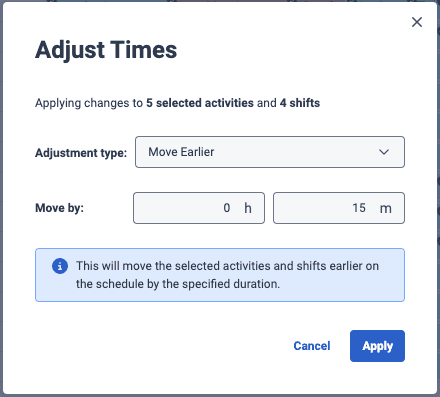
The Adjust Times dialog box displays a summary of the selected items and the available adjustment options.
Apply an adjustment
To apply an adjustment in the Adjust Time dialog box, perform the following steps:
- Navigate to the Adjust Times dialog box.
- Select one of the following adjustment types:
- Move Earlier: Move selected shifts and activities earlier by a specified duration. For example, move all selected items 15 minutes earlier to accommodate an operational change. When you move multiple items earlier, the system preserves the time difference between the selected items.
- Move Later: Move selected shifts and activities later by a specified duration. For example, move all selected items 30 minutes later to align with revised staffing requirements. When you move multiple items later, the system preserves the time difference between the selected items.
- Set to Specific Time: Move selected shifts and activities to a specific date and start time. Use this option when schedule items must begin at a known target time rather than move by a relative amount. When you select multiple items, the system moves all selected items to the specified start time.
- Enter the required adjustment value.
- Click Apply.
When you apply an adjustment, WFM:
- Updates the start times of all selected items.
- Preserves item durations.
- Updates end times automatically based on the new start times.
- Marks the schedule as having unsaved changes.
Linked activities
Some activities, such as meetings and training sessions, can be linked to activities scheduled for other agents.
Linked activities typically represent activities that are scheduled for multiple agents. When the selection includes one or more linked activities, WFM displays the Update impacted agent schedules? confirmation dialog box before applying the adjustment.
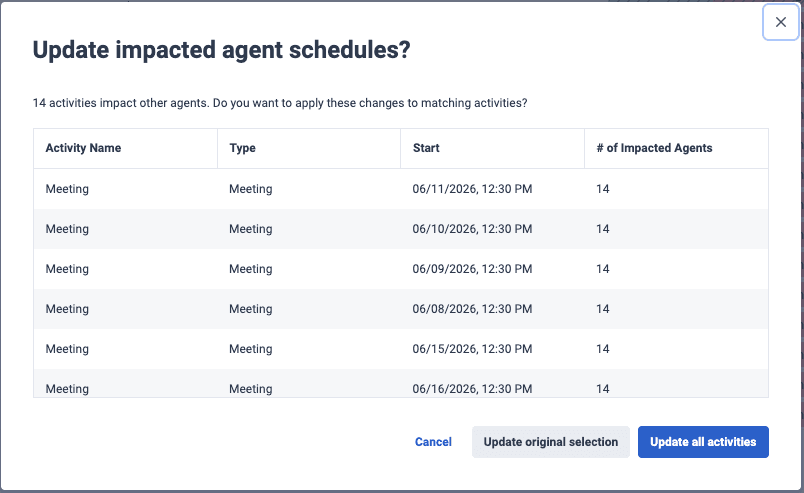
The Update impacted agent schedules? dialog box lists the linked activities and asks whether to apply the adjustment to linked activities assigned to other agents.
| Option | Result |
|---|---|
| Update All Activities | Applies the adjustment to the selected activities and all linked activities assigned to other agents. |
| Update Original Selection | Applies the adjustment only to the selected activities. Linked activities assigned to other agents remain unchanged. |
| Cancel | Closes the dialog without applying any changes. |
If the selection includes multiple linked activities, WFM applies the selected option to all affected linked activities.
External activities
Some activities are managed by external workforce management features, such as Coaching, Learning, Opportunities, and Activity Plans.
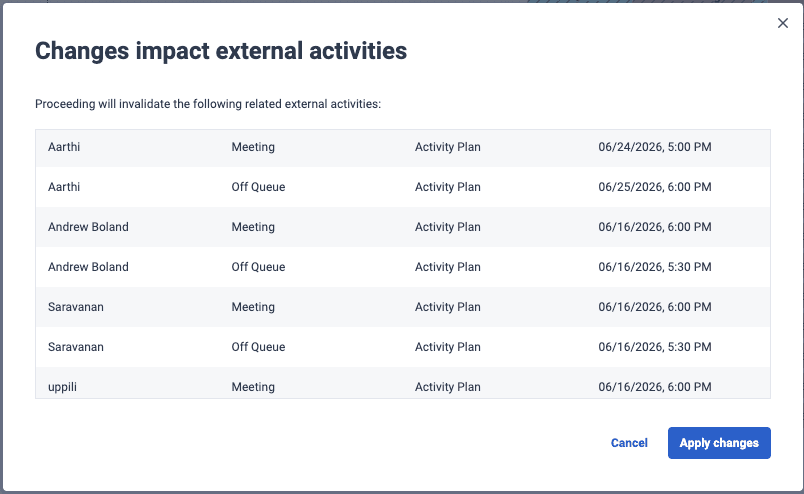
When the selection includes one or more external activities, WFM displays the Changes impact external activities confirmation dialog box before applying the adjustment.
 Changes impact external activities dialog box" class="alignnone size-full wp-image-423769" srcset="https://help.mypurecloud.com/wp-content/uploads/2026/06/03_External_Activities_Warning.png 804w, https://help.mypurecloud.com/wp-content/uploads/2026/06/03_External_Activities_Warning-300x184.png 300w, https://help.mypurecloud.com/wp-content/uploads/2026/06/03_External_Activities_Warning-768x472.png 768w" sizes="auto, (max-width: 804px) 100vw, 804px">
The Changes impact external activities dialog box identifies the affected activities and warns that the adjustment can affect external activity scheduling.
| Option | Result |
|---|---|
| Apply Changes | Applies the adjustment. |
| Cancel | Cancels the adjustment. |
If a selected activity is both a linked activity and an external activity, WFM displays the linked activity confirmation dialog first. After you respond to that dialog, WFM displays the external activity warning dialog box.
Validation rules
Before applying an adjustment, WFM validates all selected items. WFM does not apply an adjustment if it:
- Moves a shift or activity outside the schedule date range.
- Causes a shift to overlap another shift for the same agent.
- Results in no schedule change.
If validation fails, WFM displays a warning message and does not apply the adjustment.
Undo and redo actions
Adjust Times supports the standard Schedule Editor undo and redo actions. After you apply an adjustment, you can:
- Undo the adjustment.
- Redo the adjustment.
- Save the updated schedule.
- Discard the changes by leaving the schedule without saving.
[NEXT] Was this article helpful?
Get user feedback about articles.