View agent status in Genesys Cloud CX Utility
The Agent Status option in the Genesys Cloud CX Utility shows your current Genesys Cloud presence status and routing status, and how long you have been in each one. Use this option to monitor breaks, idle periods, and other time away from interactions without leaving Salesforce.
The Agent Status page is read-only. To change the availability, use the Salesforce Omni-Channel widget.
Presence status and routing status
Genesys Cloud tracks two separate statuses for each agent:
- Presence status shows your overall availability, such as On Queue, Break, Meal, Meeting, or Offline. Your organization can also define secondary presence statuses, which appear under their Genesys Cloud labels.
- Routing status shows your current routing activity while you are on queue.
Routing Status Description Idle You are on queue and available, but you are not handling an ACD interaction. Interacting You are on queue and handling an ACD interaction. Communicating You are on queue and handling a non-ACD interaction, such as a direct call. Not Responding You did not answer an interaction that was routed to you. Off Queue You are not on queue, so Genesys Cloud does not route interactions to you.
The two statuses change independently. For example, your presence can remain On Queue while your routing status changes from Interacting to Idle.
To view the agent status:
- Open the Genesys Cloud CX Utility. Click the icon and select Agent Status from the list.
- Review the information displayed.
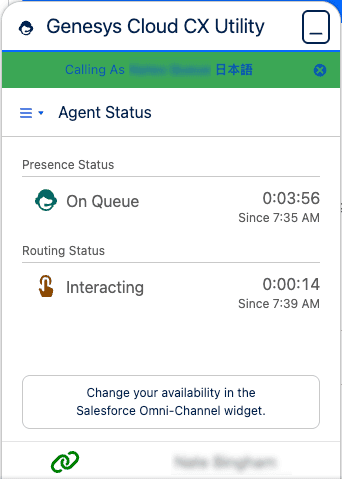
Item Description Presence Status Your current Genesys Cloud presence status, its icon, and how long you have been in that status. Routing Status Your current Genesys Cloud routing status, its icon, and how long you have been in that status. Since The local time at which each status began. This time appears below each timer. The timers use the H:MM:SS format.
- You can’t change your status from the Agent Status page. Use the Salesforce Omni-Channel widget instead.
- The Since time uses the time zone in your Salesforce settings, not your computer’s time zone. On shared workstations, VDI, or remote setups, the two can differ.
View your status in the utility title bar
When the utility window is minimized, the utility title bar shows your presence status and how long you have been in it, if your administrator turned on these options. For example, Genesys Cloud CX Utility - Available 20m.
The first part of the label is set by your administrator and may differ from the example. The label timer uses a compact format and shows only the units that apply:
| Time in status | Label examples |
|---|---|
| Less than 1 minute | < 1m |
| Under 1 hour | 20m, 30m, 10m |
| 1 hour or more | 1h 20m, 3h 40m, 1h 50m |
| 24 hours or more | 1d 3h 40m, 2d 4h 20m |
[NEXT] Was this article helpful?
Get user feedback about articles.