Manage activity plans
- Genesys Cloud CX 3, Genesys Cloud CX 4, Genesys Cloud CX 3 Digital, Genesys Cloud CX 1 WEM Add-on II, Genesys Cloud CX 2 WEM Add-on I, or Genesys Cloud EX license
- The following permissions:
- Workforce Management > Activity Plan –Add, Edit, View, and Delete
- Workforce Management > Activity Plan Run Job – Add and View
- Workforce Management > Activity Plan Occurrence Deletion Job – Add and View
- Workforce Management > Activity Plan Deletion Job – Add and View
- Workforce Management > Activity Plan Occurrence Session Deletion Job – Add and View
- Workforce Management > Activity Plan Occurrence Session User Deletion Job – Add and View
- Users > Rules – Search
You can perform the following actions from the Activity Plans page.
In the Activity Plans page, you can view the list of activity plans that are in active and inactive statuses. For more information about the fields in this page, see Navigate the activity plans.
In the Activity Plans page, you can view the list of activity plans that are in active and inactive statuses. For more information about the fields in this page, see Navigate the activity plans.
You can change the status of activity plans from active to inactive and from inactive to active. To change the status of an activity plan, perform the following steps:
- Click Admin.
- Under Workforce Management, click Activity Plans.
- Click Menu > Workforce Management > Scheduling > Activity Plans.
- From the Business Unit list in the upper right corner, select the business unit.
- To make an active plan inactive:
- In the Active Plan section, select the activity plan.
- In the Actions column, click the three dots icon to display the options.
- Click Make Inactive. The plan moves to the inactive plan section.
- To make an inactive plan active, perform the following steps:
- In the Inactive Plan section, select the activity plan.
- In the Actions column, click the three dots icon to display the options.
- Click Edit. The Activity Plan opens in edit mode and you can make the necessary changes.
- In the General tab, enable the Rule is Active toggle.
- Click Save. The Activity Plan is now active and is available in the Active activity plans section.
You can permanently delete an activity plan that is no longer required.
- You can delete only inactive activity plans.
- Deleting an activity plan permanently removes the activity plan and all associated future occurrences, sessions, and attendee assignments.
- Historical sessions that have already occurred remain available for reporting and adherence purposes.
- This action cannot be undone.
To delete an activity plan, perform the following steps:
- Click Menu > Workforce Management > Scheduling > Activity Plans.
- From the Business Unit list, select the appropriate business unit.
- In the Inactive section, locate the activity plan.
- In the Actions column, click More.
- Click Delete.
- Review the confirmation message and click Yes.
Workforce Management begins deleting the activity plan and all related future activity plan data. Depending on the size of the activity plan, the deletion process can take several minutes to complete.
While the deletion is in progress, a status indicator appears next to the activity plan. You can continue working in Genesys Cloud during processing; however, additional activity plan deletions are unavailable until the current deletion completes.
- Click Admin.
- Under Workforce Management, click Activity Plans.
- Click Menu > Workforce Management > Scheduling > Activity Plans.
- From the Business Unit list, in the upper right corner, select the business unit.
- In the Active Plan section, select the activity plan.
- In the Actions column, click to display the options.
- Click Edit. The Activity Plan page opens in edit mode with the following fields available for edits:
- In the Details tab, view fields that are only applicable to the activity. You can update the following fields:
- Name of the activity plan.
- Rule is active toggle.
- Description of the activity plan.
- Activity Code n the Details tab.
- Count as paid time.
- Session Type.
- In the Attendees tab, edit the include/exclude rules.
- In the Facilitators tab, edit the include/exclude rules.
- In the Scheduling Sessions tab, you can update the following fields:
- Length (Minutes)
- Maximum Simultaneous Sessions
- Maximum Number of Sessions
- Recurrence Ends. You cannot edit this field if, when you create the activity plan, the Recurring Activity toggle is set to off.
- Service Goal settings.
- Service Goal Overrides. For more information about service goal settings, see Service goal templates overview.
- Fields on the Session Availability tab.
- In the Details tab, view fields that are only applicable to the activity. You can update the following fields:
- Click Save Plan.
- The Save Plan dialog box is displayed. The existing sessions remain the same until the next schedule is generated.
- Select the Create sessions now on existing published schedules checkbox to confirm if sessions can be created on existing published schedules. The schedule with the updated activity plan is generated. You can also run the schedule for the updated activity plan at a later time.
For more information about the description of fields in the tabs, see Add a new activity plan.
Additionally, the Occurrence Violations field on the Occurrence Details page displays the number of violations associated with the occurrence. The system updates this field when changes affect:
- Maximum simultaneous sessions
- Maximum number of sessions
- Recurrence end dates
- Minimum time between occurrences
If you modify an existing session through the Schedule Editor, the system highlights the changes in the same manner described above. These warnings indicate a mismatch between the activity plan configuration and published sessions. If the changes are intentional, you can safely ignore the warnings.
- Click Admin.
- Under Workforce Management, click Activity Plans.
- Click Menu > Workforce Management > Scheduling > Activity Plans.
- From the Business Unit list in the upper right corner, select the business unit.
- In the Active Plan section, select the activity plan.
- In the Actions column, click the three dots icon to display the options.
- Click Copy icon. A copy of the activity plan is created and opens for edit. All fields are editable and can be changed as required.
For more information about adding a new activity plan, see Add a new activity plan.
- Click Admin.
- Under Workforce Management, click Activity Plans.
- Click Menu > Workforce Management > Scheduling > Activity Plans.
- From the Business Unit list in the upper right corner, select the business unit.
- Under the Rule Name column, click a link to proceed. The activity plan page displays with the schedule of the plan in a tabular format.
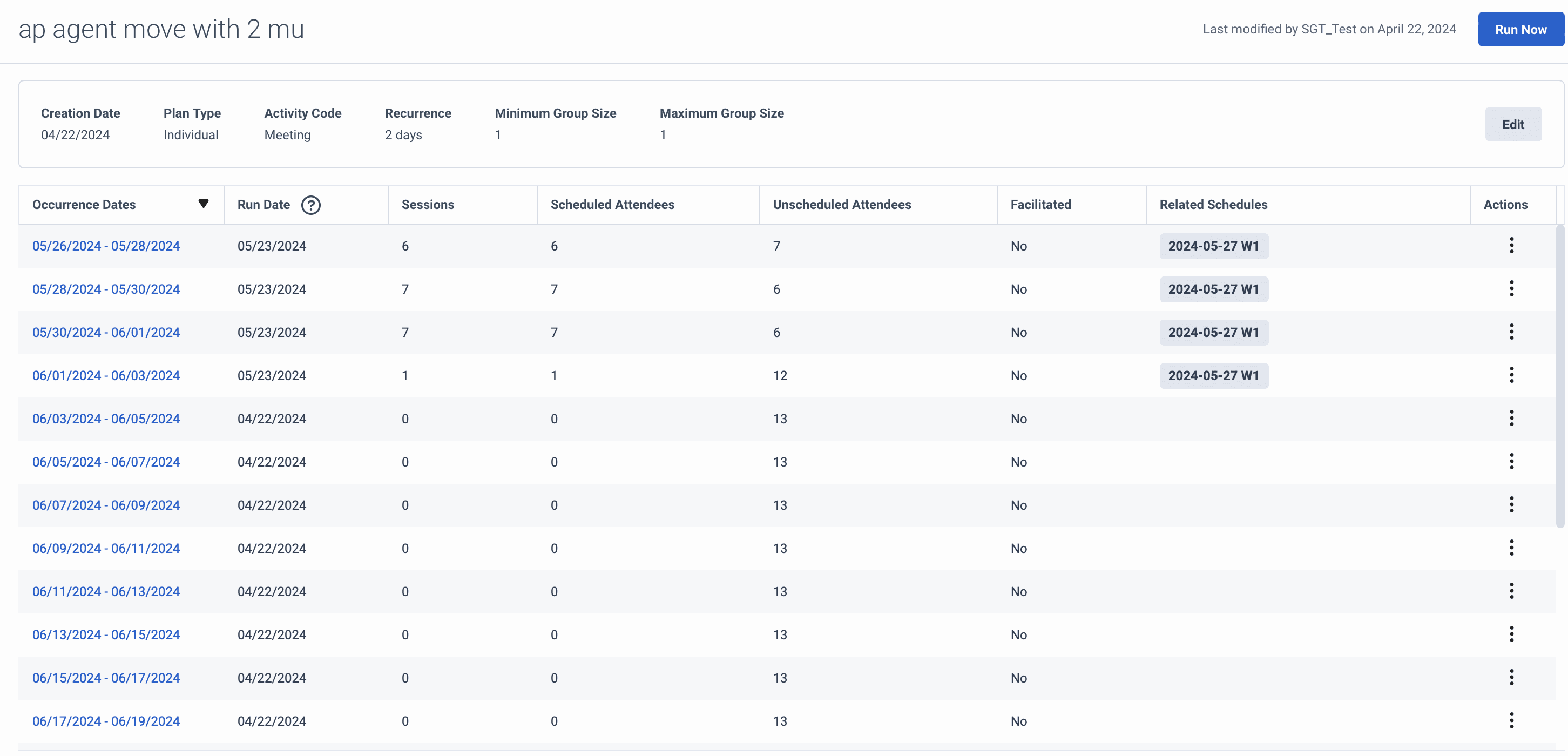
There are two ways to perform activity plans run.
- Use the Generate Schedule option to Run activity plans as part of a schedule generation: All active activity plans are considered as part of the normal generation process. It also displays additional details such as follows:
- Date
- Run Date
- Sessions
- Scheduled Attendees
- Unscheduled Attendees
- Facilitated
- Related Schedules
- Actions that you can use to delete the occurrence
- Click an occurrence to view the Occurrence Details page, which displays the details of the occurrence and the sessions generated:
- Date
- Start Time
- Schedule
- Published
- Scheduled Attendees
- Facilitator
- Actions that you can use to view the occurrence in a schedule and view the attendees by clicking the corresponding options
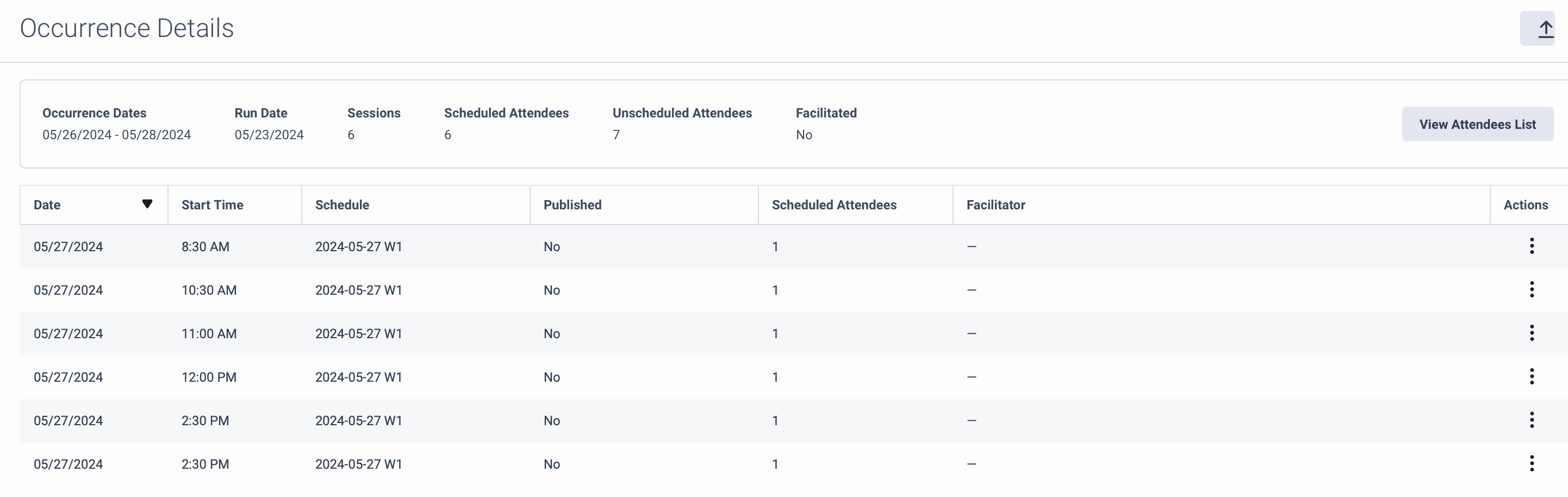
You can export these details to a .csv file and view the attendees list.
- Perform an ad hoc run.
- Ad hoc runs are for running a single activity plan against all published schedules in the future (up to 26 weeks).
- These runs can potentially take a while to complete, especially if they are updating many schedules in the future. A notification message displays that the activity plan run has started, and another notification displays when it is done.
- Ad hoc runs update published schedules directly.
You can delete one or more occurrences from an activity plan.
- Click Admin.
- Under Workforce Management, click Activity Plans.
- Click Menu > Workforce Management > Scheduling > Activity Plans.
- From the Business Unit list in the upper right corner, select the business unit.
- Under the Rule Name column, click a link to proceed. The Activity Plan with the occurrence details is displayed.
- Select one or more occurrences.
- Click Delete .
- Review the confirmation message and click Delete.
The selected occurrence is deleted. When you delete an occurrence, it impacts the dates and sessions on which the occurrence was present. The Activity Plan when published during the next scheduled run is updated with the changes made. The action cannot be undone.
You can delete one or more sessions from an occurrence. To delete one or more sessions, perform the following steps:
- Open an activity plan.
- Open the occurrence that contains the sessions.
- Select one or more sessions.
- Click Delete.
- Confirm the deletion.
Deleting a session removes the session and its attendee assignments from future schedules.
You can remove one or more attendees from a session. To remove attendees from a session, perform the following steps:
- Open an activity plan.
- Open the occurrence.
- Open the session.
- Click View Attendees.
- Select one or more attendees.
- Click Delete.
- Confirm the deletion.
Removing attendees updates future schedules and can result in activity plan violations if the session no longer satisfies activity plan requirements, such as minimum group size.
[NEXT] Was this article helpful?
Get user feedback about articles.