Change your status
When you change your status in either the client or Genesys Cloud, the change takes effect immediately in both applications.
To change your status in the client, follow these steps:
- Click Arrow in the upper-right corner of the client, or click your status at the bottom of the pane.
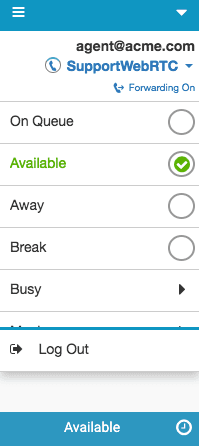
- Select a status.
- On Queue
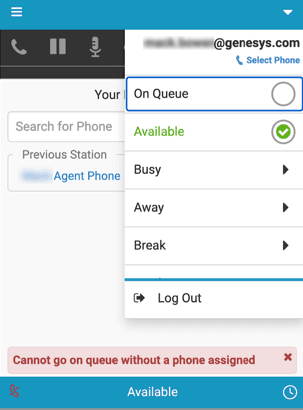
If you do not have the Telephony > Station > Disassociate Self permission and a phone is not selected, then the client displays the following message:
- Status other than On Queue while connected to an interactionNote: This status is available only when the administrator has enabled the Enable Requesting Off Queue setting in the Genesys cloud global organization setting. For more information, see Defer agent off-queue status until active interactions end.
If you select a status such as Break or Busy while you are connected to an interaction, your status changes to Requesting followed by the status you selected. For example, if you select Busy, your status changes to Requesting Busy.
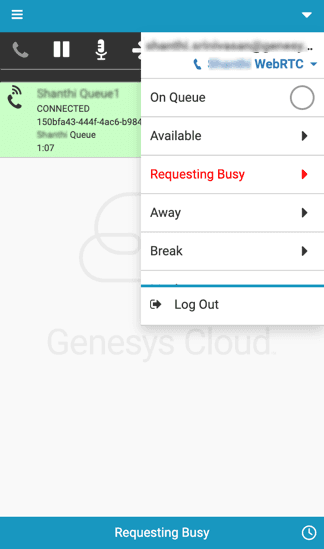
While your status is Requesting [status], no other interactions are forwarded to you and the following notification displays:
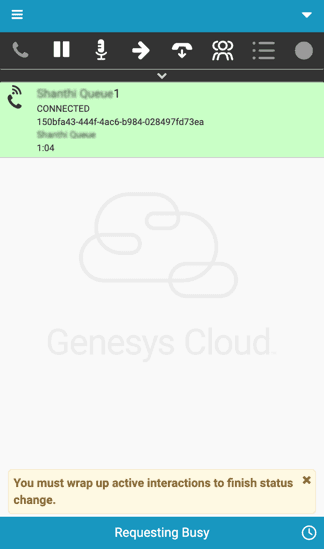
After you complete and wrap up your current interaction, your status automatically changes to the status you originally selected, such as Busy.
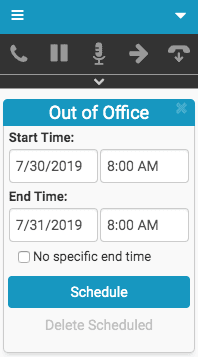
- Out of Office
- If you select Out of Office, set dates and times. To schedule Out of Office without an end date, select No specific end time.
- Click Schedule. Note: To cancel a scheduled Out of Office, click Delete Scheduled.
- On Queue
For more information, see Statuses.
For more information about the integrations, see About Genesys Cloud Embeddable Framework, About Genesys Cloud for Salesforce, About Genesys Cloud for Microsoft Teams, and About Genesys Cloud for Zendesk.
[NEXT] Was this article helpful?
Get user feedback about articles.